How to create and manage header blocks
You will learn
Learn how to use header blocks to easily create a navigation bar for reuse in all of your email templates. You have full control over how your headers will look on both desktop and mobile devices.
Add a header block and select a layout
- In an email template’s drag-and-drop editor, drag a Header bar block into your template.
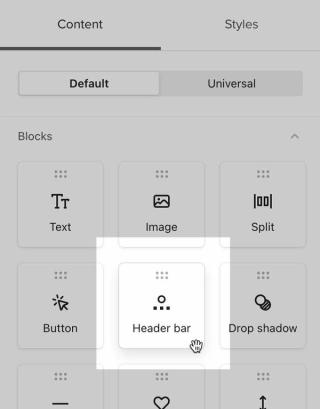
- Select the block. In Styles, choose a Desktop layout and Mobile layout.
- If your desktop layout includes a logo, select your Logo image and enter its Alt text and Link address.
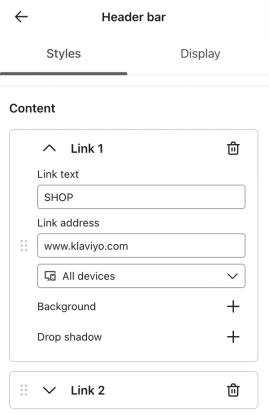
- In Content, open each link and enter its Link text and Link address. Click Add link to add more links, or click the trash can icon next to a link to remove it.
- Once you're satisfied with the appearance and content of your block, hover over the block and click the star icon to save it for future use.
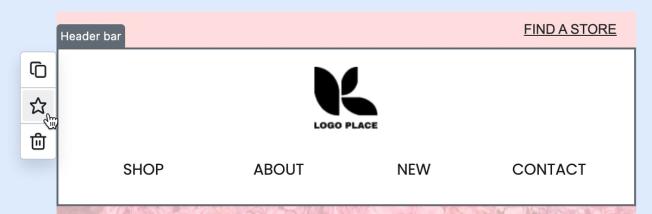
- Give your block a descriptive title like "Main Header Block," then click Create.
Reuse your header block
To reuse your header, open another email template, select Content > Universal, and drag the saved block into the template.
Edit a saved header block
When you publish edits to a universal header block, they apply to its other linked instances, including those in scheduled campaigns and live flows. Review where the block is used before publishing.
- Select the universal header block in your email template.
- Click Edit across all instances.
- Make your changes to the header’s layout or content.
- Click Publish changes. Review the affected templates and emails in the confirmation dialog, then click Save & publish.
To change only the header in your current template, select Unlink and edit independently before editing. That copy no longer receives updates from the universal header block.
For more ways to manage saved blocks and sections, see How to create and manage universal and saved content.
Additional resources
- How to create and manage universal and saved content
Learn how to create, edit, and use universal or saved content to reuse specific blocks or sections within a template and avoid duplicative work. For example, if you have a header or a footer that you use in all your email templates, you can save it to avoid recreating it from scratch in every new email.
- How to create a base template
Learn how to create a base email template in Klaviyo. Once you create a base template, you can use it across your campaigns and flows to speed up your building process and ensure your branding is consistent across messages.