How to add a countdown timer to an email
You will learn
Learn how to use countdown timers to add a sense of urgency to your emails. These work particularly well for flash sales, special promotions, or holiday messaging. Klaviyo does not have a built-in countdown timer feature, so you’ll need to use a third-party tool like MailTimers.
Generate a countdown timer
In this example, we’ll use a countdown timer generated through MailTimers. You can use any countdown timer generator that provides HTML that you can copy and paste into an email template.
- Create an account with MailTimers.
- Create and save a timer with your event date, time, and preferred appearance. Follow MailTimers’ support documentation below for setup instructions.
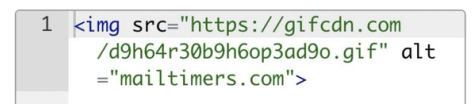
- Copy the timer’s HTML embed code.

Need more help generating a countdown timer? Head to MailTimers’ support documentation.
Add a countdown timer to an email
Once you’ve created a timer and copied your embed code, you’re ready to add it to an email.
- Open an existing template, an unsent email campaign, or a flow email in Klaviyo’s drag-and-drop email editor.
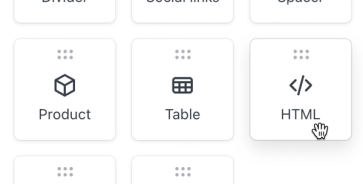
- Add an HTML block to your template.
- Delete any existing code in the HTML block.
- Paste in the code you copied from the previous section. If you’re asked how to paste the copied code, select Paste as plain text.
- Click the back arrow to apply your changes.
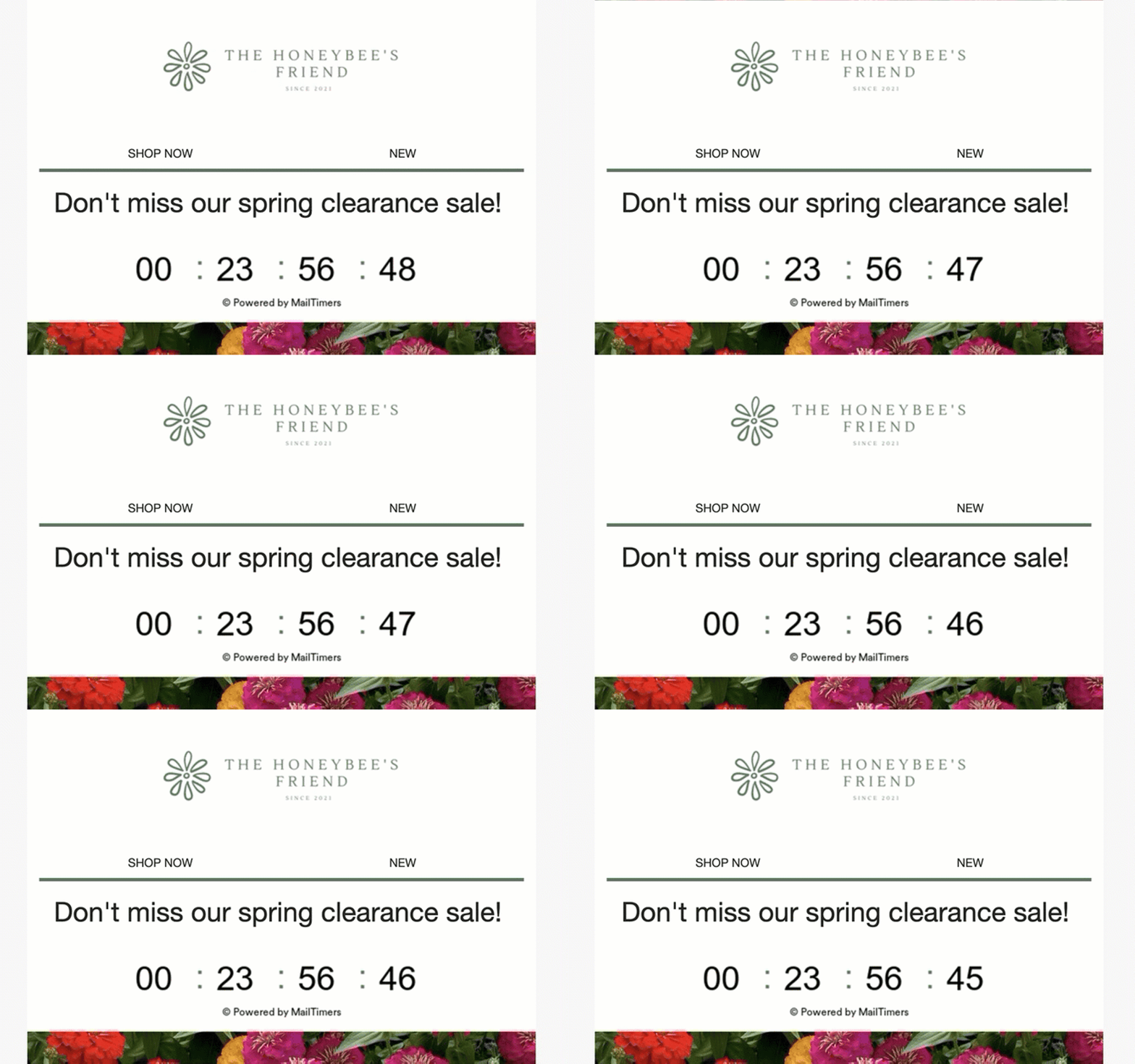
- Click Preview, enter a test email address, and click Send test. Open the test email to check how the timer displays. Learn more about previewing and sending test emails.
Inbox support for countdown timers
Countdown timers are supported in most email inboxes. However, countdown timers may not render correctly in Apple Mail when a recipient has Mail Privacy Protection enabled. This setting downloads remote content, including email images, in the background before the recipient opens the message, which can cause a countdown timer to display an incorrect time when they open it.
In addition, earlier versions of Outlook (2007, 2010, and 2013) don’t play GIF animations and will simply display the first frame in the GIF.
Include the promotion’s end date, time, and time zone in the email text so recipients can see the deadline even if the timer doesn’t display correctly.
Additional resources
- How to add a countdown timer to a sign-up form
Learn how to use countdown timers to add a sense of urgency to your sign-up forms. Countdown timers work particularly well for flash sales, special promotions, or holiday messaging.
- Guide to the email template editor
Learn about Klaviyo’s drag-and-drop email template editor, including how to use template styles and configure each block type.
- Getting started with the email template editor