How to add a countdown timer to a sign-up form
You will learn
Learn how to use countdown timers to add a sense of urgency to your sign-up forms. Countdown timers work particularly well for flash sales, special promotions, or holiday messaging.
Add a timer to a sign-up form
Before you begin, make sure Klaviyo onsite tracking is enabled on your website so your form can display. For help creating a form or checking your website setup, see Getting started with sign-up forms.
- Navigate to Website > Sign-up forms in Klaviyo.
- Open the 3-dot menu for an existing form and click Edit. To create a new form, click Create form and complete its setup to open the editor.
- Click Add content (the plus icon) in the form editor to open the Add blocks panel.
- Drag a Countdown timer block into your form.
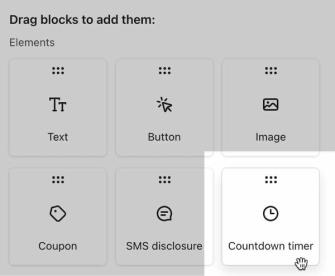
- Select the timer block, then adjust its settings as described below.
- Click Publish or schedule.
- Select Publish now, then click Publish now to publish your edits and set the form live.
If this is a new embed form, copy and paste its embed code into your website where you want the form to appear. See Getting started with sign-up forms for details.
Adjust countdown timer settings
When creating a countdown timer, you can choose between a Fixed and Variable date type.
- A Fixed date countdown timer counts down to a specific date or time. For example, if you have a VIP sale that begins at midnight on a certain date, or a limited time offer with a set end date, use the fixed date setting.
- A Variable date countdown timer begins counting down when the form opens for a visitor, and resets with every new page load. If you set a variable timer to 1 hour, every form viewer will see a countdown timer beginning at 1 hour, regardless of when they visit your site.
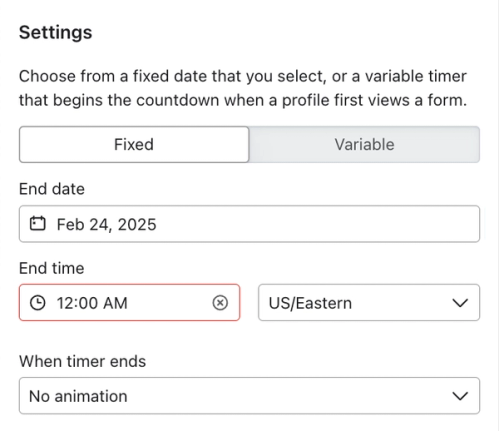
Fixed date countdowns
Choose a time zone, then set the End date and End time when the countdown timer should end. The date picker lets you select a date up to 99 days in the future.
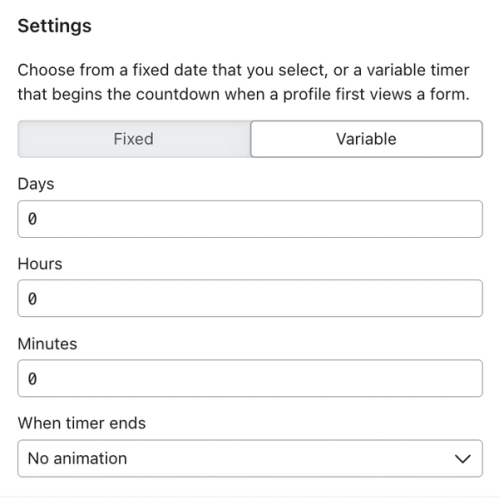
Variable date countdowns
Choose the number of days, hours, and minutes that should appear on the timer when the form opens for a visitor. Enter 0–99 in Days, 0–23 in Hours, and 0–59 in Minutes. Set at least 1 value above 0 so the timer can count down.
Appearance and end behavior
Under Clock face, choose Simple text or Flip cards. Adjust the text and colors to match your form, and use Label format to choose how the time-unit labels appear.
Use When timer ends to choose No animation, Flash, Heartbeat, or Pulse. The timer shows zero when it ends. It does not automatically close or unpublish the form.
Additional resources
- How to add a countdown timer to an email
Learn how to use countdown timers to add a sense of urgency to your emails. These work particularly well for flash sales, special promotions, or holiday messaging. Klaviyo does not have a built-in countdown timer feature, so you’ll need to use a third-party tool like MailTimers.
- Getting started with sign-up forms
Learn how to create and customize sign-up forms in Klaviyo to publish on your website so you can engage shoppers, collect emails and phone numbers, and build long-lasting customer relationships.