How to use custom HTML block in sign-up forms
Custom HTML block is an advanced feature intended for users comfortable writing HTML. If you're not familiar with HTML, the standard blocks and styling options in the forms editor cover all necessary customization needs.
You will learn
Learn how to use the custom HTML block to add your own markup to Klaviyo sign-up forms, beyond the blocks available in the forms editor. The HTML block gives you fine-grained control over content and layout — custom headings, formatted text, lists, tables, images, and links — so your forms can match your brand and messaging exactly.
For security, the HTML block only supports a specific set of tags and attributes. Unsupported HTML prevents your changes from saving, and the editor shows an error explaining what to fix. The sections below list supported tags and attributes and common examples that are not allowed.
Before you begin
Note the following before using custom HTML:
- Custom HTML block is available on paid Klaviyo plans only.
- Your HTML is checked for security before it saves. Unsupported tags and attributes, including scripts and event handlers, prevent your changes from saving. These restrictions protect your site visitors from malicious code. Check the supported tags and attributes below and fix any errors shown in the editor.
- Custom HTML block adds new content only. The HTML block lets you add your own elements to a form. You cannot use it to edit the HTML of your form's existing blocks.
- Klaviyo Support cannot troubleshoot custom code. Issues caused by custom HTML (e.g., broken layouts, content that doesn't render, styling problems) are your responsibility to debug and fix. If a form with custom HTML isn't displaying or behaving correctly, remove the HTML block first to check whether your code is the cause.
- Test before you publish. Custom HTML can affect form layout and usability. Always preview and test your form on both desktop and mobile before publishing.
Add an HTML block to your form
To add custom HTML to a form:
- Navigate to Sign-up forms and open your form in the editor.
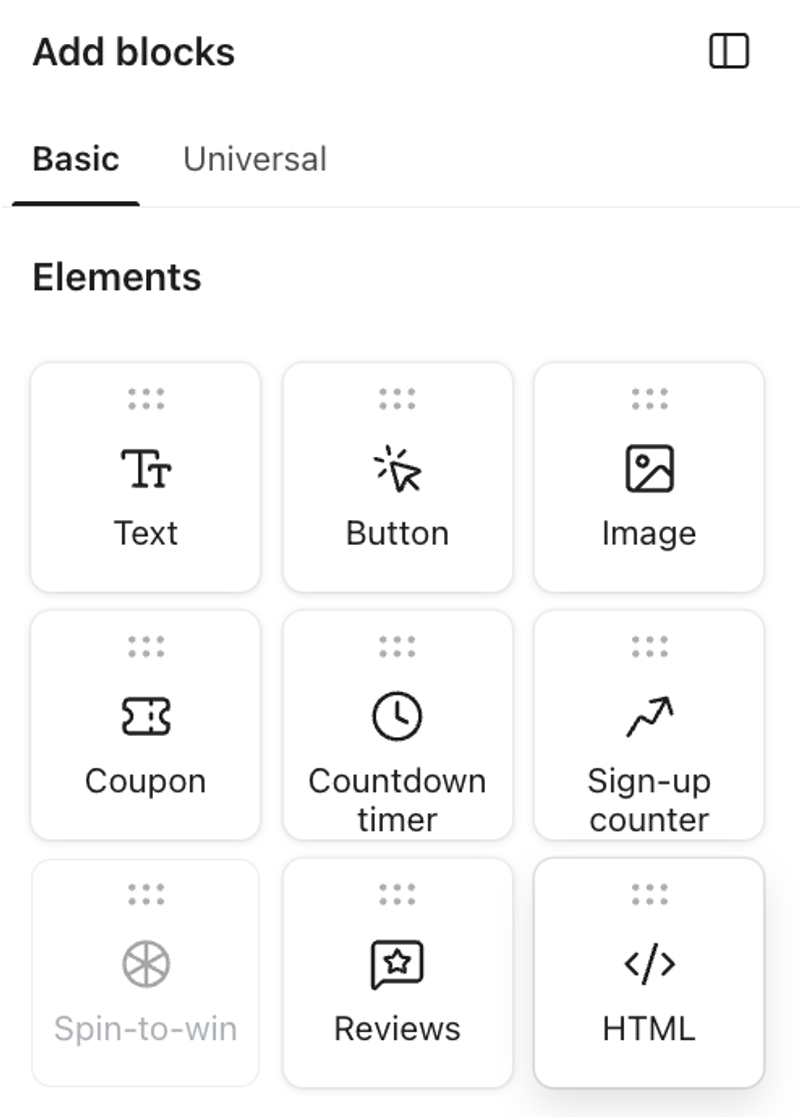
- Select Add blocks, find the HTML block, and drag it onto your form where you want the custom content to appear.
- Select the HTML block to open its settings. A code editor appears in the block's sidebar.
The HTML block works like any other block in the forms editor — you can add more than one, reposition them, and delete them. Custom HTML is contained within its block, so it doesn't affect the rest of your form's structure.
Write your HTML
Replace the placeholder HTML in the code editor with your own HTML, using only supported tags and attributes. Changes save automatically. If the editor shows an error, fix the unsupported content before continuing.
Example
<h2 class="promo-heading">Join our list</h2>
<p>Sign up for <strong>15% off</strong> your first order, plus:</p>
<ul>
  <li>Early access to new drops</li>
  <li>Members-only offers</li>
</ul>
<p><a href="https://www.example.com/terms" target="_blank" rel="noopener noreferrer">See terms and conditions</a></p>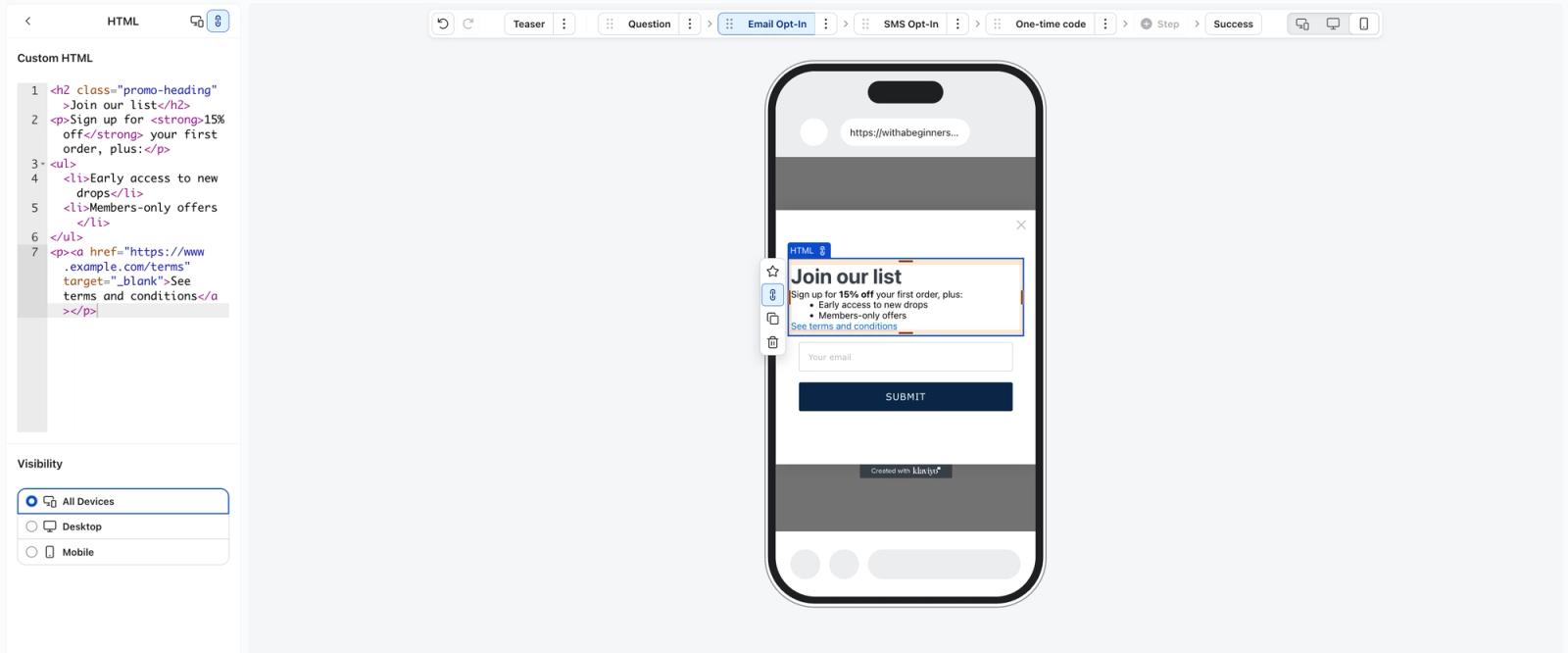
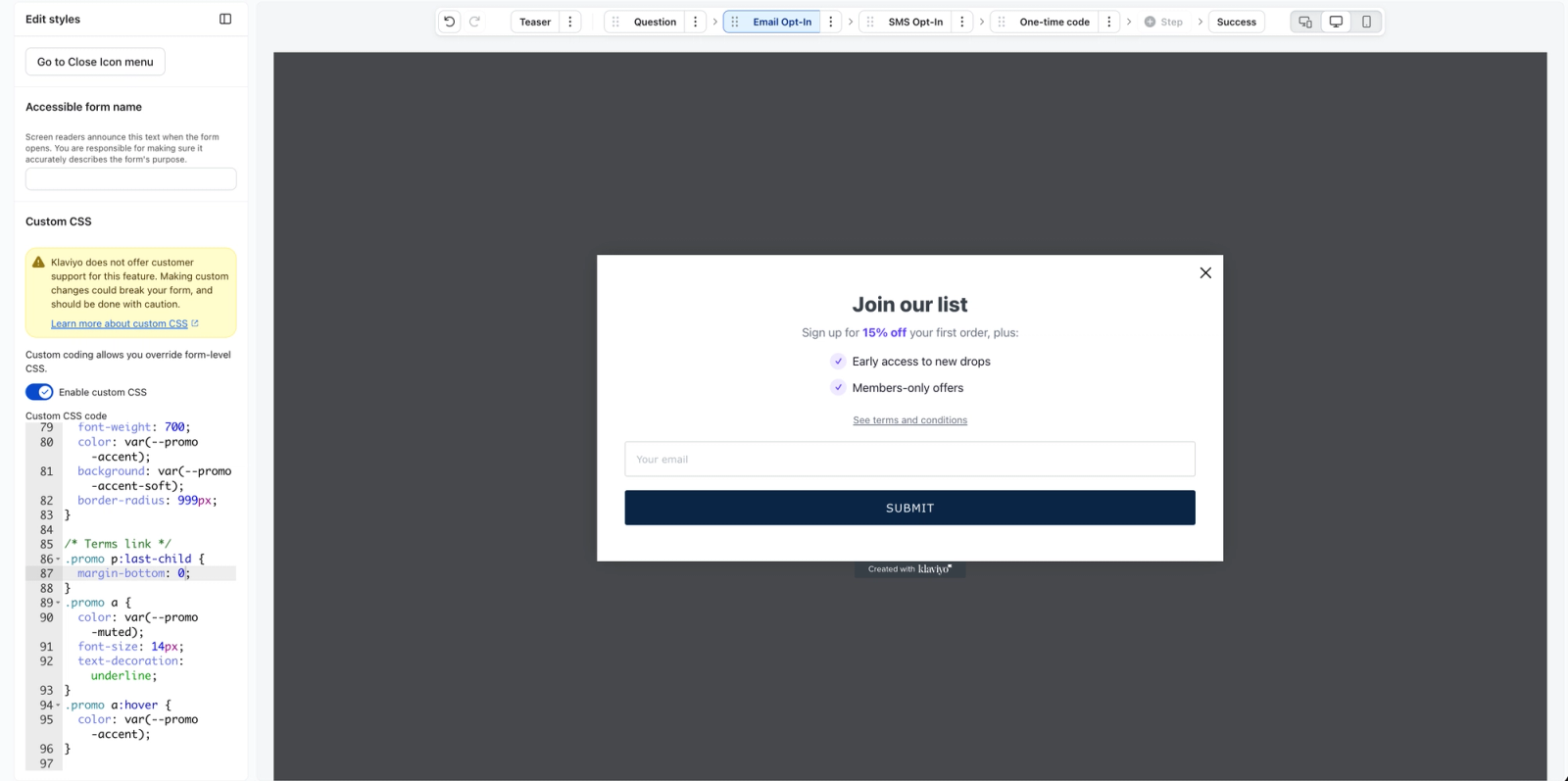
Inline style attributes and <style> tags are not supported. To style your HTML, add your own class names to elements and target them with custom CSS. For example, set class="promo-heading" on your heading, then style .promo-heading in the custom CSS editor. See How to use custom CSS in sign-up forms for how to enable and write custom CSS.
Supported HTML tags and attributes
For security, the HTML block supports the following tags and attributes. Any tag or attribute not on this list prevents your changes from saving.
Global attributes — these are allowed on every supported tag: id, class, dir, lang, role, and aria-* (accessibility attributes).
The tables below list additional attributes allowed on specific tags, beyond the global attributes above.
Text and formatting
Tag | What it's for | Additional allowed attributes |
|---|---|---|
| Paragraph | — |
| Generic container | — |
| Inline container | — |
| Line break | — |
| Horizontal rule | — |
| Bold (importance) | — |
| Emphasis | — |
| Bold | — |
| Italic | — |
| Underline | — |
| Strikethrough | — |
| Small text | — |
| Subscript | — |
| Superscript | — |
| Highlight | — |
| Abbreviation |
|
| Citation | — |
| Inline code | — |
| Preformatted text | — |
| Block quotation |
|
| Inline quotation |
|
| Time value |
|
| Word break opportunity | — |
Headings
Tag | What it's for | Additional allowed attributes |
|---|---|---|
| Headings, levels 1 through 6 | — |
Lists
Tag | What it's for | Additional allowed attributes |
|---|---|---|
| Unordered list | — |
| Ordered list |
|
| List item |
|
| Description list | — |
| Description term | — |
| Description details | — |
Tables
Tag | What it's for | Additional allowed attributes |
|---|---|---|
| Table | — |
| Table head | — |
| Table body | — |
| Table footer | — |
| Table row | — |
| Table cell |
|
| Table header cell |
|
| Table caption | — |
| Column group |
|
| Column |
|
Media and links
Tag | What it's for | Additional allowed attributes |
|---|---|---|
| Link |
|
| Image |
|
| Responsive image wrapper | — |
| Media source |
|
| Figure wrapper | — |
| Figure caption | — |
Allowed URL schemes
Links (href) and image sources (src) may use only these URL schemes: http, https, mailto, tel, and relative paths or #fragment anchors. URLs using any other scheme (such as javascript: or data:) prevent your changes from saving. When a link uses target="_blank", add rel="noopener noreferrer" to keep the link secure.
Unsupported HTML tags and attributes
To protect your site visitors from malicious code, the HTML block rejects unsupported tags, attributes, and URLs when saving. The following are not allowed, even though they are common in HTML:
- Scripts:
<script>and<noscript> - Form controls:
<form>,<input>,<button>,<select>, and<textarea>. Use the editor’s standard input and button blocks to collect signups. - Event handler attributes: any attribute whose name starts with
on(for example,onclick,onload,onerror,onmouseover) - Frames and embeds:
<iframe>,<frame>,<frameset>,<object>,<embed>,<applet>,<portal> - Vector and markup-language tags:
<svg>,<math> - Document and resource tags:
<base>,<meta>,<link>, and the<style>tag - Dangerous URL schemes in links or sources:
javascript:,vbscript:,data:,filesystem: - Form-submission override attributes:
formaction,formmethod,formtarget,formenctype - Legacy or deprecated tags:
<marquee>,<bgsound>,<keygen>,<isindex>,<xmp>,<listing>,<plaintext>,<template>,<noembed>
If your changes cannot be saved, use the error message to find and remove or replace the unsupported tag, attribute, or URL. Check your code against the supported list above before continuing.
Preview and publish
After writing your HTML:
- Use the editor preview to check your form's appearance.
- Verify your form on both desktop and mobile, since custom HTML can affect each differently.
- For a form with URL targeting, restrict it to your test page before publishing. Open Targeting & display behavior > Targeting. Under URLs, turn on Only show on certain URLs, choose Exactly matching, and replace any existing allowed URLs with the test page’s full URL.
- Publish your form on a non-public-facing page to validate how it shows up onsite. Click Publish or schedule, select Publish now, then click Publish now. Resolve any blocking alerts before publishing.
- Submit a test signup on your published form to confirm all inputs and buttons still work.
- Restore your intended targeting settings, then use Publish or schedule and Publish now to publish your form for your audience.
Edit or remove custom HTML
To edit your HTML, select the HTML block and update the code in its settings. Preview your changes, then publish them to update the live form.
To remove custom HTML, select the HTML block and delete it. This removes the block and its content from your form; the rest of your form is unaffected. Removing the block is also the fastest way to check whether a display issue is caused by your custom code. Publish the change to remove the block from the live form.
Troubleshooting
Klaviyo Support cannot troubleshoot custom code. Issues caused by custom HTML (e.g., broken layouts, content that doesn't render, styling problems) are your responsibility to debug and fix. If a form with custom HTML isn't displaying or behaving correctly, remove the HTML block first to check whether your code is the cause.
My HTML changes won't save.
Read the error in the HTML block’s settings. Remove or replace the unsupported tag, attribute, or URL, then confirm the error clears. Select Learn more about allowed tags in the error message to check the supported list.
My form looks broken.
Review your HTML for unclosed or mismatched tags and layout rules that reposition or overlap other blocks. Because your code lives in its own block, you can delete the HTML block to confirm it's the cause, then re-add it and test smaller changes.
My styling isn't applying to my HTML.
Confirm the class names in your HTML match the selectors in your custom CSS, that custom CSS is toggled on, and that you've published the latest version of the form. See How to use custom CSS in sign-up forms.
I don't see the HTML block.
Custom HTML is available on paid Klaviyo plans. Check that your account has a paid plan, then look for HTML under Add blocks in the form editor.
Frequently asked questions
Can I edit the HTML of my form's existing blocks?
No. The HTML block lets you add new custom content to a form. It does not change the HTML of your form's existing blocks.
Why can't I save unsupported HTML?
Klaviyo rejects unsupported HTML to protect your site visitors from malicious code. Remove unsupported tags and attributes, such as scripts and event handlers, and replace unsafe URLs before continuing. See the unsupported HTML examples above.
Can I add a <script> or other JavaScript to my form?
No. Scripts and event handler attributes are not allowed, and HTML containing them cannot be saved. This restriction protects your site visitors and cannot be turned off.
Can I style my HTML block?
Yes. Add your own class names to your HTML elements and target them with custom CSS. See How to use custom CSS in sign-up forms.
Will Klaviyo Support help me write or fix my HTML?
No. Klaviyo Support can't write, review, or troubleshoot custom code. If a form with custom HTML has an issue, you'll be asked to remove the HTML block to rule it out before Support can investigate further.