How to send consent to Klaviyo via Zapier
You will learn
Learn how to create a custom Zapier webhook to send SMS consent to Klaviyo. You can easily modify the instructions in this guide to send email consent as well.
The steps below will help you create a Zap using a webhook (also called a catch hook) that triggers a Python script action. The sample updates SMS marketing consent. Including an email address in the request does not subscribe the profile to email marketing.
This setup requires a paid Zapier plan that includes Webhooks by Zapier.
About the integration
This integration is not fully supported by Klaviyo, but can be used as a workaround if needed. We recommend only using this integration if you have developers on your team who can support it.
This guide uses a Zapier code action that runs a Python script when the trigger is detected. With this solution, you can map fields to the data types that Klaviyo endpoints require; specifically, the Subscribe Profiles and Unsubscribe Profiles endpoints.
Before you begin
Set up SMS in Klaviyo with a sending number for the country of your test recipient. Use a real mobile number and email address you control: testing the code action changes consent in your Klaviyo account.
Have a Klaviyo private API key with lists:write, profiles:write, and subscriptions:write permissions. See how to manage your account’s API keys.
If your account uses SMS age-gating, extend the subscribe request to include age_gated_date_of_birth before using this sample. The example below does not collect or send a date of birth.
Set up Zapier webhook
For Zapier’s current setup instructions, see its guides to webhook triggers and Python code actions.
- Log in to your Zapier account.
- From the main page in Zapier, select +Create, then select Zap.
- Enter a name for your new Zap (e.g., Klaviyo Webhook).
- Click the Trigger step, then search for and select Webhooks by Zapier.
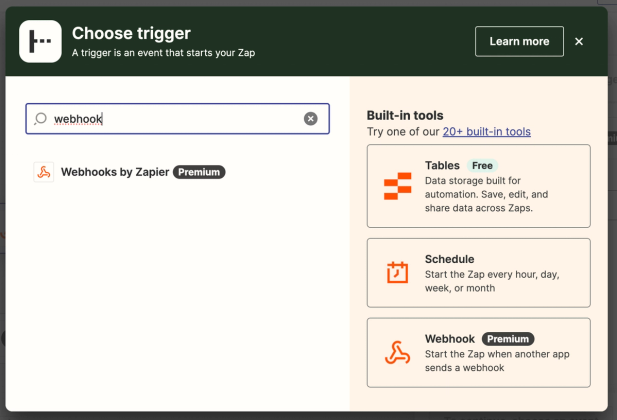
- From the Event dropdown menu, select Catch Hook.
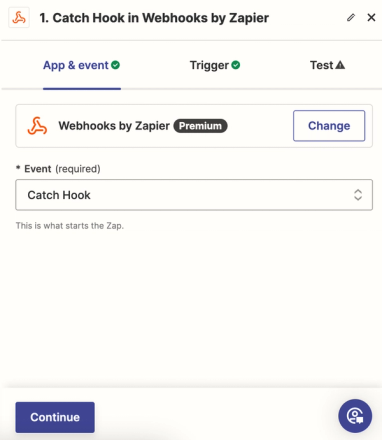
- Click Continue. For the flat test data used in this guide, leave Pick Off A Child Key blank, then click Continue again.
- Select the Test tab.
- Copy the webhook URL that Zapier provides for you to send your requests to.
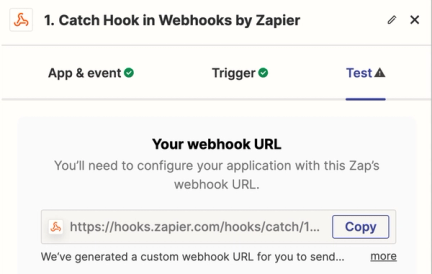
- Configure the app that collects consent to send consent changes to this webhook URL, including the
email,phone_number, andsms_consentfields used below. Follow that app’s documentation to set up its outgoing webhook. - Before testing, you’ll need to send test data to your webhook. See our guide on How to send test data to Zapier for more information. Make sure to format phone numbers in E.164 format, including the + sign and country code, when sending test data.
- Once you’ve sent the test data to the webhook, click Test trigger (on the Test tab).
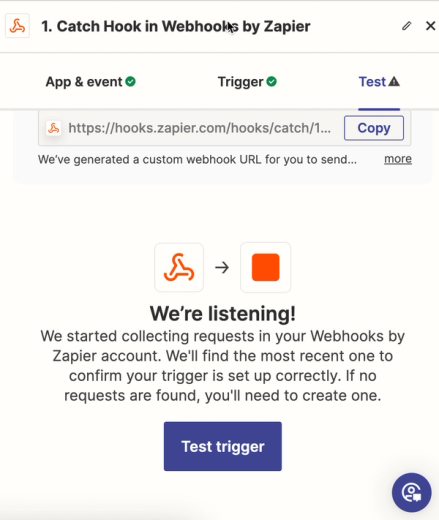
- If the request is successful, you’ll see a success message, and the test data will populate below the success message, similar to the example below:
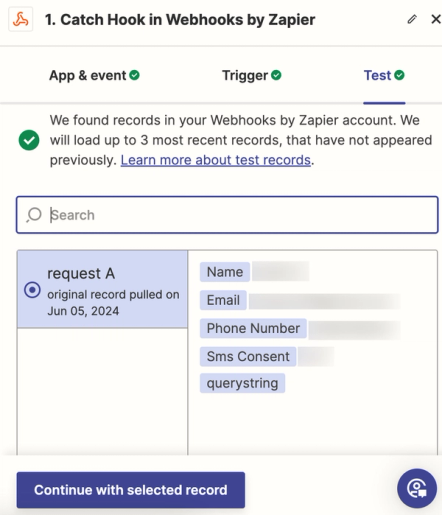
- Once your trigger is working, click Continue with selected record.
Set up Zapier action
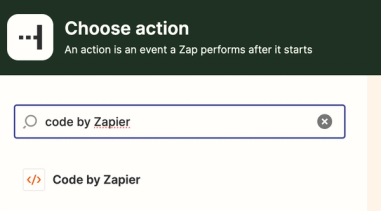
- Add an action step, then search for and select Code by Zapier.
- From the Event dropdown menu, select Run Python.
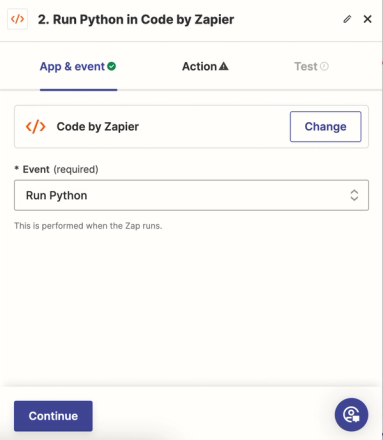
- Click Continue.
Set up field mapping and create script logic
- In Input Data, map
email,phone_number, andsms_consentto the corresponding fields in your test data. Enter the keys exactly as shown. Thenamefield in the example data is not used by this script.
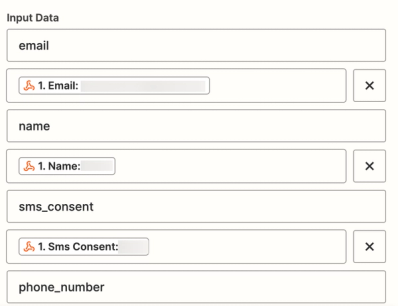
Input data | Test data mapped |
| 1. Email: <Test email> |
| 1. Phone Number: <Test phone number> |
| 1. Sms_consent: true |
| 1. Name: <Test name> |
Send true only for an explicit SMS marketing opt-in. Send false only for an SMS unsubscribe request: it revokes SMS marketing consent across your account and removes the profile from the selected list. Do not use false for an empty or unknown consent value.
- Add a script like the one below to the code box:
import requests

sms_consent = str(input_data.get("sms_consent", "")).strip().lower()
if sms_consent not in ("true", "false"):
    raise ValueError("sms_consent must be true or false")

# Configure the SMS marketing subscribe or unsubscribe request.
if sms_consent == "true":
    url = "https://a.klaviyo.com/api/profile-subscription-bulk-create-jobs/"
    payload = {
        "data": {
            "type": "profile-subscription-bulk-create-job",
            "attributes": {
                "profiles": {
                    "data": [{
                        "type": "profile",
                        "attributes": {
                            "email": input_data["email"],
                            "phone_number": input_data["phone_number"],
                            "subscriptions": {
                                "sms": {"marketing": {"consent": "SUBSCRIBED"}}
                            }
                        }
                    }]
                }
            },
            "relationships": {
                "list": {"data": {"type": "list", "id": "LIST_ID"}}
            }
        }
    }
else:
    url = "https://a.klaviyo.com/api/profile-subscription-bulk-delete-jobs/"
    payload = {
        "data": {
            "type": "profile-subscription-bulk-delete-job",
            "attributes": {
                "profiles": {
                    "data": [{
                        "type": "profile",
                        "attributes": {
                            "email": input_data["email"],
                            "phone_number": input_data["phone_number"],
                            "subscriptions": {
                                "sms": {"marketing": {"consent": "UNSUBSCRIBED"}}
                            }
                        }
                    }]
                }
            },
            "relationships": {
                "list": {"data": {"type": "list", "id": "LIST_ID"}}
            }
        }
    }

headers = {
    "accept": "application/json",
    "revision": "2026-07-15",
    "content-type": "application/json",
    "Authorization": "Klaviyo-API-Key your-private-api-key"
}

response = requests.post(url, json=payload, headers=headers, timeout=10)
response.raise_for_status()

# Zapier requires an output object.
output = {
    "status_code": response.status_code,
    "response text": response.text
}- Replace
your-private-api-keywith your Klaviyo private API key.
Treat private API keys like passwords - keep them in a safe place and never expose them to the public.
- Replace
LIST_IDin both locations with your Klaviyo list ID. In Klaviyo, go to Audience > Lists & segments, open the list, and select Settings > Details to copy the List ID. - Review Settings > Consent > Opt-in process for that list. To subscribe without a confirmation, select Single opt-in and click Save. With Double opt-in, complete any SMS confirmation sent to your test number before checking its subscription.
- Click Continue, then click Test step.
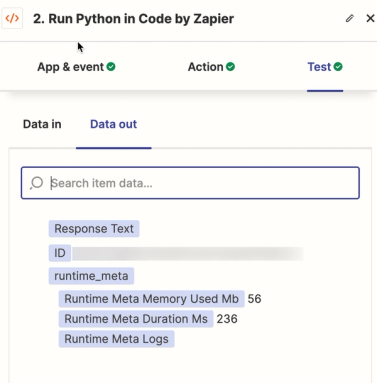
- Check that the output shows
status_code202. This means Klaviyo accepted the request for processing; it does not confirm that consent has finished updating. An empty response body is expected.
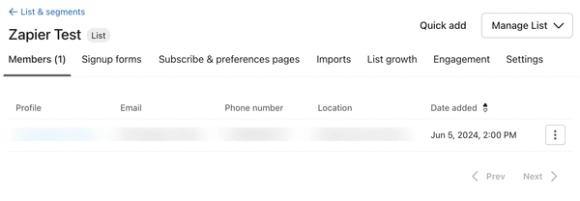
- In Klaviyo, check that your test profile was added to the selected list, then open the profile and confirm that it is subscribed to SMS marketing. If a confirmation message was sent, complete that confirmation first.
- Test the unsubscribe path with the same test profile: send a new webhook request with
sms_consentset tofalse, select that new trigger record in Zapier, and test the code step again. Confirm in Klaviyo that the profile is unsubscribed from SMS marketing and removed from the selected list. - Once both tests are successful, click Publish to publish your Zap. If a test isn’t successful, check out our troubleshooting tips for common issues.
Adapt the example for email consent
For an email-only version of this Zap:
- Map an
email_consentinput from your source, then replacesms_consentwithemail_consentthroughout the script. Usetruefor an explicit email marketing opt-in andfalsefor an email unsubscribe request. - In both request payloads, replace the
smskey undersubscriptionswithemail. Keep the recipient’semailfield and remove thephone_numberfield from both payloads. - Test both email consent paths before publishing the email version of your Zap. Check email consent on the profile, and complete any email opt-in confirmation sent during the subscribe test.
Troubleshooting tips
The following are common issues you may run into while setting up the Zapier webhook. If you encounter any other issues, you can reach out to the Klaviyo Community for further guidance.
EOL while scanning string literal
If you see this error, then you’re missing a quotation mark around one of your variables. Check the list ID and private API key to make sure they’re surrounded on both sides by quotation marks.
SyntaxError: invalid syntax
If you see this error, check that the code’s line breaks, indentation, quotation marks, and brackets match the sample. In particular, the url and payload assignments must be on separate lines. Lines beginning with # are valid Python comments and do not need to be removed.
Additional resources
- How to manage your account's API keys
Find out how to access and manage your API keys for your Klaviyo account.
- How to send test data to Zapier
Learn how to send test data to Zapier via a POST request when creating a webhook to send email and SMS consent to Klaviyo.