How to add a Klaviyo embed form to your WooCommerce site
You will learn
Learn how to add a Klaviyo embed form to your WooCommerce site footer, which requires creating the form in Klaviyo, and then pasting its embed code into your site's files where you want it to appear.
Before you begin
Before adding your form to your site, integrate with WooCommerce, including installing and activating the Klaviyo extension. Your site must load Klaviyo’s onsite tracking script (klaviyo.js) for the form to display; the form’s embed code alone is not enough.
Adding the form’s embed code to your site
First, create and publish your embed form in Klaviyo. This section will go over the next steps of pasting your form’s embed code on your WooCommerce site so it displays and syncs data properly, followed by a video of the process.
- Open your published embed form in the Klaviyo editor. Select Targeting & behavior > Display, then copy the code under Embed code.
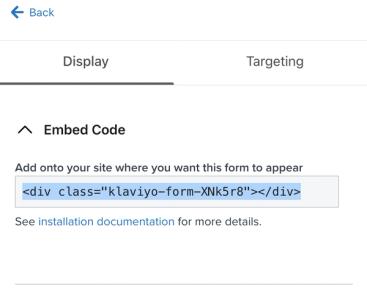
- Navigate to your WooCommerce dashboard.
- Select Customize your site.
- Select Widgets, then choose where you’d like to embed the form. To embed in your site’s footer, choose Footer 1. Collecting subscribers with a footer form is a Klaviyo best practice for list growth.
- Click Add a Widget. From the menu, select Custom HTML.
- In the textbox under Content, paste the embed code for your form that you copied from Klaviyo.
- Select Done. Select Publish.
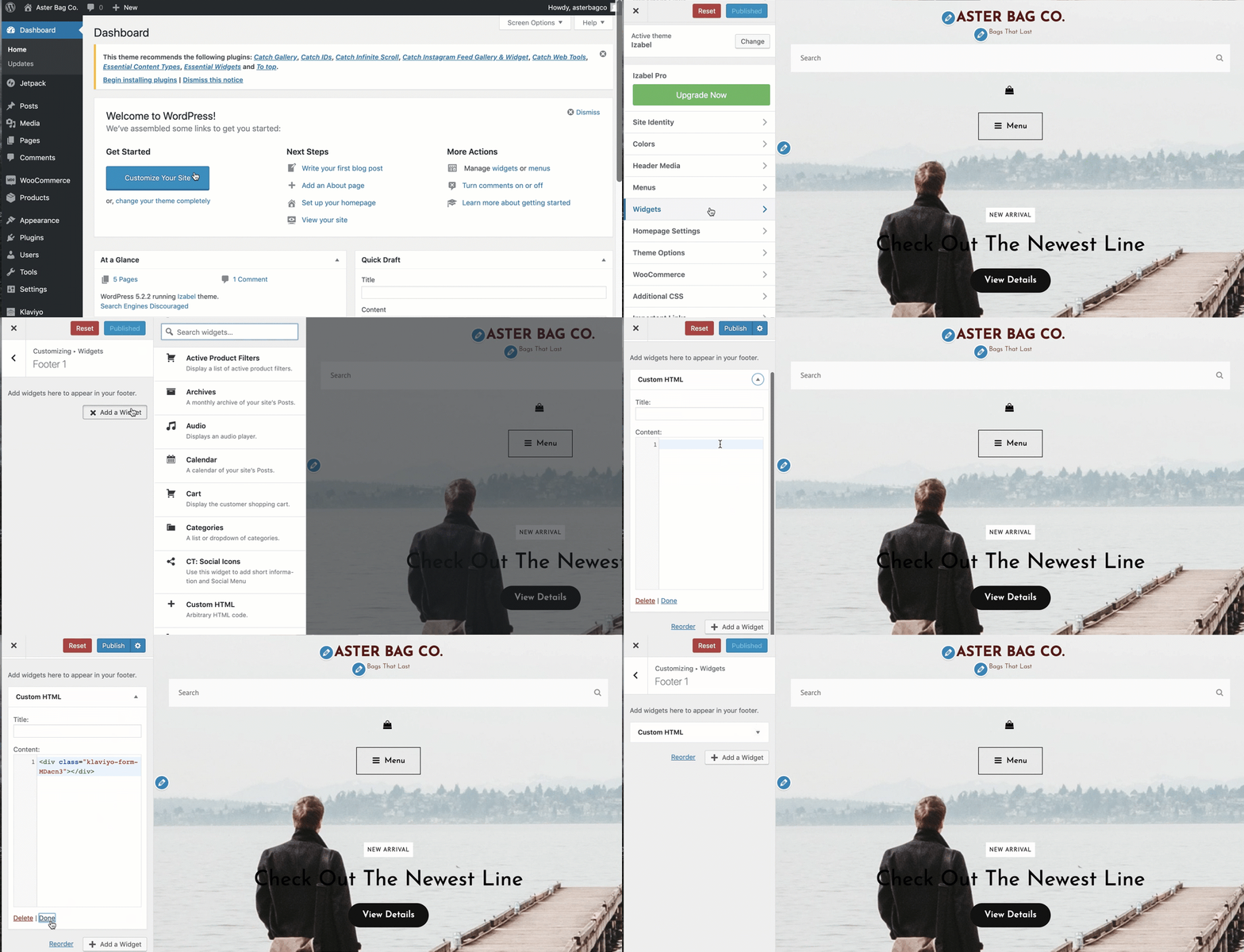
Once you’ve pasted the embed code and saved the changes in WooCommerce, navigate back to your website and refresh the page. As long as the form is published in Klaviyo, site visitors will see it live on your site and have the option to join your list by completing it.
If you don’t see your form, see troubleshooting embed forms.
Next steps
Next, create a welcome series flow to make an immediate impact on your new subscribers.
Additional resources
- Getting started with WooCommerce
Learn how to install the Klaviyo WooCommerce extension and enable the WooCommerce integration in your Klaviyo account.
- Understanding SMS consent collection
Learn about SMS consent, including what counts as SMS consent, how you can collect it, and how resubscribes work. SMS consent refers to whether someone is opted in (i.e., if they have agreed to receive marketing text messages from your brand).
- WooCommerce data reference
This article covers the data that is synced when you integrate your WooCommerce store with your Klaviyo account.