Understand webhooks in Advanced KDP
You will learn
Learn about webhooks and how you can use them to send information to your third-party applications in response to events captured in Klaviyo. For more detailed information on how to receive system webhooks, head to our developer resource on working with system webhooks.
Advanced KDP is separate from Klaviyo’s standard marketing plans. You can use system webhooks with an Advanced KDP subscription or an active Advanced KDP free trial. Head to our billing guide to learn about how to purchase this plan.
What are webhooks?
Webhooks allow Klaviyo to pass information or “call” other applications, tools, and servers via HTTP requests. They can send information about an event that has happened (e.g., an order placed, a new customer subscribed, etc.) or notify your external systems that the event has occurred.
Klaviyo supports 2 kinds of webhooks:
- Webhooks in Advanced KDP
Webhooks available as part of Advanced KDP are used to notify your external systems that a particular event has occurred, and allow you to send information in response to a wide array of events without the limitations of being in a flow. - Flow webhooks
Flow webhooks are actions within flows. They send data when a profile reaches the webhook action, and can include information about that profile or the event that triggered the flow.
Key components of webhooks
Webhooks are made of a few key components:
- Topic
The event that causes a webhook to fire - Body (or “the payload”)
The data that the webhook sends - Headers
A place to pass additional information (such as authentication)
How do webhooks in Advanced KDP differ from flow webhooks?
You can use webhooks in Advanced KDP or flow webhooks depending on your needs.
Events included
In metric-triggered flows, flow webhooks can respond only to events supported as flow triggers. For example, Received Email and Clicked Email are not available in the metric trigger selector, while Unsubscribed from Email Marketing is supported. System webhooks in Advanced KDP let you select topics for message-related events as well as events from integrations and Klaviyo’s APIs.
These include:
- Email events (e.g., Received email, Clicked email, Marked email as spam, Unsubscribed from Email Marketing)
- SMS events (e.g., Sent SMS, Received SMS)
- Push notification events (e.g., Received push, Bounced push)
- Events from integrations (i.e., events from first-party integrations created by Klaviyo)
- API events (e.g., events synced through Klaviyo’s APIs)
Payload
Flow webhooks let you customize the request data by configuring a JSON body. System webhooks in Advanced KDP use a prebuilt payload with data about the events that occurred. A single request can include multiple events from the topics you selected.
Flow limitations
Flow webhooks follow the trigger and steps of the flow that contains them. Use separate flows to respond to different flow triggers. The webhook action must be Live to send requests automatically; an action in Draft does not send requests. System webhooks run outside flows and can subscribe to multiple topics on 1 endpoint.
Set up webhooks
Before you begin, prepare an endpoint to receive HTTP POST requests from Klaviyo. The endpoint URL must:
- Be a valid URL format
- Start with https://
- Not have a self-signed SSL certificate
- Not redirect to another URL
- Navigate to Data management > Webhooks in Klaviyo.
- Click Create webhook.
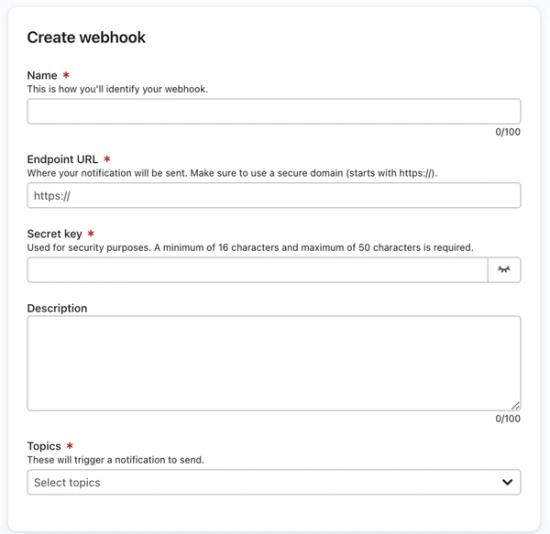
- On the Create webhook page, enter the following information:
- Name
How you’ll identify your webhook - Endpoint URL
The URL associated with the destination for the webhook request - Secret key
Enter a secret key of 16–100 characters. Klaviyo uses this key to sign requests so your receiving application can verify that they came from Klaviyo. - Description
An optional description for your webhook.
- Name
- Under Topics, select 1 or more topics that should trigger notifications. For example,
event:klaviyo.received_emailcorresponds to Received Email.
- Optional: Test the connection using the steps in Test system webhooks below before saving.
- Click Save to create the webhook. Klaviyo returns you to the Webhooks page.
After saving, your webhook appears on the Webhooks page with the following details:
- Webhook name
- Endpoint URL (shortened for security)
- Status
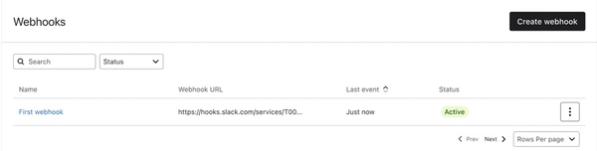
Note that it can take up to 15 minutes for the webhook to start sending to the URL.
To stop sending notifications, open the menu next to the webhook and select Disable. To remove it, select Delete and confirm the deletion.
Test system webhooks
- After completing the required fields on the Create webhook page and selecting your topics, click Test connection.
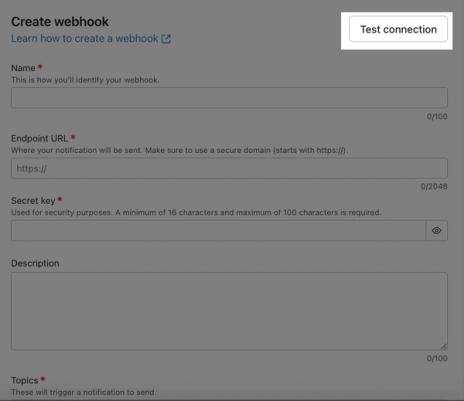
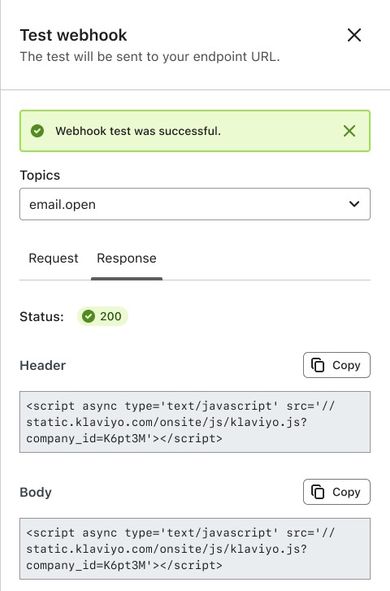
- In the Test webhook panel, select a topic under Topics, then click Test to send a sample request to your endpoint URL.
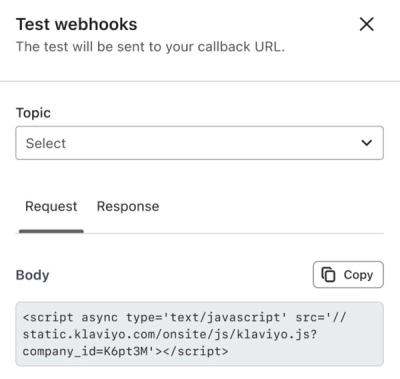
- Review the message indicating whether the test succeeded. The Request tab shows the headers and payload sent to your endpoint. The Response tab shows the endpoint’s response headers, body, and status code.
Your receiving application should verify each request’s Klaviyo-Signature header using your secret key, the raw request body, and the Klaviyo-Timestamp header. Follow the developer guide for HMAC signature verification.
- Click Cancel to close the test panel and return to your webhook configuration.
Example payload
Below is an example payload for a request triggered by Received Email (event:klaviyo.received_email).
Note that the payload may be different based on your account-specific data.
{
  "meta": {
    "timestamp": "2023-08-10T07:25:23.700369+00:00",
    "klaviyo_webhook_id": "ID",
    "version": "2024-06-28",
    "klaviyo_payload_id": "3843971dcfdee5083e6289e1bbdbb003e538b5a8a668fc43ae4f19d415ac18a2",
    "klaviyo_account_id": "ACCOUNT_ID"
  },
  "data": [
    {
      "topic": "event:klaviyo.received_email",
      "external_id": "ID",
      "payload": {
        "data": {
          "id": "ID",
          "type": "event",
          "links": {
            "self": "https://a.klaviyo.com/api/events/ID/"
          },
          "attributes": {
            "uuid": "96150200-374e-11ee-8001-a163313bc6c2",
            "datetime": "2023-08-10 07:21:56+00:00",
            "timestamp": 1691652116,
            "event_properties": {
              "$ESP": 0,
              "Subject": "? Free (Cool!) Swag Alert ?",
              "$message": "01H7F525FKR31P27Y7PNGVBBKK",
              "$event_id": "01H7F525FKR31P27Y7PNGVBBKK:125423419905414052533228990613763937641",
              "$group_ids": [
                "V7adxq"
              ],
              "$attribution": {
                "$send_ts": 0,
                "$attributed_event_id": ""
              },
              "Email Domain": "klaviyo-demo.com",
              "Campaign Name": "Daily Newsletter: 2023-08-10",
              "Inbox Provider": "Amazon SES Inbound",
              "$_cohort$message_send_cohort": "1691652081:01H7F525FKR31P27Y7PNGVBBKK"
            }
          },
          "relationships": {
            "metric": {
              "data": {
                "id": "ID",
                "type": "metric"
              },
              "links": {
                "self": "https://a.klaviyo.com/api/events/ID/relationships/metric/",
                "related": "https://a.klaviyo.com/api/events/ID/metric/"
              }
            },
            "profile": {
              "data": {
                "id": "ID",
                "type": "profile"
              },
              "links": {
                "self": "https://a.klaviyo.com/api/events/ID/relationships/profile/",
                "related": "https://a.klaviyo.com/api/events/ID/profile/"
              }
            }
          }
        }
      }
    }
  ]
}
Additional resources
- Understanding webhooks in flows
Learn about webhooks in flows and how they send information from Klaviyo to your third-party tools and applications. It’s important to note that setting up webhooks can be complex. It’s advised to have development knowledge or development resources to correctly complete this setup. If you are looking for these development directions, learn how to add a webhook action to a flow.