Magento 1 data reference
Klaviyo's Magento 1 integration is no longer accepting new installations and will reach full end-of-support in late 2027. Klaviyo Support is no longer able to assist with Magento 1–related requests.
You will learn
Learn what data your existing Magento 1 integration syncs into Klaviyo, including historical orders, customer records, and products. After the initial historical sync, orders, customers, and products sync every 30 minutes.
In Klaviyo, navigate to Analytics > Metrics in the left sidebar to view your account’s metrics. Metrics with a Magento icon are synced from your Magento integration.
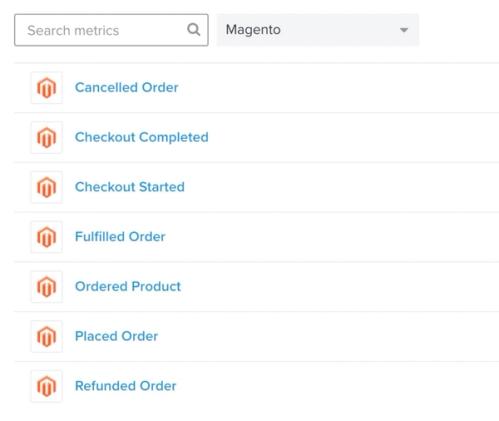
Klaviyo limits the number of unique metrics you can create to 200. When you approach this threshold, you will be alerted via a warning in your account, along with an email to the account owner.
Magento metrics
Canceled Order
This event is tracked when a customer creates an order in your Magento store but then cancels the order before fulfillment. Klaviyo tracks associated data including all of the product information about the items someone purchased. Product information includes product names, images, and variant information that you can use in purchase follow-up emails.
These events include the following order data. You can use top-level properties to filter and target events; attribute details under extra are available for message content.
- Value: The order’s grand total from Magento, including tax and shipping after discounts.
- Items: The product names from each order line item (e.g., t-shirt or pants). A name can appear more than once if it appears on separate line items.
- Item Categories: The categories of the products in the order (e.g., t-shirts, mens, pants, and sale).
- Item Count: The number of line items in the order (e.g., 2). This is not the sum of the quantities ordered.
- Currency Code: The currency code for the order (e.g., USD or EUR).
- Discounted: Whether a discount was applied to the order (true or false).
- Coupon: The coupon code applied.
- Unique Items: The product names in the order with duplicates removed (e.g., shirts or shorts).
- Unique Item Categories: The product categories in the order with duplicates removed (e.g., mens or sale).
- Attributes (optional): Product attributes in the item details under extra. Use Ordered Product events to filter by individual product attributes.
Checkout Completed
This event is tracked when a customer completes a checkout in your Magento store. Checkout Completed events do not sync historically, so their totals may not reflect all past checkouts. Use Placed Order events for revenue reporting and segmentation.
You can filter and target Checkout Completed events based on the following criteria:
- Value: The total value of the order.
- Discount Codes: Any coupon or discount codes applied.
- Items: The names of the products in someone's cart (e.g., t-shirt or pants).
- Items Count: The total amount of items in someone's cart.
- Total Discounts (optional): Total dollar value of any coupons or discounts.
Checkout Started
This event is tracked when a customer enters their contact and shipping information on the first page of the Magento checkout process and then clicks continue. Klaviyo tracks related product data about items in someone's cart including product names, images and variant information that you can use in your abandoned cart emails. This event has a checkout URL property which links back to each customer’s exact cart and which can be used to rebuild the cart if a customer opens the email from a new device.
You can filter and target Checkout Started events based on the following criteria:
- Value: The value of the cart at time of checkout (sub-total + shipping cost - any discounts).
- Items: The names of the products in someone's cart (e.g., t-shirt or pants).
- Items Count: The total amount of items in someone's cart.
- Discount Codes (optional): Any coupon or discount codes applied.
- Total Discounts (optional): Total dollar value of any coupons or discounts.
Fulfilled Order
With standard Magento order statuses, this event is tracked when an order reaches the complete status. Klaviyo tracks related product information about the items someone purchased, including product names, images, and variant information that you can use in purchase follow-up emails.
These events include the following order data. You can use top-level properties to filter and target events; attribute details under extra are available for message content.
- Value: The order’s grand total from Magento, including tax and shipping after discounts.
- Items: The product names from each order line item (e.g., t-shirt or pants). A name can appear more than once if it appears on separate line items.
- Item Categories: The categories of the products in the order (e.g., t-shirts, mens, pants, and sale).
- Item Count: The number of line items in the order (e.g., 2). This is not the sum of the quantities ordered.
- Currency Code: The currency code for the order (e.g., USD or EUR).
- Discounted: Whether a discount was applied to the order (true or false).
- Coupon: The coupon code applied.
- Unique Items: The product names in the order with duplicates removed (e.g., shirts or shorts).
- Unique Item Categories: The product categories in the order with duplicates removed (e.g., mens or sale).
- Attributes (optional): Product attributes in the item details under extra. Use Ordered Product events to filter by individual product attributes.
Ordered Product
This event is tracked when a customer places their order. For whole-number quantities, 1 Ordered Product event is tracked for each unit purchased, up to 100 events per order line item. For example, if someone buys a t-shirt and a pair of pants, 1 Placed Order event and 2 Ordered Product events are recorded: 1 for the t-shirt and 1 for the pants. For products sold in decimal quantities, Klaviyo records 1 event for the line item and includes the quantity purchased.
The Ordered Product event includes detailed information about each product someone purchases. This is useful when creating behavioral segments based on product variant options and other detailed information that's not available in the Placed Order event. You can filter and target Ordered Product events based on the following criteria:
- Value: The value represented by this event before discounts, excluding shipping. For whole-number quantities, this is the order line’s total divided by its quantity. For decimal quantities, it is the full line total.
- Name: The name given to this specific item.
- SKU: The SKU assigned to the item (e.g., REDMEDIUMTSHIRT).
- Categories: The categories of this product (e.g., t-shirts, mens, pants, and sale).
- Price: The unit price of the product in the order’s currency (e.g., shirts 25.50 or shoes 50.25).
- Cost (optional): The product cost recorded in Magento, when available (e.g., shirts 13.85 or shoes 20.00).
- Currency Code: The currency code for the order (e.g., USD or EUR).
- Discounted: If this specific item has a discount applied (i.e., true or false).
- ProductID: ID of specific product in your store.
- Quantity: The quantity represented by this event: 1 for whole-number quantities, or the purchased quantity for a product sold in decimal quantities.
- Attributes (optional): Custom product attributes.
Placed Order
This event is tracked when a customer completes the checkout process and creates an order in your Magento store. Klaviyo tracks related data including product information about the items someone purchased including product names, images, and variant information that you can use in purchase follow-up emails. These Placed Order events include the following order data. You can use top-level properties to filter and target events; attribute details under extra are available for message content.
- Value: The order’s grand total from Magento, including tax and shipping after discounts.
- Items: The product names from each order line item (e.g., t-shirt or pants). A name can appear more than once if it appears on separate line items.
- Item Categories: The categories of the products in the order (e.g., t-shirts, mens, pants, and sale).
- Item Count: The number of line items in the order (e.g., 2). This is not the sum of the quantities ordered.
- Currency Code: The currency code for the order (e.g., USD or EUR).
- Discounted: Whether a discount was applied to the order (true or false).
- Coupon: The coupon code applied.
- Unique Items: The product names in the order with duplicates removed (e.g., shirts or shorts).
- Unique Item Categories: The product categories in the order with duplicates removed (e.g., mens or sale).
- Attributes (optional): Product attributes in the item details under extra. Use Ordered Product events to filter by individual product attributes. Learn how to review custom product attributes.
Refunded Order
With standard Magento order statuses, this event is tracked when an order reaches the closed status. Its Value is the original order’s grand total, not the amount of an individual refund.
- Value: The original order’s grand total from Magento, including tax and shipping after discounts.
- Coupon: The coupon code applied.
- Currency Code: The currency code for the order (e.g., USD or EUR).
- Discounted: Whether a discount was applied to the order (true or false).
- Item Categories: The categories of the products in the order (e.g., t-shirts, mens, pants, and sale).
- Item Count: The number of line items in the order (e.g., 2). This is not the sum of the quantities ordered.
- Items: The product names from each order line item (e.g., t-shirt or pants). A name can appear more than once if it appears on separate line items.
- Unique Item Categories: The product categories in the order with duplicates removed (e.g., mens or sale).
- Unique Items: The product names in the order with duplicates removed (e.g., shirts or shorts).
Placed Order revenue uses Magento’s order grand total, including tax and shipping after discounts. To filter a segment based on $value, use Revenue.
Payment is available as a second-level property under the extra field. You cannot filter off of second-level properties for segmentation, but you can use this data as an event variable in metric-triggered flow email templates.
Synced customer data
Klaviyo creates or updates profiles from synced orders, customer records, and started checkouts. The information available on a profile depends on the data supplied by Magento. It can include:
- First and Last Name
- City, State/Region, Zip Code, Country
- Phone Number
- Magento Account Created (e.g., 2015-05-01 00:00:00)
- Magento Customer Group (e.g., Wholesale)
- Magento Store (e.g., US Store)
- Date of Birth (e.g., 1990-01-01)
- Gender
- Magento WebsiteID (when the customer record includes a store ID)
If you update the customer group in Magento, even after the original profile has been created in Klaviyo, the customer group will update in Klaviyo.
- Magento suppressions are not imported by this integration.
- Custom image locations will not be pulled. Klaviyo cannot pull custom image locations.
Review custom product attributes
Custom product attributes depend on your existing integration configuration. Configured attributes appear on Ordered Product events as properties named Attribute: followed by the attribute code. Attribute details are also stored with individual items under extra on order events. Klaviyo Support no longer handles requests to enable or change Magento 1 attribute syncing. Review your existing event data to see which attributes are present. You can find general support information in How to contact support.
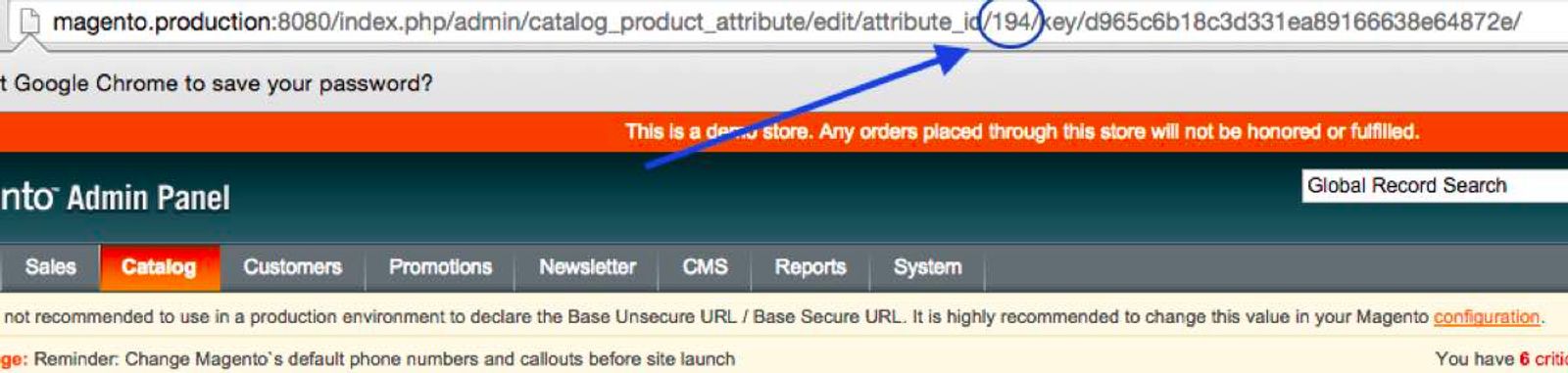
To identify a custom attribute in your existing configuration, go to Catalog > Attributes > Manage Attributes in the Magento admin panel and click the attribute.
Find the attribute ID in the URL, as shown below.
Verify your synced order data
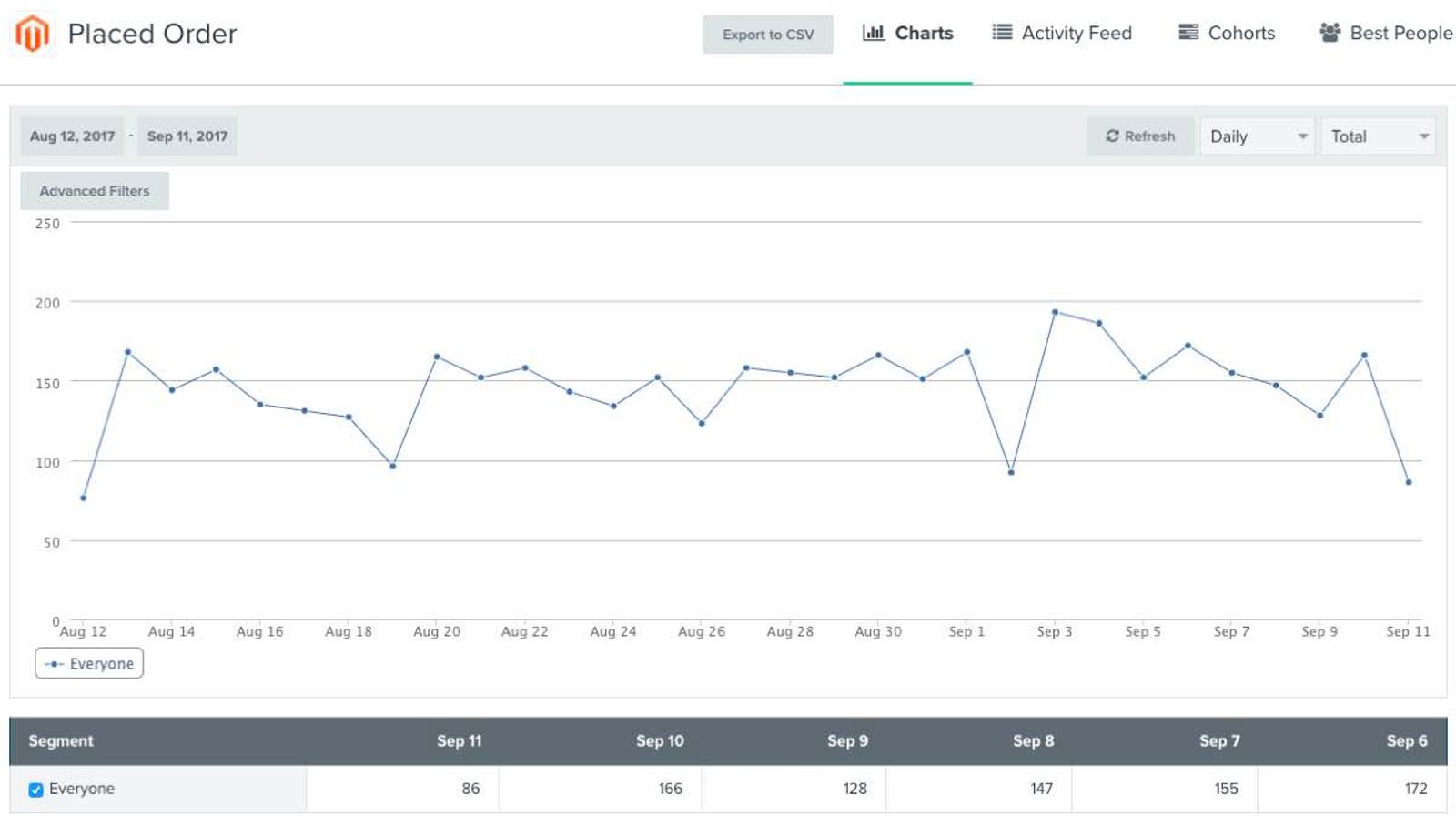
To verify your synced orders, compare the number of Placed Order events for a completed day with the orders in Magento for the same day and stores. Allow the historical sync to finish and the latest 30-minute sync to complete before comparing counts.
- Navigate to Analytics > Metrics and select the Magento Placed Order metric.
- Set Date range to include the day you want to compare. Set View by to Daily and Measurement to Total. Remove any Filter that would exclude orders from the comparison.
- Hover over the day’s data point or read its value in the table below the chart. Compare the count with Magento’s orders for the same day and stores.
If the counts differ, check that both reports use the same time zone and store scope, and that the sync has completed. Also check whether unmatched Magento orders are awaiting payment or lack a valid customer email address. To check your Klaviyo time zone:
- Click your account name in the bottom left.
- Click Settings.
- Select General > Account and review the Time zone setting.
- If you change the Time zone, click Save. You need permission to edit account settings to change this value.
Placed Order revenue in Klaviyo does not subtract canceled or refunded orders. It can therefore differ from a Magento report that subtracts those orders.
Properties for synced Magento orders
Below are example JSON payloads for the Placed Order, Ordered Product, and Fulfilled Order metrics that match the properties we store for orders synced through the Magento SOAP API.
Use these examples to understand the property names and nesting of synced events. They show the legacy event payload format and are not instructions for sending requests to Klaviyo’s current APIs. The example values are illustrative; extra contains the full order details for order-level events.
Placed Order
{
  "token": "PUBLIC_API_KEY",
  "service": "magento",
  "event": "Placed Order",
  "customer_properties": {
    "$email": "john.smith@test.com",
    "$first_name": "John",
    "$last_name": "Smith"
  },
  "properties": {
    "$event_id": "1234",
    "$value": 29.98,
    "$extra": {},
    "Currency Code": "USD",
    "Item Count": 2,
    "Items": [
      "Winnie the Pooh",
      "A Tale of Two Cities"
    ],
    "Discounted": true,
    "Coupon": "COUPON123",
    "Unique Items": [
      "Winnie the Pooh",
      "A Tale of Two Cities"
    ],
    "Item Categories": [
      "Fiction",
      "Classics",
      "Children"
    ],
    "Unique Item Categories": [
      "Fiction",
      "Classics",
      "Children"
    ]
  },
  "time": 1387302423
}
Ordered Product
{
  "token": "PUBLIC_API_KEY",
  "service": "magento",
  "event": "Ordered Product",
  "customer_properties": {
    "$email": "john.smith@test.com",
    "$first_name": "John",
    "$last_name": "Smith"
  },
  "properties": {
    "$event_id": "123456789",
    "$value": 9.99,
    "Currency Code": "USD",
    "Name": "Winnie the Pooh",
    "SKU": "WINNIEPOOH",
    "ProductID": "567",
    "Categories": [
      "Fiction",
      "Classics"
    ],
    "Price": 9.99,
    "Discounted": true,
    "Cost": 5.0,
    "Attribute: Color": "Red",
    "$extra": {
      "Product URL Key": "winnie-pooh",
      "Product URL": "https://www.store.com/winnie-pooh",
      "Image URL": "https://cnd.store.com/images/winnie-pooh.png"
    },
    "Quantity": 1
  },
  "time": 1387302423
}
Fulfilled Order
{
  "token": "PUBLIC_API_KEY",
  "service": "magento",
  "event": "Fulfilled Order",
  "customer_properties": {
    "$email": "john.smith@test.com",
    "$first_name": "John",
    "$last_name": "Smith"
  },
  "properties": {
    "$event_id": "1234",
    "$value": 29.98,
    "$extra": {},
    "Currency Code": "USD",
    "Item Count": 2,
    "Items": [
      "Winnie the Pooh",
      "A Tale of Two Cities"
    ],
    "Discounted": true,
    "Coupon": "COUPON123",
    "Unique Items": [
      "Winnie the Pooh",
      "A Tale of Two Cities"
    ],
    "Item Categories": [
      "Fiction",
      "Classics",
      "Children"
    ],
    "Unique Item Categories": [
      "Fiction",
      "Classics",
      "Children"
    ]
  },
  "time": 1387302423
}
Additional resources
- Magento integration system requirements reference
Learn about the system requirements for optimal syncing with Magento 1 or 2. The administrator of your Magento store is responsible for system specifications and configuration. Ensuring that your system is configured to work with Klaviyo will enable a smooth integration experience.