How to create a hybrid email template
You will learn
Learn how to create custom HTML templates that are compatible with Klaviyo’s drag-and-drop editor (i.e., hybrid templates). By following these steps, you can design a fully custom HTML email while maintaining access to features only available in the drag-and-drop editor (e.g., product blocks or universal content blocks).
To rebuild an existing HTML template as a drag-and-drop template, use HTML-to-drag-and-drop conversion. Klaviyo uses AI to recreate the design with editable blocks. Review the converted layout and content before sending. Use a hybrid template when you want to keep your custom HTML and add editable blocks only in specific regions.
We only recommend using custom HTML for technically savvy marketers, or for anyone who has access to a developer. While our product does support custom HTML, our support team is unable to help you build out your custom templates beyond offering the general guidance covered in this documentation. Need help? Reach out to a Klaviyo Partner.
To maintain the security of your data, Klaviyo's support team is not able to open your HTML files.
Add a code snippet to your HTML template
Each code snippet below creates 1 editable region. You can add multiple drag-and-drop blocks within that region. To make separate areas of your template editable, add a snippet for each region.
Place each <td> snippet inside a <tr> in your email’s table layout. Set data-klaviyo-region-width-pixels to the width of that region in pixels; the examples use 600.
For example, if you’d like to add an image and a table block using the drag-and-drop editor, just follow the Add a customizable image block steps below. Once you upload your template to Klaviyo and use it in a campaign or flow, you’ll be able to add blocks above or below the image block.
Before importing a marketing email template, include an unsubscribe tag, such as {% unsubscribe %}. Save your template as an .html file.
Add an editable text block
- Create a custom HTML template using your preferred HTML editor.
- Add the following code snippet to your HTML template. Place it wherever you’d like to add your text block in your template.
<td align="center" data-klaviyo-region="true" data-klaviyo-region-width-pixels="600">
    <div class="klaviyo-block klaviyo-text-block">Hello world!</div>
</td>- In Klaviyo, navigate to Content > Templates.
- Select the Email: saved tab.
- Click Create > Import email template.
- Enter a name for your template, upload your HTML file, and click Import template.
- If you open the template from your Templates tab, you’ll see your template’s code in Klaviyo’s HTML editor.
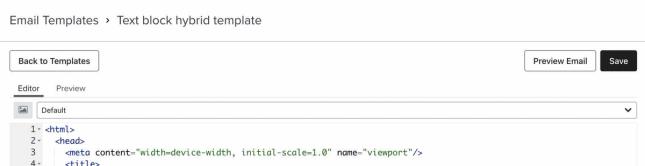
- To access the template in Klaviyo’s drag-and-drop editor, add it to a campaign or flow.
- If prompted to choose a template type, select Drag and drop.
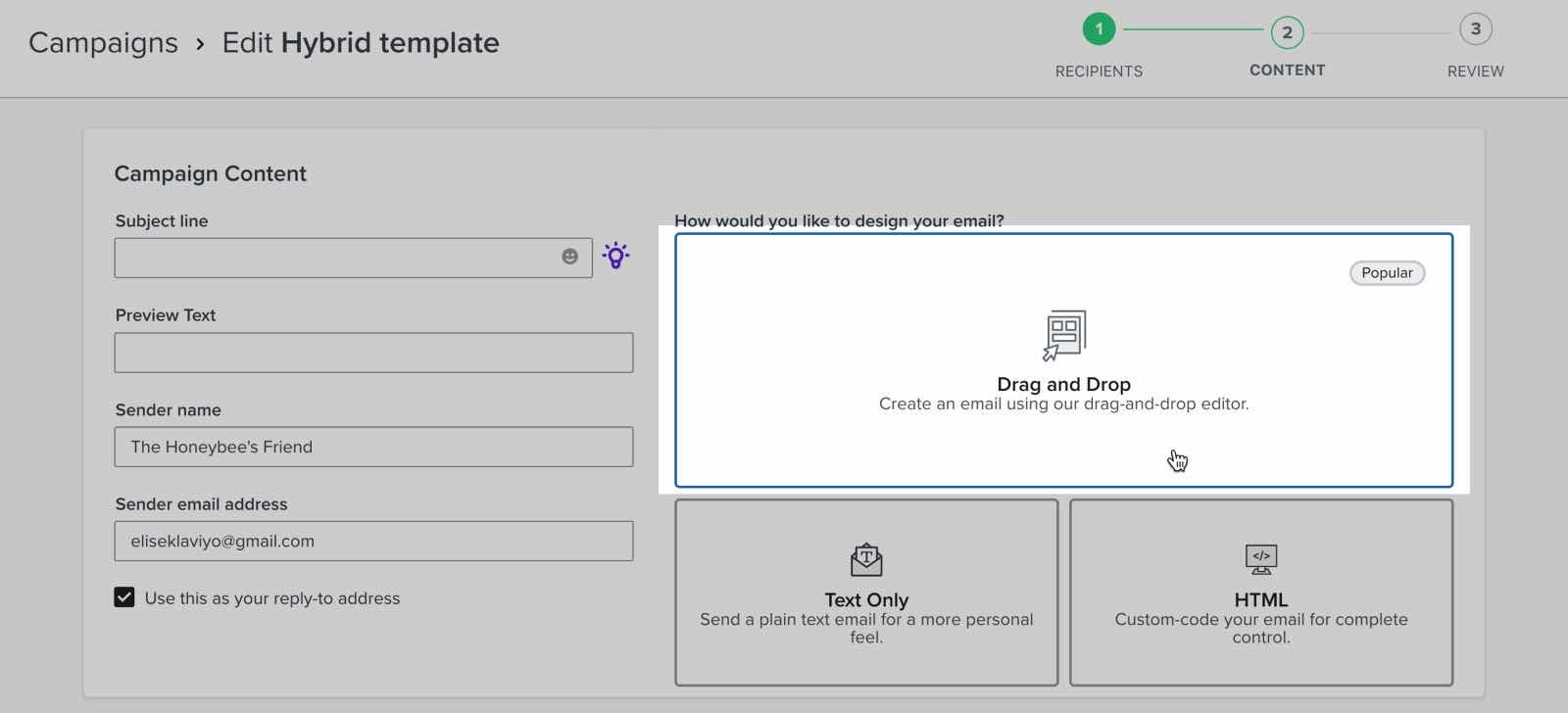
- In the template gallery, select Email: saved, select the template you imported, and click Use template.
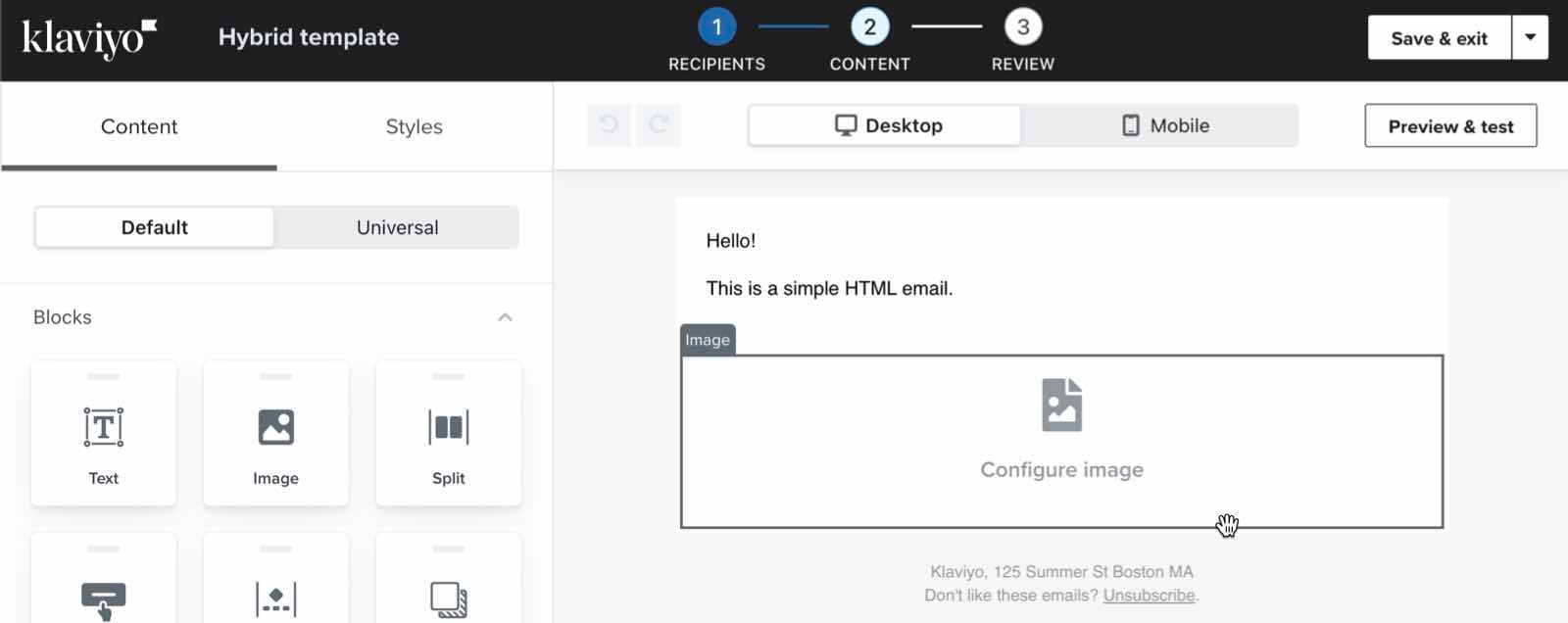
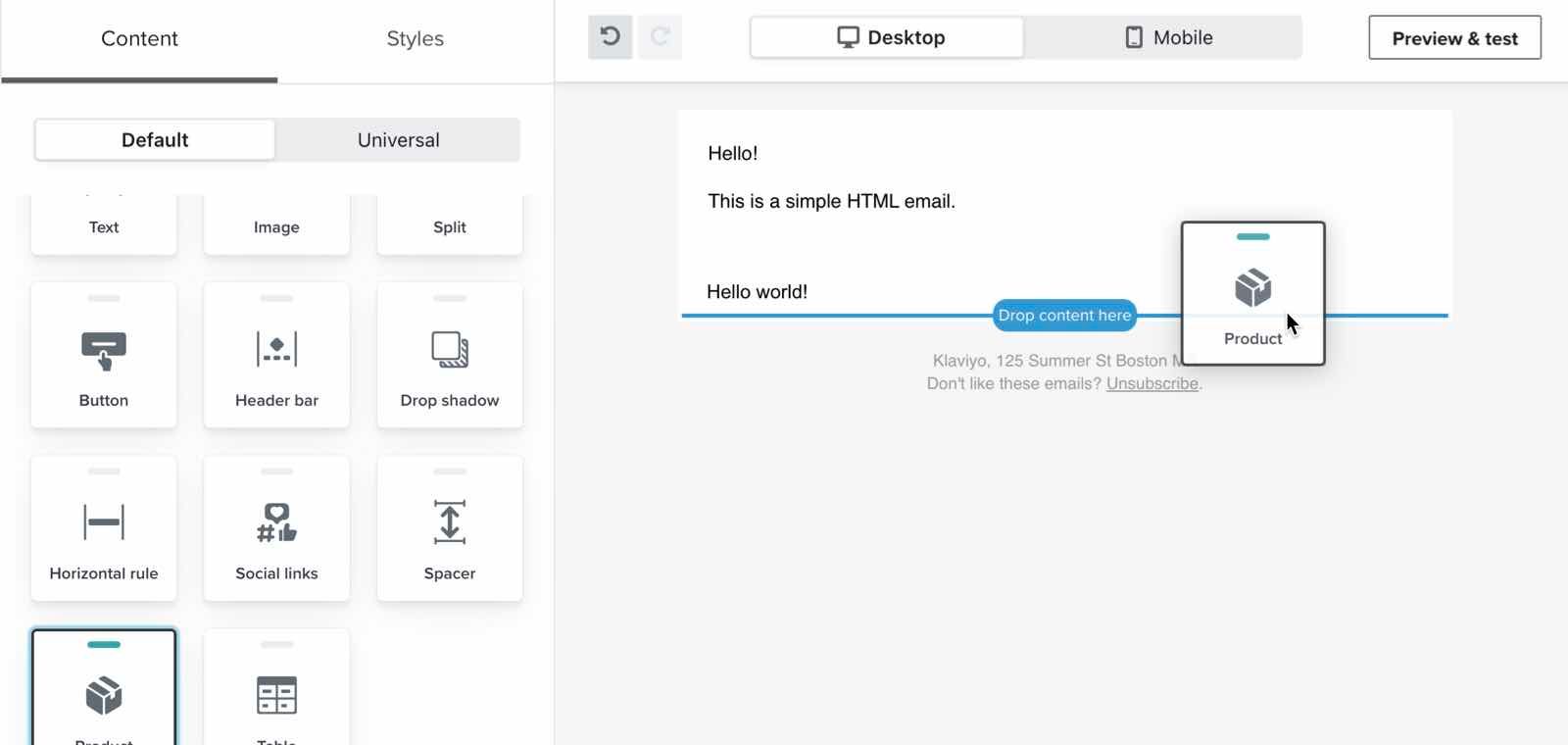
- Note the text block that says Hello world! This is your editable text block.
- Drag and drop additional blocks above or below the text block, as desired.
Add a customizable image block
- Create a custom HTML template using your preferred HTML editor.
- Add the following code snippet to your HTML template. Make sure to place it wherever you’d like to add your image block after importing your template.
<td align="center" data-klaviyo-region="true" data-klaviyo-region-width-pixels="600">
    <div class="klaviyo-block klaviyo-image-block"></div>
</td>- Optionally, add a preset image inside the
div. Replace the example image URL below with a publicly accessible image URL, and replace the link and alt text with your own:
<td align="center" data-klaviyo-region="true" data-klaviyo-region-width-pixels="600">
    <div class="klaviyo-block klaviyo-image-block">
        <a href="https://www.klaviyo.com/"><img src="https://example.com/my_image.png" alt="My Image" /></a>
    </div>
</td>- In Klaviyo, navigate to Content > Templates.
- Select the Email: saved tab.
- Click Create > Import email template.
- Enter a name for your template, upload your HTML file, and click Import template.
- If you open the template from your Templates tab, you’ll see your template’s code in Klaviyo’s HTML editor.
- To access the template in Klaviyo’s drag-and-drop editor, add it to a campaign or flow. If prompted to choose a template type, select Drag and drop.
- In the template gallery, select Email: saved, select the template you imported, and click Use template.
- Note the image block, which will either contain a button to upload an image or the image you included.
- Drag and drop additional blocks above or below the image block, as desired.
Add a universal content block
This process is supported for universal content blocks, not universal sections.
- Create a custom HTML template using your preferred HTML editor.
- Add the following code snippet to your HTML template. Make sure to place it wherever you’d like to add your universal content block after importing your template.
<td data-klaviyo-region="true" data-klaviyo-region-width-pixels="600">
<div data-klaviyo-universal-block="block_id_1"> </div>
</td>- Replace block_id_1 with the ID of your universal content block. To find a universal content block's ID:
- Navigate to Content > Universal content.
- Open a universal content block to edit it.
- The URL for this page will follow this format: https://www.klaviyo.com/email-template-editor/universal/block/BLOCK_ID.
- Copy the block ID from the URL.
- In Klaviyo, navigate to Content > Templates.
- Select the Email: saved tab.
- Click Create > Import email template.
- Enter a name for your template, upload your HTML file, and click Import template.
- If you open the template from your Templates tab, you’ll see your template’s code in Klaviyo’s HTML editor.
- To access the template in Klaviyo’s drag-and-drop editor, add it to a campaign or flow. If prompted to choose a template type, select Drag and drop.
- In the template gallery, select Email: saved, select the template you imported, and click Use template.
- Note the universal content block(s).
You can add multiple universal content blocks with a single code snippet. To do so, add another div element immediately after the first in the code snippet above, using a different block's ID.
Add a block of another type (i.e., product block, table block)
- Create a custom HTML template using your preferred HTML editor.
- Add the following code snippet to your HTML template. Place it wherever you’d like to add your block(s) after importing your template.
<td align="center" data-klaviyo-region="true" data-klaviyo-region-width-pixels="600">
    <div class="klaviyo-block klaviyo-text-block">Hello world!</div>
</td>- In Klaviyo, navigate to Content > Templates.
- Select the Email: saved tab.
- Click Create > Import email template.
- Enter a name for your template, upload your HTML file, and click Import template.
- If you open the template from your Templates tab, you’ll see your template’s code in Klaviyo’s HTML editor.
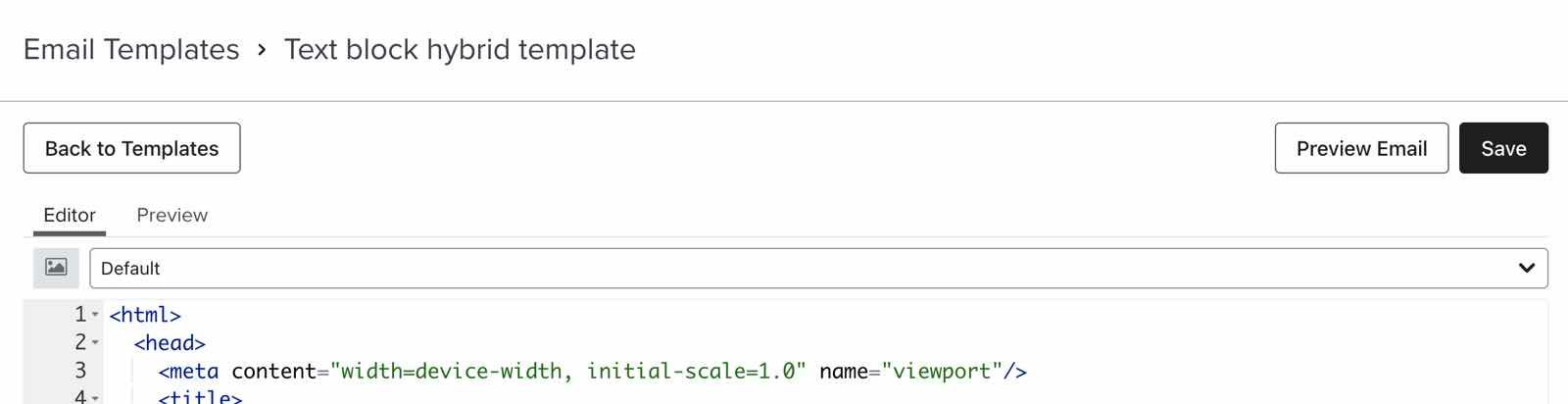
- To access the template in Klaviyo’s drag-and-drop editor, add it to a campaign or flow. If prompted to choose a template type, select Drag and drop.
- In the template gallery, select Email: saved, select the template you imported, and click Use template.
- Note the text block that says Hello world! Drag another block (e.g., a product block) below this block.
- Delete the text block and add additional custom blocks, as desired.
Sample hybrid email template code
The example below shows a functional HTML file with the hybrid code snippet for a text block. Use this code to test the hybrid editor functionality.
| This is a very simple HTML email | |
|
|
| {% unsubscribe %} |