How to import a custom HTML template
You will learn
Learn how to import a custom HTML template into Klaviyo.
We only recommend using custom HTML for technically savvy marketers, or for anyone who has access to a developer. While our product does support custom HTML, our support team cannot help you build out your custom templates beyond offering the general guidance covered in this documentation. To maintain the security of your data, Klaviyo's support team is not able to open your HTML files.
Import a custom HTML template
If you upload a file, it must have a .html extension. Marketing templates must include an unsubscribe link. Use {% unsubscribe %} to generate a link, or place {% unsubscribe_link %} in the href attribute of your own link. Learn more about unsubscribes in Klaviyo.
The non-marketing checkbox skips the unsubscribe check during import. Select it only if the template will be used for triggered emails that are not marketing related.
Removing unsupported template tags and variables
When you export a template from a different email service provider, it may contain tags and variables that aren’t supported by Klaviyo. Before you import your HTML file, remove those tags (and, if needed, replace them with Klaviyo personalization tags).
For example, see the message and HTML below. This message was exported from another email service provider and contains tags for the current year, a company’s address, and more. These external tags are not compatible with Klaviyo.
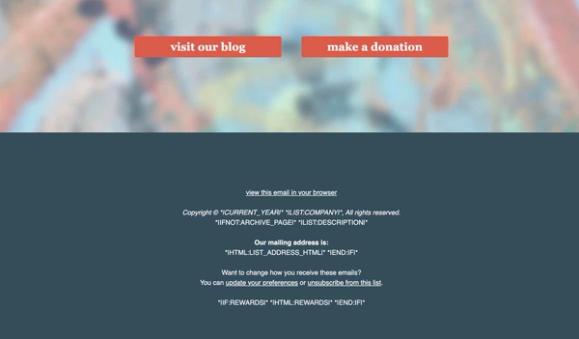
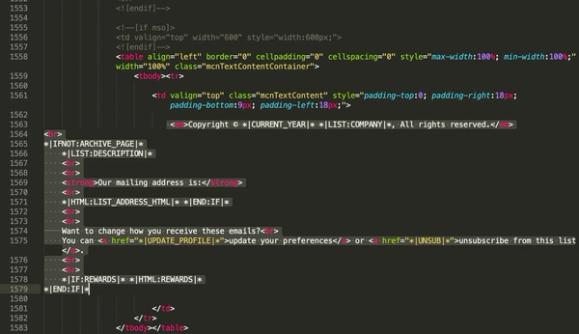
Klaviyo template tags are contained within curly brackets. Variables are surrounded by two pairs of curly brackets (e.g., {{ first_name }}), and template tags are surrounded by a pair of curly brackets and percent symbols (e.g., {% unsubscribe %}). If the template tags and variables in your template are denoted by other characters, Klaviyo will not support them.
- Navigate to Content > Templates.
- Select the Email: saved tab.
- Click Create > Import email template.
- Enter a name in Template name.
- Select Upload HTML file and upload your .html file, or select Paste HTML and paste your code into Template HTML.
- If your HTML references local images, upload a .zip file containing them under Upload additional files used in the template. See the image requirements below.
- Click Import template.
After a successful import, the dialog closes and your template appears in the Email: saved tab.
Exporting a template built in Klaviyo's drag and drop editor and then importing it back into Klaviyo is not recommended, and can cause problems with the template's functionality.
Add images (optional)
Package local images in a .zip file and upload it in Upload additional files used in the template. Each image's filename and folder path in the ZIP must match its reference in your HTML. Each image must be 10 MB or smaller.
When you import your template, Klaviyo uploads the referenced images from the ZIP to its content delivery network (CDN) and updates their references in your template.
If your images are already hosted online, reference them with full http:// or https:// URLs. You do not need to include those images in the ZIP file.
Add hidden preview text to a custom HTML template
If you’d like to set the preview text for a custom HTML template (rather than letting inboxes pull preview text from your message content), add the code block below to your template. This code should be added immediately after the opening <body> tag of your template. Replace Insert preview text here. with the preview text you want recipients to see.
<div style="display:none; font-size:1px; line-height:1px; max-height:0px; max-width:0px; opacity:0; overflow:hidden;">
Insert preview text here.
</div>
Emojis and custom HTML templates
As of February 2024, all emojis are supported in all Klaviyo email editors (i.e., the drag-and-drop editor, hybrid editor, text-only editor, and custom HTML editor).