How to integrate with Kickoff Labs
You will learn
Learn how to integrate KickoffLabs with Klaviyo, which will allow you to sync leads and data from your chosen KickoffLabs forms. You’ll have the option to sync your KickoffLabs leads list to a list in your Klaviyo account.
Enable the KickoffLabs integration
- In your Klaviyo account, select the Integrations tab.
- Click Explore apps, search for KickoffLabs, and click the card. Then, click Install.
- Select Connect to KickoffLabs.
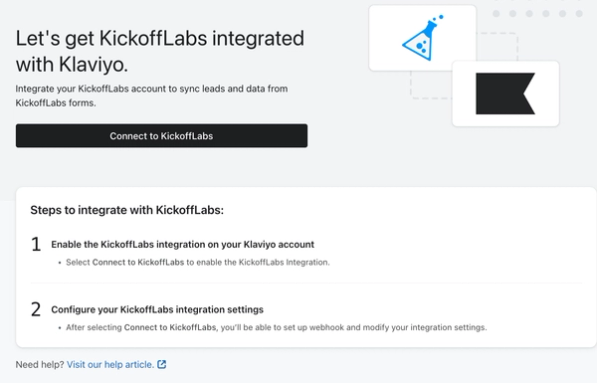
- To add new form submissions to a Klaviyo list, select the checkbox next to Add new KickoffLabs email subscribers to a Klaviyo list. Leave it unchecked if you don’t want to add leads to a list.
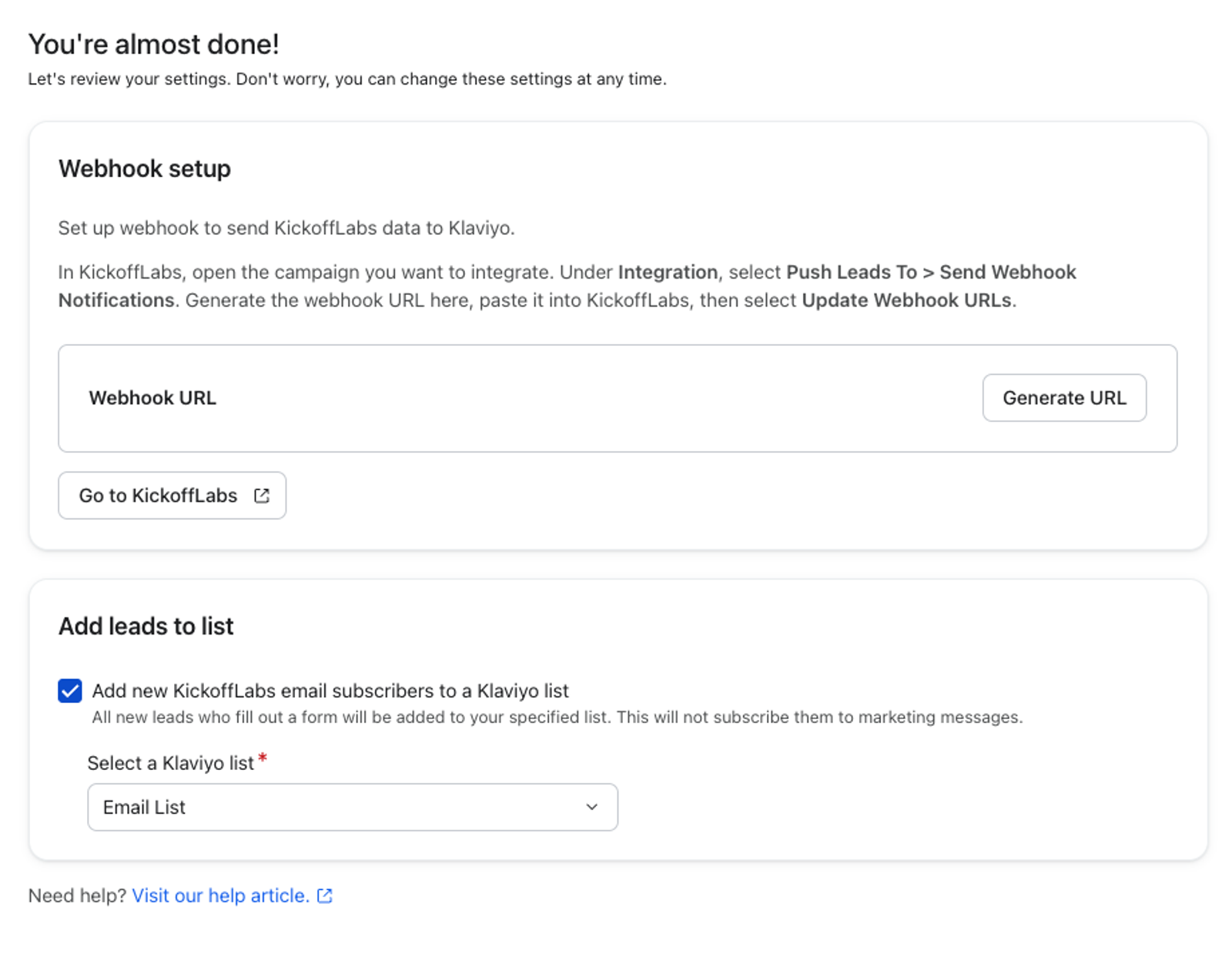
- If you selected the checkbox, choose a list from the Select a Klaviyo list dropdown. Adding leads to a list does not subscribe them to marketing messages.
- In Webhook setup, click Generate URL. In the Webhook URL generated dialog, click Copy webhook URL and store it somewhere safe. Klaviyo shows the full URL only once.
- Click Done, then Complete setup to save your Klaviyo integration settings.
- Navigate to your KickoffLabs account, then navigate to the campaign you want to integrate with Klaviyo.
- Open the campaign’s outbound webhook settings using KickoffLabs’ webhook setup instructions.
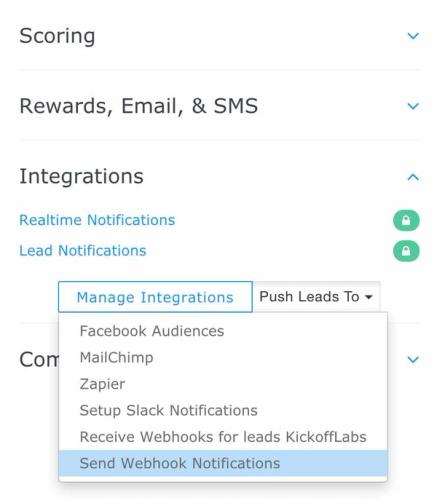
- Use the complete webhook URL you copied from Klaviyo as the destination. Configure the webhook to send only new signup events, then save it in KickoffLabs.
You've now completed the integration with KickoffLabs.
Outcome
Now that you’ve integrated with KickoffLabs, leads will sync from KickoffLabs to Klaviyo.
Monitor KickoffLabs sync
- Fill out your KickoffLabs form with a test email address.
- In Klaviyo, go to Analytics > Metrics.
- Filter by KickoffLabs, open Filled Out Form, and select Activity feed. Confirm that your test submission appears.
If data isn’t syncing, check that your KickoffLabs webhook uses the complete URL generated in Klaviyo. If you need a new URL, follow these steps.
Generating a new URL immediately invalidates the current URL. Update every KickoffLabs webhook that uses it to continue syncing data.
- In Klaviyo, go to Integrations, select KickoffLabs, and open Settings.
- Under Webhook setup, click Generate new URL, then Generate to confirm. If no URL has been generated yet, click Generate URL.
- Click Copy webhook URL, store it safely, and click Done. Replace the old URL in each affected KickoffLabs campaign and save, then submit a new test signup.
KickoffLabs metrics
Currently, Klaviyo syncs 1 metric with KickoffLabs: Filled Out Form.

This metric shows you the following:
- Who filled out the form
- When Klaviyo recorded the form submission
- The URL of the filled out form, if KickoffLabs includes it in the submission
Klaviyo saves recognized contact fields, such as email, first name, last name, phone number, and location, as standard profile fields. Other custom form fields sent by KickoffLabs appear under Custom properties.
Additional resources
- Getting started with flows
Learn how to use flows, also known as automations or drip campaigns, in Klaviyo for personalized and automated communications to your customers, and learn how to set your first flow live.
- Getting started with segments
Learn how to create and use segments in Klaviyo, which are a powerful tool for understanding your audience and sending targeted messages.
- Understanding the types of information exchanged between Klaviyo and apps
Learn about what types of data are exchanged between Klaviyo and external apps, and where that data is found in your Klaviyo account. When you integrate a third-party application with Klaviyo, the two platforms exchange information. Most data exchange with Klaviyo is one-way; data is pulled into your Klaviyo account so you can leverage a broad scope of your customers' data within Klaviyo.