How to review a flow's history
You will learn
Learn how to access a flow’s changelog and what it displays.
A flow’s changelog allows you to see what’s changed, when it happened, and who made the change. This makes it easier to troubleshoot issues in a flow and gives you insight into the flow’s history and how it evolved over time.
Access a flow’s changelog
- Head into the specific flow you want to review.
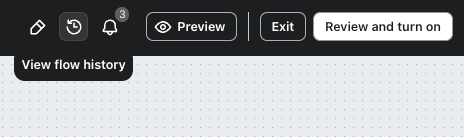
- In the header bar, click on the View flow history icon button.
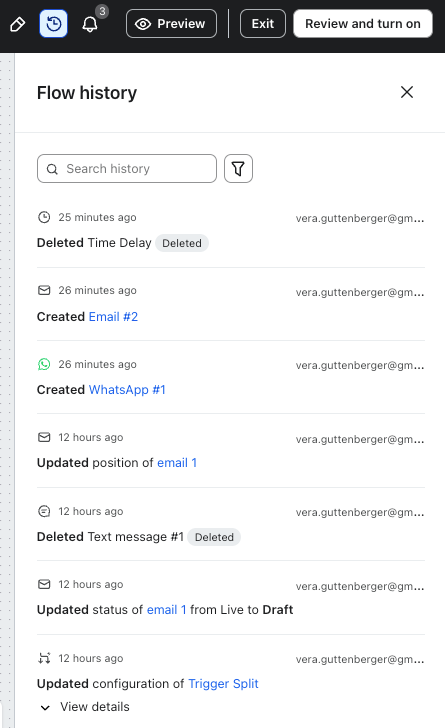
- View the Flow history panel (i.e., the changelog) on the right-hand side of the screen.
Information in the changelog
The changelog shows you exactly how your flow changed, including:
- What changed
- Who made the change
- When the change took place (date and time in your account’s timezone)
This changelog tracks the flow itself (such as when the flow was created) as well as the following actions and components:
- Trigger
- Profile filters and trigger filters
- Email, SMS, and push notification messages
- Update profile property actions
- Time delays
- Conditional splits and trigger splits
- Webhooks
It records when any of these items were created, updated, or deleted.
If a user on the account made the change, you’ll see their name displayed. If someone at Klaviyo logged in to your account and made the change, you’ll see that it was made by Klaviyo Staff.
A cloned flow’s activity will not appear in the original flow’s changelog. Further, a cloned flow will not contain the full history of the original flow; however, you will see a message saying Created from clone of [Original Flow].
Understanding what’s changed
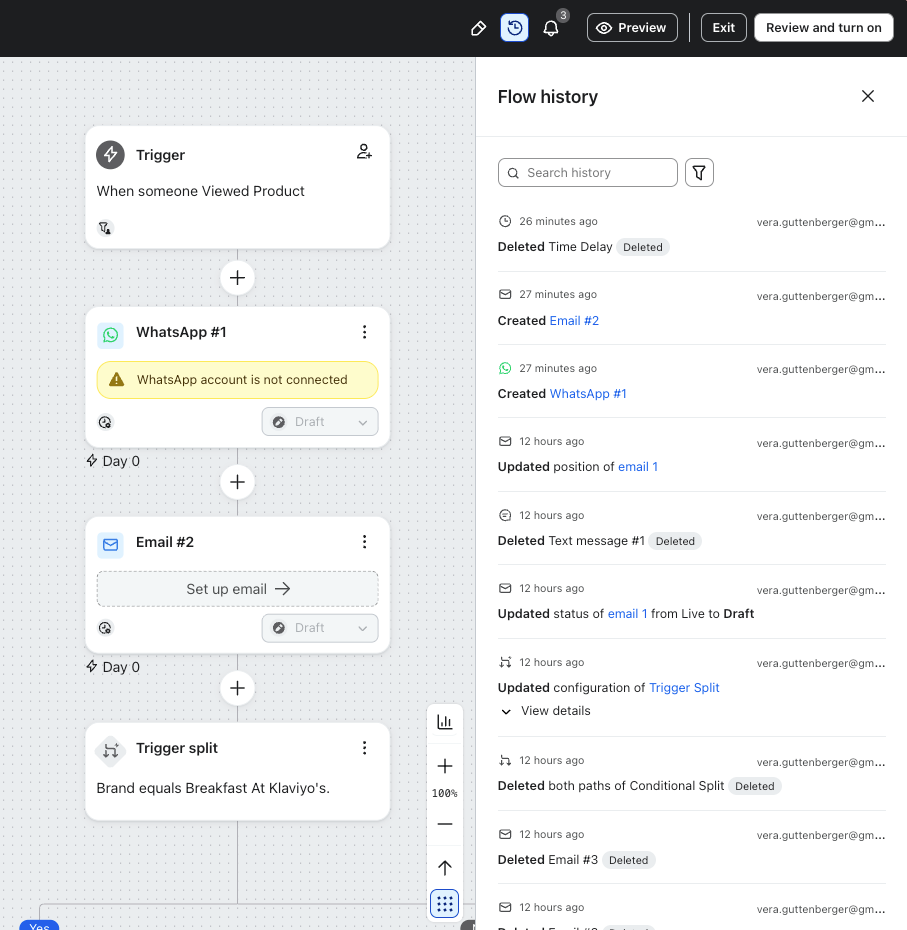
If a component is updated, click View Details to see how it was altered. You will see what the item looked like before and after the change took place.
Yon can also click on any item in the changelog to highlight that component in the flow and open its settings in the left-hand side. (This will not work if the component was deleted since that item will no longer exist in the flow.)
Filter the changelog
The changelog shows the last 1,000 events, so filtering can help you quickly find a specific change to your flow.
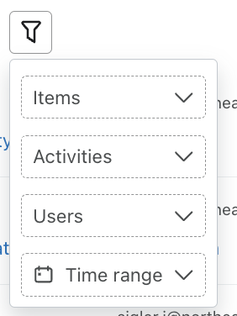
- Click the filter icon next to the search bar.
- Add any of your desired filters:
- Items (i.e., the updated components)
- Activities (i.e., created, updated, deleted)
- User
- Time range
Additional resources
- Troubleshooting a flow
Learn how to troubleshoot a flow when you notice it behaving differently from expected.
- How to preview a flow trigger setup
Learn how to use the flow trigger setup preview tool to ensure your flow is set up as you intended. This will help you understand how your flow is going to behave based on the trigger and profile filters you've added.
- Understanding how contacts move through a flow
Learn how contacts move through a flow. Flows are automated Klaviyo workflows that are set in motion by an initial trigger and then include one or more steps. Flows can be built to send timely communications to recipients, or they can simply apply certain actions, like updating a specific field on a profile.