Connecting Klaviyo and Redshift
Advanced KDP is not included in Klaviyo’s standard marketing application, and a subscription is required to access the associated functionality. Head to our billing guide to learn about how to purchase this plan.
Overview
This guide walks Redshift administrators through preparing Amazon Redshift for Klaviyo, granting the minimum required access, and completing the connection so you can import profile data on a schedule. You’ll learn how to:
- Create the
KLAVIYO_TMPandKLAVIYO_IMPORT_FROM_DWHschemas - Create a dedicated service user for Klaviyo
- Grant least-privilege permissions
- (Optional) Validate database permissions
- Connect Redshift to Klaviyo and create a scheduled profile sync
For background on how data warehouse import works—including supported objects and best practices for table structure—see Understanding data warehouse import in Klaviyo.
Create required schemas
Create 2 schemas in the Redshift database you’ll use for Klaviyo:
-- Run as a Redshift DB admin or a role with CREATE SCHEMA
CREATE SCHEMA IF NOT EXISTS klaviyo_import_from_dwh;
CREATE SCHEMA IF NOT EXISTS klaviyo_tmp;KLAVIYO_IMPORT_FROM_DWH– Place your final, ready-to-sync tables or views here. During setup, Klaviyo lists objects in this schema for you to choose from, so include only the tables you plan to import.KLAVIYO_TMP– Used exclusively by Klaviyo for temporary/staging tables during sync jobs. Don’t modify data here—Klaviyo manages and cleans up this schema automatically.
Create the Klaviyo service user
Create a dedicated database user for Klaviyo with a strong password that you can rotate independently.
-- Replace with your own names and a strong password
CREATE USER klaviyo_data_transfer_user WITH PASSWORD 'REPLACE_WITH_STRONG_PASSWORD';
Create a role to manage grants for the service user:
CREATE ROLE klaviyo_data_transfer_role;
GRANT ROLE klaviyo_data_transfer_role TO klaviyo_data_transfer_user;
Store the username and password securely—you’ll use them when connecting Klaviyo to Redshift.
Grant required permissions (least privilege)
Run these statements as a Redshift administrator in the database you prepared. These grants apply to existing tables and views. Grant access to new source tables or views before adding them to a sync.
-- 1) Permissions on the staging schema Klaviyo manages
GRANT USAGE ON SCHEMA klaviyo_tmp TO ROLE klaviyo_data_transfer_role;
GRANT CREATE ON SCHEMA klaviyo_tmp TO ROLE klaviyo_data_transfer_role;

-- 2) Read-only access to existing tables and views in your import schema
GRANT USAGE ON SCHEMA klaviyo_import_from_dwh TO ROLE klaviyo_data_transfer_role;
GRANT SELECT ON ALL TABLES IN SCHEMA klaviyo_import_from_dwh TO ROLE klaviyo_data_transfer_role;
-- Remember to grant access to new tables and views in the future

-- Alternatively, grant SELECT on each specific source table or view:
-- GRANT SELECT ON TABLE klaviyo_import_from_dwh.example_view_name TO ROLE klaviyo_data_transfer_role;
(Optional) Verify your setup
Connect to the database you prepared as the Klaviyo service user, then run these checks. Replace EXAMPLE_TABLE with a source table or view you plan to sync. These checks do not replace the Test connection step in Klaviyo.
-- 1) Validate create/read access in KLAVIYO_TMP
-- Use a new test table name if klaviyo_permission_check already exists
CREATE TABLE klaviyo_tmp.klaviyo_permission_check (id INT);
INSERT INTO klaviyo_tmp.klaviyo_permission_check VALUES (1);
SELECT COUNT(*) FROM klaviyo_tmp.klaviyo_permission_check;  -- expect 1
DROP TABLE klaviyo_tmp.klaviyo_permission_check;

-- 2) Confirm visibility of source tables and views
SELECT DISTINCT table_name FROM information_schema.columns
WHERE table_schema = 'klaviyo_import_from_dwh'
ORDER BY table_name
LIMIT 25;

-- 3) Confirm SELECT on a source table or view
SELECT * FROM klaviyo_import_from_dwh.EXAMPLE_TABLE LIMIT 1;
Network access
Klaviyo must be able to reach your Redshift endpoint.
- Public Redshift endpoint: allowlist Klaviyo’s static IPs in your firewall or security group.
- Private endpoint (e.g., PrivateLink): ensure connectivity through your internal network path and security policies.
If using security groups, allow inbound access on your Redshift port (default 5439) for Klaviyo’s IP ranges:
184.72.183.187/32
52.206.71.52/32
3.227.146.32/32
44.198.39.11/32
35.172.58.121/32
3.228.37.244/32
54.88.219.8/32
3.214.211.176/32
Prepare your import tables (structure and performance)
Ensure that all tables you plan to import follow these conventions for accurate, efficient incremental syncs:
- Timestamp column: Include a per-row creation or last-update timestamp (e.g.,
inserted_at,updated_at,modified_at). Use aTIMESTAMPorTIMESTAMPTZcolumn with a value for each row. Text and DATE columns are not available for change detection. - Monotonic updates: The timestamp should increase whenever a row changes.
- Timezone: Use UTC or include timezone information. If missing, Klaviyo assumes UTC.
- Consistent identifiers: Include at least 1 profile identifier (
email,phone,external_id, etc.). Use consistent identifiers across import tables to avoid duplicate profiles. - Consent formats: When syncing consent data, follow the same valid values/formats as used in file or SFTP uploads.
- Performance: Consider a sort key on your timestamp column for efficient incremental reads.
- Views: You can import from tables or views, as long as a simple
SELECTworks for the Klaviyo user.
Connect Redshift and create a profile sync
- In Klaviyo, navigate to Advanced > Data management > Syncing.
- If you already have a connection configured, click Create sync. If this is your first connection, continue to the next step.
- Select Import data from your data warehouse.
- Choose Amazon Redshift.
- Click Connect to Redshift and enter the following connection details:
Field | Description |
|---|---|
Name | Enter a name, such as your Redshift database name. |
Host URL | Your Redshift endpoint (e.g., |
Port | 5439 (or your custom port) |
Database | The database containing |
Username / Password | The Klaviyo service user credentials |
- Click Next to open Test connection, then click Test. Klaviyo checks your connection, required schemas, and staging permissions, then lists accessible tables and views in
klaviyo_import_from_dwh. At least 1 source must be available to continue. After the test succeeds and a source is available, click Next. - Enter a unique sync name in Name, select your table or view under Data source, and select Profiles under Data object types.
- Under Cadence, select Schedule run. Choose the interval under Every, then set Start Date, Start Time, and Timezone. Click Next.
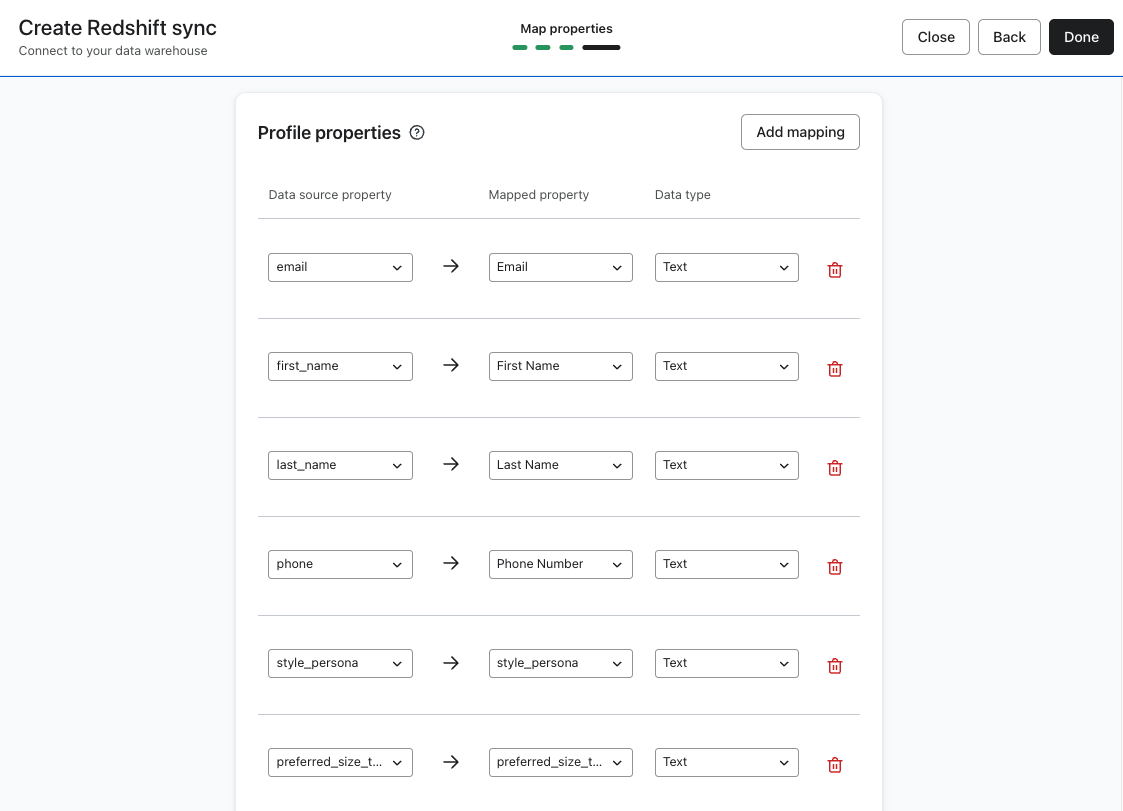
- In Map properties, select your timestamp column under Change detection > New Row Detection. Map at least 1 profile identifier and the profile properties you want to import. Remove mappings for columns you don’t want to import. You cannot also map the change-detection column to a profile property.
- Click Done to save the connection and sync. Klaviyo returns you to Syncing, and the sync runs according to the schedule you selected.
Troubleshooting tips
Connection test fails
- Verify that firewall or security group rules allow Klaviyo’s IPs to reach your Redshift endpoint on the correct port.
- Confirm SSL settings and that you’re using the correct endpoint (cluster vs. workgroup), region, and port.
Tables don’t appear
- Ensure tables are in
klaviyo_import_from_dwh. - Confirm the Klaviyo user has
USAGEon the schema andSELECTon the tables or views.
No new rows syncing
- Verify your timestamp column updates on row changes and uses UTC or includes timezone info.
Permission errors at runtime
- Re-run the validation SQL as the Klaviyo user.
- Re-apply grants or default privileges if necessary.
Security and maintenance
- Rotate the service user password regularly and after staff changes. After changing the password in Redshift, update it in your Klaviyo connection’s Configuration tab and click Save.
- Limit the Klaviyo user to the 2 schemas above, and grant
USAGEonly where required. - Keep a simple runbook documenting your exact
GRANTstatements and the IP ranges you’ve allowlisted.
FAQ
Can I import from multiple Redshift databases?
Yes. Create the 2 schemas and grant access in each database, then create a separate Redshift connection in Klaviyo for each database. Add separate syncs for the source tables or views within each connection.
Can I use materialized views?
Yes. Grant SELECT on the materialized view to the Klaviyo user.
Appendix: Example DDL for a simple import table
CREATE TABLE klaviyo_import_from_dwh.profile_base (
  external_id   VARCHAR(128),
  email         VARCHAR(320),
  phone         VARCHAR(32),
  first_name    VARCHAR(128),
  last_name     VARCHAR(128),
  country       VARCHAR(64),
  inserted_at   TIMESTAMP
);

-- ensure monotonically increasing timestamp on inserts/updates
-- (use your ETL/ELT to set inserted_at = GETDATE() at load time)