How to create an "Added to Cart" event for BigCommerce
You will learn
Learn how to create an Added to Cart event for BigCommerce that tracks clicks on your product page’s “Add to Cart” button and can trigger an abandoned cart flow. Added to Cart events do not automatically track when you integrate with BigCommerce; you must first add (and potentially modify) a JavaScript snippet (included in this guide) to your BigCommerce theme files.
- You do not need to create the Added to Cart event to send an abandoned cart flow; the Added to Cart abandoned cart flow is separate from the standard abandoned cart flow, which is triggered by Started Checkout.
- Klaviyo’s built-in BigCommerce integration already tracks a Started Checkout event when a cart contains items and a valid email address. For shoppers signed in to a store account, this can happen when they first add an item, before they reach checkout.
Before you begin
Klaviyo must identify a visitor before their Added to Cart activity appears on their profile. If Anonymous backfill is enabled, activity collected before identification can be added to the profile after the visitor is identified. Learn more about how visitors are cookied by Klaviyo.
Make sure Klaviyo.js is installed and you already have Viewed Product tracking installed in order for the Added to Cart event to function properly. Typically, Klaviyo customers install this during the BigCommerce integration process and the instructions can be found in our integration article. Both snippets below use the product data supplied by Viewed Product tracking.
Add the snippet
- Open your BigCommerce admin and navigate to Storefront > My Themes.
- Find your current theme, open the Advanced Settings dropdown, and select Edit Theme Files. If this option is unavailable for a default theme, make a copy and edit the copy. Make sure the edited theme is applied to your store before testing.
- Search for the product.html file and click to open it.
- Paste the snippet below directly underneath the Klaviyo Viewed Product snippet.
<script type="text/javascript">
//Initialize Klaviyo object immediately on page load
!function(){if(!window.klaviyo){window._klOnsite=window._klOnsite||[];try{window.klaviyo=new Proxy({},{get:function(n,i){return"push"===i?function(){var n;(n=window._klOnsite).push.apply(n,arguments)}:function(){for(var n=arguments.length,o=new Array(n),w=0;w<n;w++)o[w]=arguments[w];var t="function"==typeof o[o.length-1]?o.pop():void 0,e=new Promise((function(n){window._klOnsite.push([i].concat(o,[function(i){t&&t(i),n(i)}]))}));return e}}})}catch(n){window.klaviyo=window.klaviyo||[],window.klaviyo.push=function(){var n;(n=window._klOnsite).push.apply(n,arguments)}}}}(); </script>
<script type="text/javascript">
//Added to Cart
var klaviyo = window.klaviyo || [];
document.getElementById("form-action-addToCart").addEventListener('click',function (){
   klaviyo.track("Added to Cart", item);
});
</script>- Next, check if you need to modify your snippet. To do this, you’ll need to check the ID of the “Add to Cart” button on your site, and see if it matches the “Add to Cart” variable highlighted in the snippet below, whose default is
form-action-addToCart.

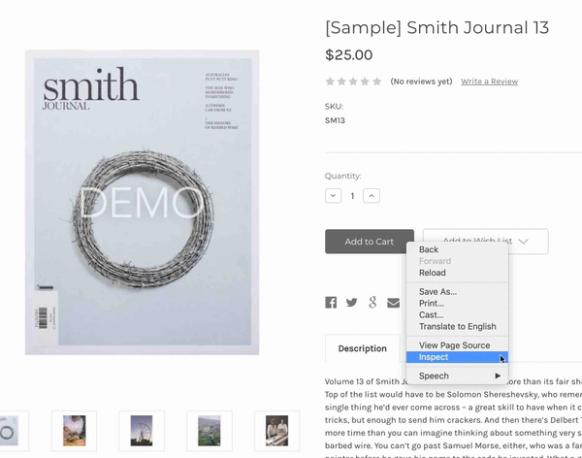
- To check the ID of the button, open up one of your site’s product pages, right-click your “Add to Cart” button, and select Inspect.
- Your browser’s developer tools will open, showing the HTML for the “Add to Cart” button. Find its ID, as highlighted in the following example.
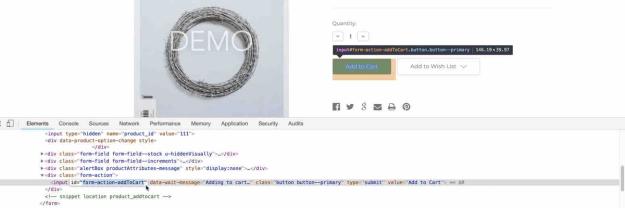
- The ID of the button on the page shown here matches
form-action-addToCart, so no changes need to be made.- If the ID of the “Add to Cart” button on your site isn’t
form-action-addToCart, you’ll need to change the variable text within the quotes to match the button’s ID.
- If the ID of the “Add to Cart” button on your site isn’t
- If the button has no ID, replace the snippet above with the alternate snippet in the next section, which uses the button’s class. Use only 1 of the 2 snippets.
- When you’re done, save your product.html file.
After saving, follow the testing steps below to confirm that Added to Cart events reach Klaviyo.
Alternate snippet for "Add to Cart" button without a button ID
For styling reasons, some sites use a class notation instead of a button ID for “Add to Cart” buttons.
If your “Add to Cart” button does not have a button ID (which you can determine by following the steps in the previous section) and instead uses a class notation, you should use the alternate code snippet below to enable the Added to Cart event.
- Replace the first snippet with the alternate snippet below in product.html, directly underneath the Klaviyo Viewed Product snippet:
<script type="text/javascript">
//Initialize Klaviyo object immediately on page load
!function(){if(!window.klaviyo){window._klOnsite=window._klOnsite||[];try{window.klaviyo=new Proxy({},{get:function(n,i){return"push"===i?function(){var n;(n=window._klOnsite).push.apply(n,arguments)}:function(){for(var n=arguments.length,o=new Array(n),w=0;w<n;w++)o[w]=arguments[w];var t="function"==typeof o[o.length-1]?o.pop():void 0,e=new Promise((function(n){window._klOnsite.push([i].concat(o,[function(i){t&&t(i),n(i)}]))}));return e}}})}catch(n){window.klaviyo=window.klaviyo||[],window.klaviyo.push=function(){var n;(n=window._klOnsite).push.apply(n,arguments)}}}}(); </script>
<script type="text/javascript">
//Added to Cart
var klaviyo = window.klaviyo || [];
var classname = document.getElementsByClassName("add-to-cart");
var addToCart = function() {
   klaviyo.track("Added to Cart", item);
};
for (var i = 0; i < classname.length; i++) {
   classname[i].addEventListener('click', addToCart, false);
}
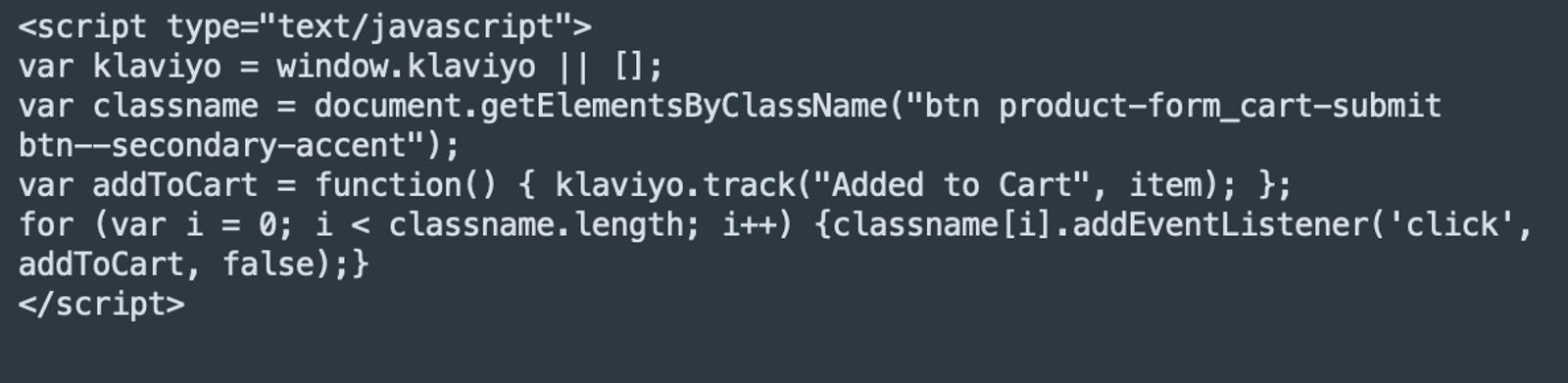
</script>- This code will likely need to be modified with your class name. Compare your button class name in between the quotations, highlighted in the following example, with the contents in between the parentheses after
getElementsByClassNamein the code snippet above. For example, the class name in the screenshot isbtn product-form_cart-submit btn--secondary-accentand the class in the snippet is namedadd-to-cart.

- If these two don't match, change the code snippet to reflect the class name for your button.
- For example, the code snippet below has been modified with the classname value
btn product-form_cart-submit btn--secondary-accentsurrounded by double quotations.
- Save your product.html file.
After saving, follow the testing steps below to confirm that Added to Cart events reach Klaviyo.
Test and troubleshoot your "Added to Cart" snippet
After you’ve added the snippet, it should watch the “Add to Cart” button and track an Added to Cart event whenever a cookied visitor clicks this button.
Each click on the configured button sends the product information from the Viewed Product snippet. It does not confirm that BigCommerce successfully added the product or capture the full cart.
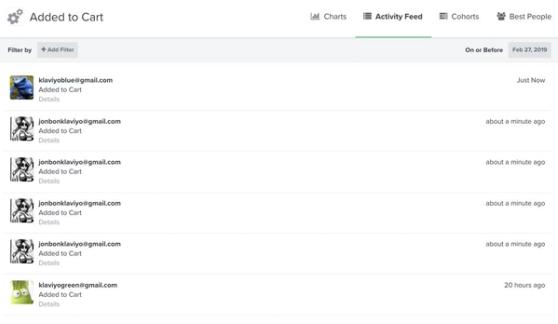
To test, open a product page in a browser where Klaviyo has identified you, for example after clicking a link to your store in a Klaviyo email. Click the product’s “Add to Cart” button, then check for the event in Klaviyo:
- Navigate to Analytics > Metrics in Klaviyo.
- Clear any BigCommerce integration filter, then search for and open Added to Cart. This snippet creates an API metric.
- Click Activity feed and look for your test event.
If you don’t see Added to Cart events in your account, try the following:
- Make sure your Klaviyo.js (also known as the Active on Site snippet) is working, which is necessary for Added to Cart to function properly. This is added automatically when the BigCommerce integration setting Automatically add Klaviyo onsite javascript (Recommended) is enabled. Check that it’s working by following the steps in the confirming onsite tracking installation section of our BigCommerce integration article.
- Check that your Viewed Product tracking is working, which is also necessary for Added to Cart to function properly. This snippet is added manually, and you can learn how to add and test it in the Viewed Product section of our integration article.
If you are still encountering problems with your Added to Cart snippet, it could be due to an issue with identifying the “Add to Cart” button. In this case, please contact Klaviyo support.
The "Added to Cart" abandoned cart flow
When creating an abandoned cart flow (either using Added to Cart or Started Checkout) you can leverage Klaviyo SMS in addition to email. For compliance reasons, make sure to only send 1 SMS in your flow and if you are using multiple types of abandoned cart flows, make sure to only use SMS in 1 of them. Before adding SMS, review the SMS abandoned cart requirements, including consent and sending-time requirements.
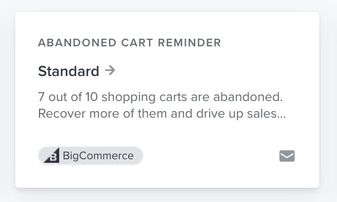
In the Start with the essentials section of the library, you will find the standard abandoned cart reminder flow. This flow is triggered by the Started Checkout event.
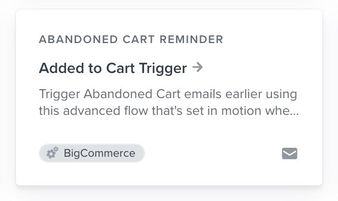
To get started with an abandoned cart flow using the Added to Cart event, we recommend using the pre-built flow available in Klaviyo's Flow Library which has the proper flow filters already set up. This flow tends to target more casual potential shoppers who have yet to start checkout.
- After confirming that your test event appears, go to Flows and click Create flow.
- In Prevent lost sales, select the BigCommerce abandoned cart template with the Added to Cart trigger.
- Name your flow and click Use template.
The template includes recommended filters and dynamic email content for personalized cart follow-up emails. Review the messages and confirm that the filters exclude shoppers who have started checkout or placed an order since entering the flow. If you use Buy with Prime, add the filters in the next section before turning the flow on.
Are you using Amazon Buy with Prime?
If you're using Buy with Prime to power payment and fulfillment for any of the products on your store, you should:
- Integrate Buy with Prime with Klaviyo to bring Buy with Prime data into your Klaviyo account.
- For your abandoned "Added to Cart" flow, add the following flow filters to exclude customers who started checkouts or made purchases via Buy with Prime from receiving incorrect messaging:
- Started Checkout (Buy with Prime) zero times since starting this flow AND
- Placed Order (Buy with Prime) zero times since starting this flow.
Turn on your flow
- When you’ve finished reviewing the flow’s content, timing, and filters, click Review and turn on in the flow builder. If the flow already has messages in another status, click Update status instead.
- Select Live and click Save. Eligible messages will send automatically as profiles reach them.
Additional resources
- How to create an abandoned cart flow
Learn how to set up an abandoned cart flow in Klaviyo in order to increase your ecommerce revenue and personalize communication to your customers.
- BigCommerce data reference
Learn what data is synced to Klaviyo when you integrate with your BigCommerce store, such as order and customer data, and how to access it in Klaviyo.