How to add a custom web feed in an email
You will learn
Learn how to add and use a custom web feed within an email. A custom web feed lets you populate a Klaviyo email with data from an external URL. Klaviyo stores the feed content and refreshes it periodically for use in campaign and flow emails.
You can reuse a single template and update the content at your feed URL. Emails use the content from the most recent successful refresh, so changes to your feed may not appear immediately.
This article will go over adding and using a custom web feed in campaigns and flows.
Before you begin
The first step to adding dynamic external content to any email in Klaviyo is creating your web feed source. Your feed must:
- Be hosted at an accessible URL that accepts GET requests and returns JSON or XML
- Be small enough to fit within Klaviyo’s 4 MB cache limit. The limit applies to the processed feed, so reduce the feed size if validation reports a size error.
- Not use a redirecting URL
Klaviyo queries your feed URL periodically and stores the returned content for campaign and flow emails. The refresh schedule depends on how quickly and reliably your feed responds:
- 15-minute refresh
Klaviyo will attempt to refresh your feed every 15 minutes. In order to accomplish this, your feed must load within 5 seconds and return with a successful response.
For a feed on the 15-minute refresh schedule, update its content at least 30 minutes before a campaign send to allow time for the refresh to complete.
- Nightly refresh
If your feed repeatedly fails to refresh successfully within 5 seconds, after 3 hours of trying, Klaviyo starts trying to update it nightly instead. For ongoing nightly refreshes, your feed must load in under 30 seconds.
If your feed cannot be refreshed successfully within 30 seconds for 3 nights in a row, Klaviyo stops automatically refreshing it. Campaign and flow emails that depend on this feed cannot send until the feed is successfully refreshed or removed from the email.
If a refresh returns an error, Klaviyo follows the same retry schedule described above. During retries, emails can continue using the last successfully cached content, which may be outdated. Once the feed reaches the retry limit, emails that depend on it cannot send.
If we are having trouble accessing your web feed, you will receive in-app and email notifications letting you know. An easy troubleshooting step is to double check the feed requirements and make sure they fit the parameters outlined above.
After fixing a feed, for example by reducing its size or resolving an error response, navigate to Settings > Other > Web feeds, open the feed’s 3-dot menu, and select Edit. Click Update feed to fetch and re-validate the content. A successful refresh in under 5 seconds restores the 15-minute refresh schedule. You can also try this troubleshooting step if you have not changed the feed.
Django filters
We support the use of Django filters for the variables you insert. Below is a commonly used filter, and you can learn more in our guide on Using Filters to Customize Variables and the Glossary of Variable Filters.
Limit a post summary by character count
If you want to include a brief summary of a blog post under the post title (and your feed provides this summary text), you can use the truncatechars filter.
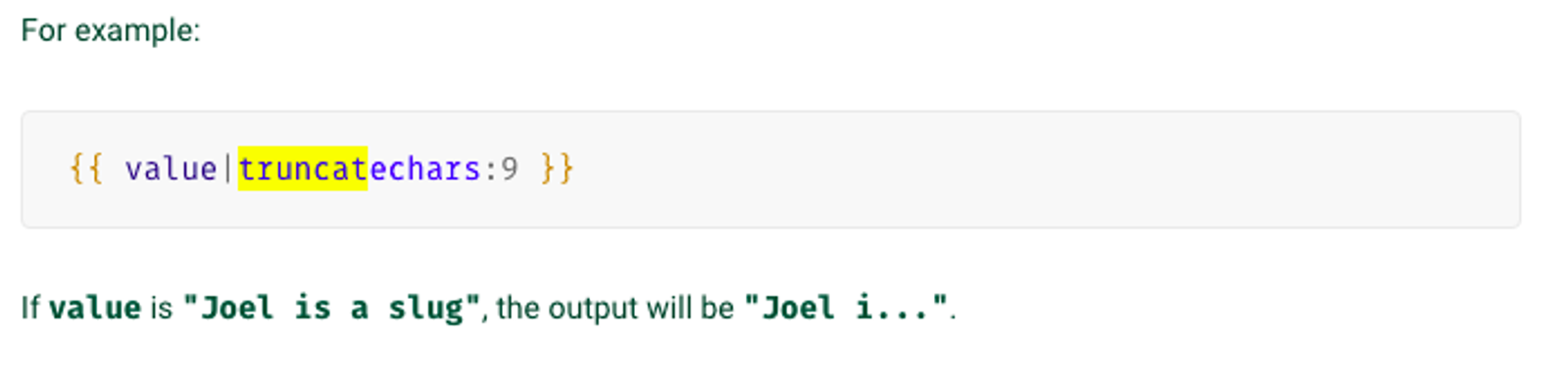
To limit the summary of an article to 250 characters, for example, you may use:
{{ item.summary|truncatechars:250 }}
Add a custom web feed
Set up your feed
- Click on your company name in the bottom-left corner of Klaviyo.
- Click Settings.
- Click Other.
- Click Web feeds.
- Click Add web feed.
- Fill in the web feed fields as follows:
- Feed name
You’ll later use this identifier in your template to access the feed’s content. Give your feed a short descriptive name of up to 64 characters, using only letters, numbers, and underscores. We recommend names such as "MyDataFeed" or "MY_DATA_FEED". Spaces are not permitted, and the name must be unique in your account. - Feed URL
The endpoint Klaviyo uses to fetch the feed contents (i.e., the URL of the JSON or XML feed configured previously). If your feed contains private information, we strongly recommend using an HTTPS URL and including a nonce query parameter to secure your feed. - Request method
Select GET or POST for validation and previews. The feed URL must also accept GET requests to refresh its cached content. If you’re not sure which to choose, select GET. - Content type
The format of the feed (either JSON or XML). We recommend using JSON if possible. For XML feeds, the feed will be converted to JSON. - To try the examples below with the Klaviyo Help Center feed, enter
Klaviyo_Help_Centeras the Feed name, select GET and JSON, and enter this URL in Feed URL:
- Feed name
https://help.klaviyo.com/api/v2/help_center/en-us/articles.json- Once you've filled out all the fields, click Add web feed. We will attempt to query the Feed URL and validate your feed is working properly. If we encounter an error, you will see an error message and will be unable to save this new feed until the issue is addressed.
Klaviyo validates your feed and shows any potential errors. Once validated, you will see your feed in Klaviyo and it's ready to be used in emails.
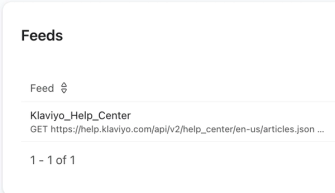
Preview your feed
It's useful to preview a web feed before adding it to an email. To preview a feed:
- On the Web feeds page, find your feed.
- Click the 3 dots, then select Edit.
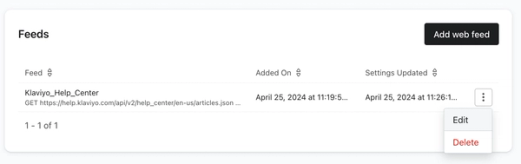
- From the feed detail page, click Preview.
When previewing your feed, you will either see the feed content or an error message if we cannot load the feed.
The preview displays the entire feed as JSON, including any arrays and nested objects. XML feeds are converted to JSON. Use the preview to identify the field names and array paths you’ll reference in your email.
If you are actively developing your feed, click Refresh on the preview page to fetch its latest content. To update the cached content used by emails, return to the feed detail page and click Update feed. Large feeds may take several seconds to display. Keep the feed responsive: slow or failed refreshes can leave emails using outdated content or prevent them from sending.
Now that you've added a web feed and previewed its contents, you can use it in an email.
Use a web feed in an email
Campaign and flow sends share cached web feed content, so Klaviyo does not request your feed separately for each recipient. An email preview fetches the feed directly and can show newer content than a send.
Populate feed content in a template
In the Help Center example feed, articles is an array where each entry includes a title, URL, article ID, and more. Reference a configured feed by its exact name in your email. Referenced feeds are available through the feeds variable:
{{ feeds }}
If you named the example feed Klaviyo_Help_Center, you can reference its contents with this syntax:
{{ feeds.Klaviyo_Help_Center }}
The steps below use content repeat in the drag-and-drop email editor to display selected fields for each article in the Help Center feed.
- Open your campaign or flow email in the drag-and-drop editor. Drag a new text block into your email and place it where you want the web feed to populate.
- Select the text block’s Display tab, then click Add content repeat.
- For the Repeat for field, insert
feeds.YOUR_FEED_NAME, followed by the path to the array you want to repeat over. If the feed itself is a top-level array, use feeds.YOUR_FEED_NAME without adding a path.- In our example, because we are iterating over the "articles" value as well, we will repeat for:
feeds.Klaviyo_Help_Center.articles. - For a nested array, follow each level of the feed’s structure. For example:
- In our example, because we are iterating over the "articles" value as well, we will repeat for:
{
  "rss": {
    "channel": {
      "item": [
        { "title": "Article 1" },
        { "title": "Article 2" }
      ]
    }
  }
}- For this structure, enter
feeds.YOUR_FEED_NAME.rss.channel.itemin Repeat for.
- If you only want this block to iterate over a certain number of entries, use the "slice" filter. To use this filter, adjust the Repeat for value by adding the filter to the end:
feeds.Klaviyo_Help_Center.articles|slice:':3'
In this example,|slice:':3'will cause only the first 3 entries to display. - For the Item alias field, insert:
item - Click Save to apply the content repeat settings. You can now insert variables in the text block using the
itemalias. - To identify and add variables, open your web feed’s preview and reference the way your data is structured. Any data nested within the array used in the Repeat for field can be used as a variable.
In this example, all of the data shown within the articles array is available for use in an email:
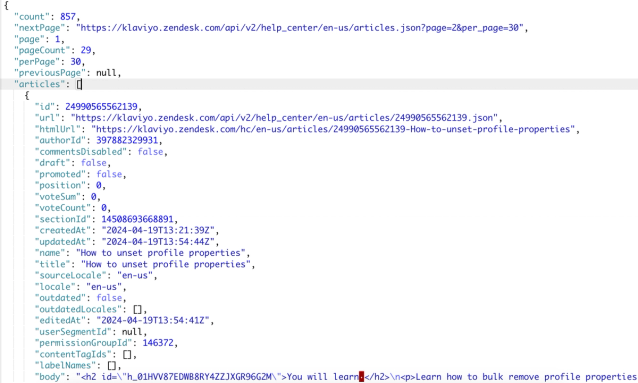
- For first-level data, simply add item before the variable name shown in your data. For example, use
{{ item.title }}to display an article’s title, or{{ item.url }}to display an article’s URL. In the Help Center feed,{{ item.url }}is the API URL. Use{{ item.html_url }}for the public article URL. - To access nested fields in an entry, use dot notation. For example, if your feed has an images object with a thumbnail_url field, use
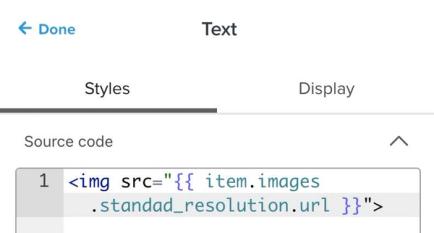
{{ item.images.thumbnail_url }}. Use the field names shown in your own feed preview. To learn more about dot notation and template variables, see the message personalization reference. - If your feed includes image URLs, add an HTML block. In its Display tab, click Add content repeat, enter the same Repeat for and Item alias values as the text block, and click Save. In the Content tab, add an image tag such as
<img src="{{ item.images.thumbnail_url }}" alt="{{ item.title }}">. Replace the variables with the image URL and title fields from your own feed.
- Preview your template after adding your content. Check that each repeating block shows the entries selected in Repeat for, including any
slicelimit. Only the variables you insert appear for each entry. If a block is blank, check that the feed name, array path, and item alias match your settings and feed data.
You've added a custom web feed to your email and can now dynamically populate a feed of data from your external URL.
Test or validate your feed
If you receive an email or in-app notification that we are having trouble accessing your web feed:
- Navigate to Settings > Other > Web feeds, open the feed’s 3-dot menu, and select Edit. Click Update feed to re-validate the feed and refresh its cached content.
- Review any error message. Common issues include:
- Invalid Response
If your feed returns an error response, Klaviyo shows its status code. Resolve the cause, then update the feed again. Emails can use the last successfully cached content during retries, but the feed must refresh successfully to provide updated content. - Performance Issue
A timeout means Klaviyo could not fetch the feed within the allowed response time. Regular refreshes use a 5-second timeout, and nightly refreshes allow 30 seconds. Improve the feed’s response time, then try updating it again. - Invalid content or size
If Klaviyo reports invalid JSON or XML, correct the feed’s format. If it reports that the response is larger than the cache limit, reduce the amount of data returned. Then update the feed again.
- Invalid Response
While refreshes are failing, emails can use outdated cached content. If the feed reaches its retry limit or usable content is unavailable, emails that depend on it cannot send. A successful preview does not update the cache used by sends.
We recommend removing a problematic feed from all emails while you address any outstanding issues to prevent sending disruption.
Additional resources
- Troubleshooting your Instagram web feed in emails
Learn how to troubleshoot your Instagram web feed if it is not working in your emails, which is likely due to Klaviyo having an issue retrieving your feed content. To determine the cause, we recommend first trying to test your feed.
- How to use product feeds and recommendations
Learn how to create a product feed in Klaviyo in order to use product recommendations in your messaging. Product feeds take in data from your product catalog and customer behavior (e.g., the products they’ve viewed or purchased in the past) and use this information to provide custom product recommendations for your subscribers.