How to insert preview text into an email
You will learn
Learn what preview text is, where it appears in your emails by default, and how to insert it into the body of your emails.
About preview text
Preview text is one of the first things recipients see when an email reaches their inbox. It is displayed in the inbox after the subject line of an email and is usually pulled from the first line of text within the body of an email.

There are 2 main ways you can use preview text to enhance your emails:
- Use preview text to summarize the email.
- Use preview text to complement your subject line.
If you do not set preview text, inboxes automatically pull it from the beginning of your email. This can include alt text or your navigation bar, so it's best to specify the text you want recipients to see. To learn more about how to strategically use preview text, head to the Klaviyo Blog.
The flow and campaign steps below apply to Klaviyo's drag-and-drop templates. For custom HTML templates (including custom HTML templates with drag-and-drop support), insert your desired preview text at the beginning of the email's code. For text-only emails, use the preview text controls in the text-only editor, as described below.
Add preview text to a flow email
To add preview text to a drag-and-drop flow email:
- Open the flow containing the email you'd like to edit.
- Click the flow message to open the Email details sidebar.
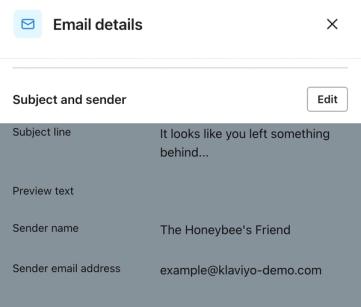
- Under Subject and sender, click Edit if the fields are not already editable. For a draft email, edit the fields directly in the sidebar.
- In the Preview text field, add your desired preview text.
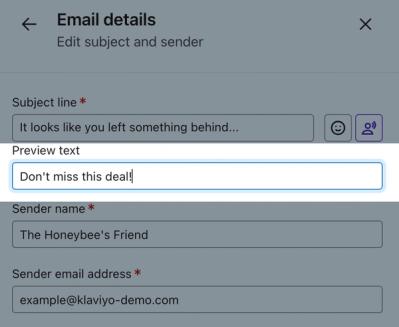
- Click Save.
Add preview text to a campaign email
To add preview text to a draft campaign email using a drag-and-drop template:
- Open the campaign you'd like to edit.
- Go to the Message step. If you are on the Recipients step, click Next.
- In the Preview text field, add your desired preview text.
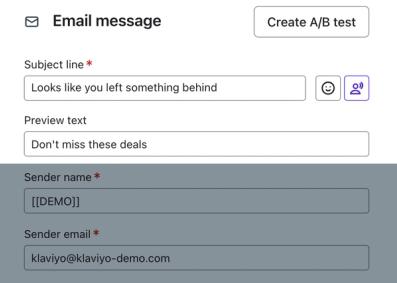
- Click Next to save your changes and continue to review.
Add preview text to a text-only email
- Open your text-only email in the editor.
- If a Review screen appears, compare the editing views. Text only can adjust the email’s styling; HTML preserves the original styling and switches to custom HTML editing. You cannot switch editing views after confirming. To continue with these steps, select Text only, click Save, and confirm.
- Enter your text in the Preview text field above the email body. Leave Show no preview text unchecked.
- Click Save.
If you leave Preview text blank and Show no preview text unchecked, the beginning of your email is used as preview text.
Preview text in the inbox
The Preview text field automatically adds spacers after your text to help prevent email body content from appearing in the inbox preview. Email clients can handle these spacers differently, so send a test email to check the result.

Different devices and email clients display different amounts of preview text, with smaller screens displaying fewer characters. Keep preview text concise. Treat the character counts below as examples rather than guaranteed limits, and test your email in the inboxes your audience uses.
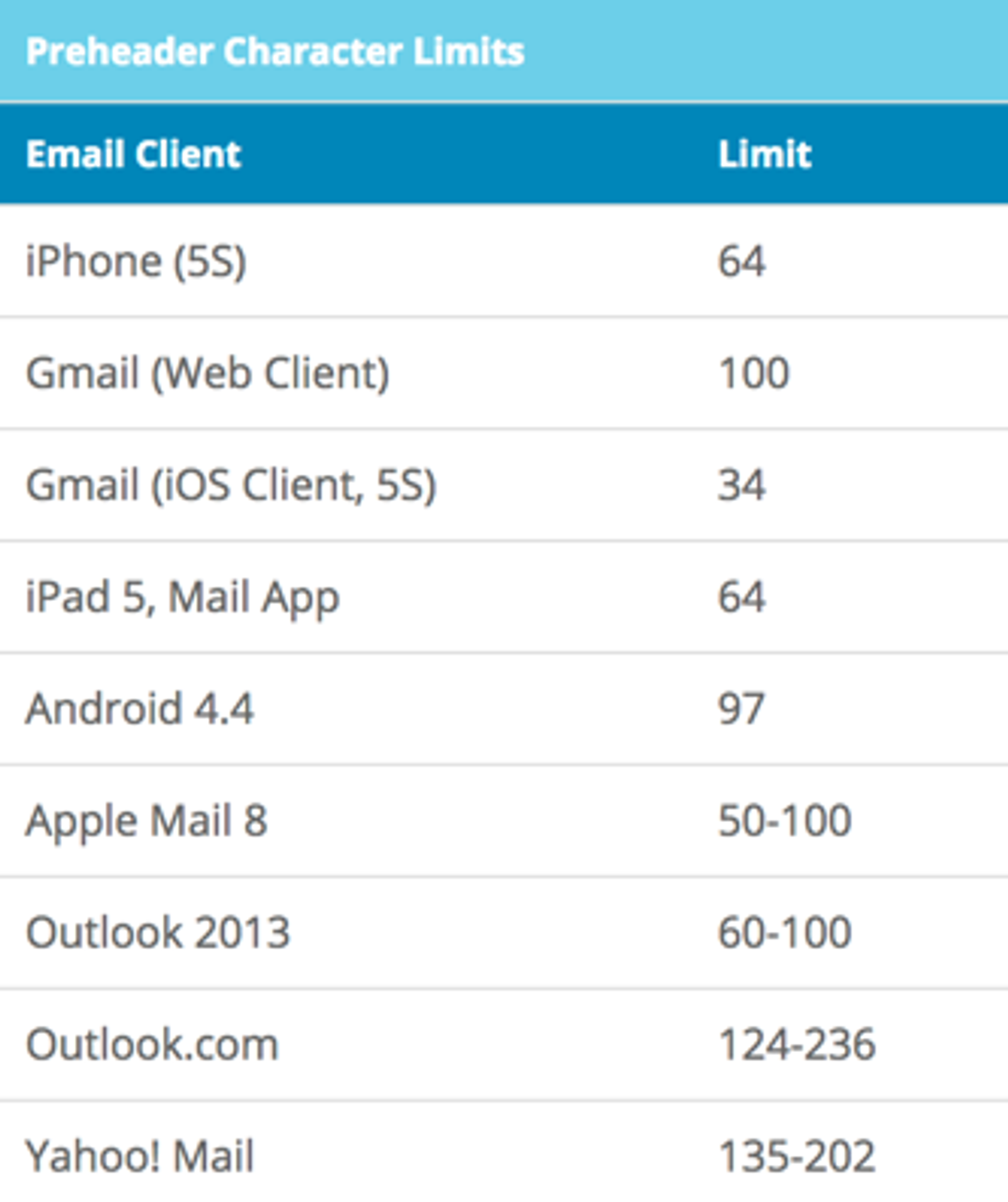
Gmail may remove commas within a set of numbers from your preview text. For example, 10,000 will be converted to 10000 in Gmail's preview.
Display preview text inside your emails
In some cases, you may want to display your preview text inside the body of your template. To display preview text set for a drag-and-drop flow or campaign email, use the following tag:
{% render_variable preview_text %}Paste the tag into any text block in your template.
Hide preview text
To leave the inbox preview area blank for a drag-and-drop email, first clear its Preview text field and save the change using the flow or campaign steps above. Then add the code snippet below to the top of the email. The invisible spacers push body content out of the preview area in email clients that support this technique.
- Add an HTML block to the very top of your email, above all other content.
- Add the following code snippet:
<div style="display: none; max-height: 0px; overflow: hidden;">͏ ‌
­ ͏ ‌ ­ ͏ ‌ ­ ͏ ‌ ­ ͏ ‌ ­
͏‌ ­ ͏ ‌ ­ ͏ ‌ ­ ‌ ­ ͏ ‌
­ ͏ ‌ ­ ͏ ‌ ­ ‌ ­ ͏ ‌ ­ ͏ ‌
­ ͏ ‌ ­ ‌ ­ ͏ ‌ ­ ͏ ‌ ­
͏‌ ­ ͏ ‌ ­ ͏ ‌ ­ ͏ ‌ ­ ͏ ‌
­ ‌ ­ ͏ ‌ ­ ‌ ­ ͏ ‌ ­ ͏ ‌
­ ͏ ‌ ­ ͏ ‌ ­ ͏ ‌ ­ ‌ ­
͏‌ ­ ͏ ‌ ­ ͏ ‌ ­ ͏ ‌ ­ ͏ ‌
­ ͏ ‌ ­ ͏ ‌ ­ ‌ ­ ͏ ‌ ­ ͏ ‌
­ ͏ ‌ ­ ͏ ‌ ­ ͏ ‌ ­ ͏ ‌ ­
͏‌ ­
</div>- Click outside the HTML block to apply your changes, then wait for the email to finish saving.
Send a test email to check that the inbox preview area is blank. The result depends on the recipient’s email client.

For a text-only email, open the text-only editor, select Show no preview text, and click Save. This adds invisible spacers without adding the HTML snippet yourself. Send a test email to check the result.
Additional resources
- Templates and design glossary
Learn key terms related to email, SMS, and push templates in Klaviyo.