Create click-to-chat link for WhatsApp
Give customers a faster way to contact your business with WhatsApp click-to-chat. This makes it easier for customers to start conversations and helps you drive engagement from email, web pages, and buttons. You can also pre-fill a message so that all customers need to do is click this link and then press send.
Before you begin
When a customer selects a click-to-chat link, it opens WhatsApp on their device and starts a conversation with your business.
You can:
- Use this feature as either a URL link (e.g., for buttons in emails) or as HTML code you can add to your site.
- Choose to pre-fill a message for customers to send to your business.
You can only save 1 click-to-chat message in Klaviyo at a time.
Link structure
The base of the link always stays the same, with the message added on at the end.
If you change the message, it will retroactively update any existing links, and they will continue to work.
Say that you change your message from “Quiz” to “Survey.” If you added the “Quiz” link on a landing page, users clicking that link still have the “Quiz” as their message unless you update the landing page with the “Survey” link.
Use cases:
You can use a click-to-chat link across your customer experience:
- Add it to an email so subscribers can contact your team directly.
- Include it on a landing page to encourage product questions.
- Display on your website for customers to start a quiz or buying guide.
Use click to chat with WhatsApp
Follow these steps to create your link in Klaviyo.
- Select your account name in the lower left
- Navigate to Settings > WhatsApp.
- Scroll down to the Click to chat with WhatsApp section
- Click Get started.
- In the resulting modal, you can select either Copy link or Copy code.
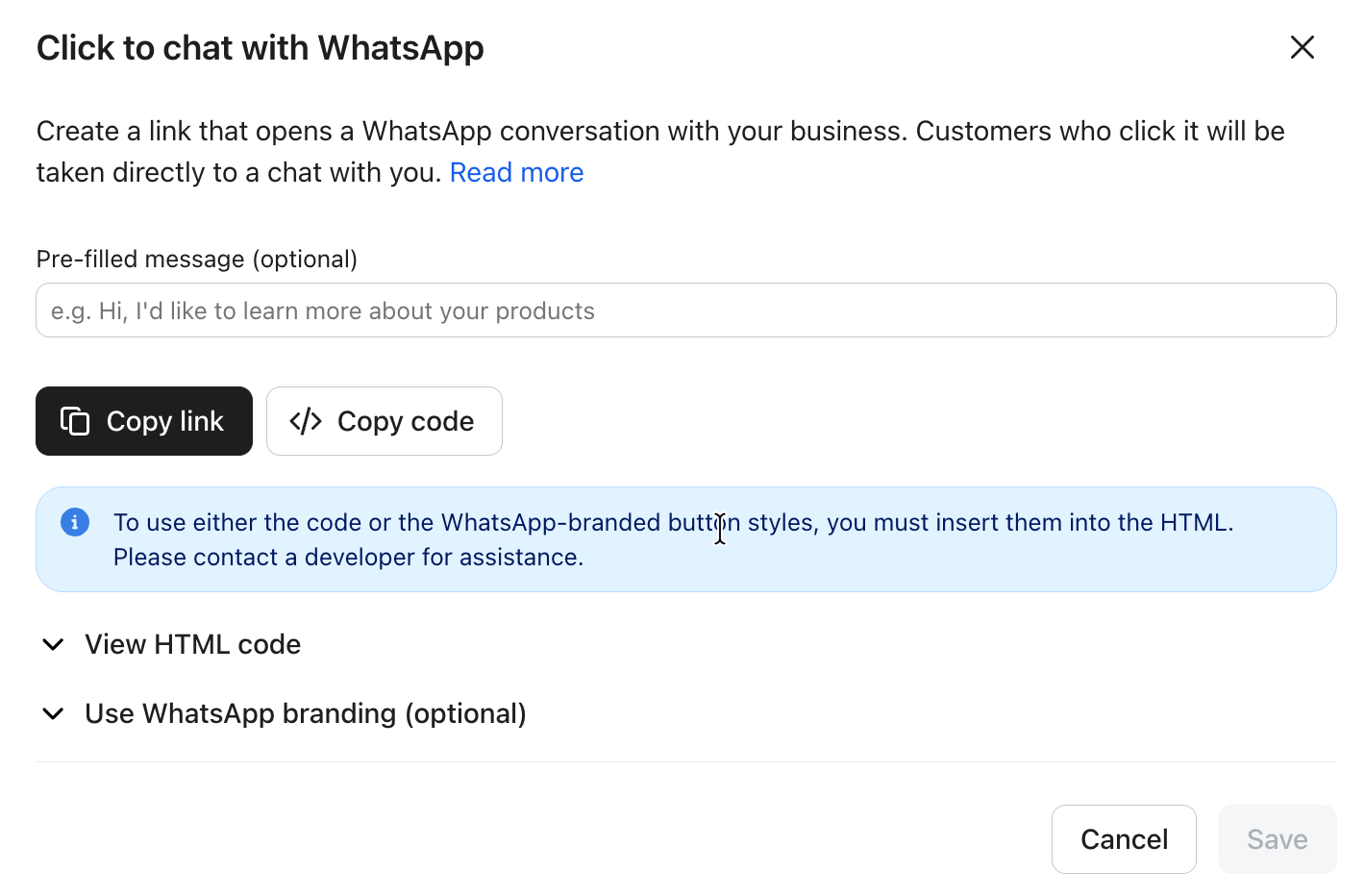
- Optional: add a pre-filled message. When a customer selects the link, it
- opens WhatsApp with this message.
- Optional: if you want buttons to appear with WhatsApp logo and colors, you can download their branding as images.
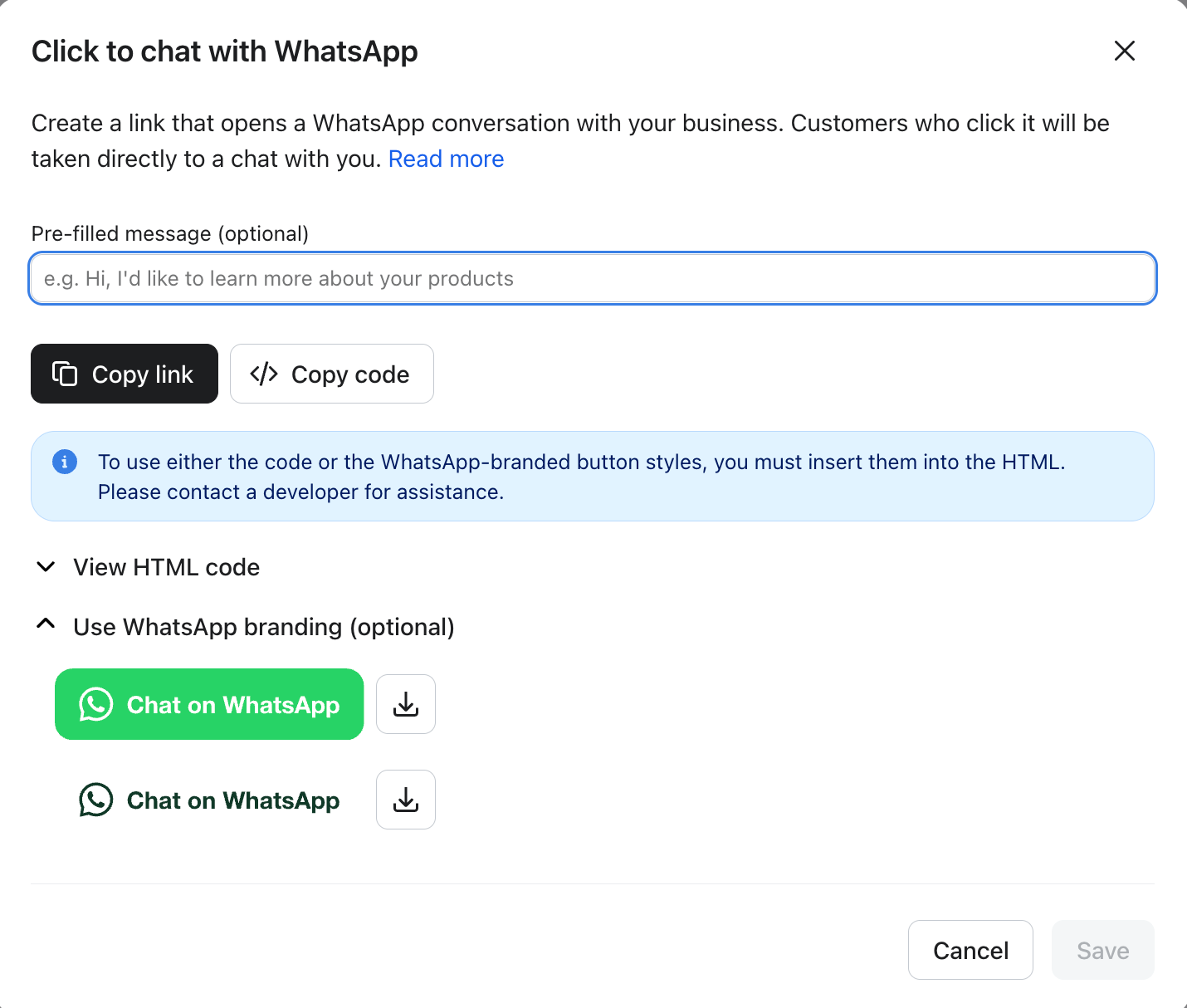
- Click Save.
Once done, Klaviyo stores a single version of this link and message for your account. You can access it by navigating back to your WhatsApp settings, the Click to chat with WhatsApp setting, and selecting Get started.
Next steps
You can re-use that same link in multiple places, like in an email, page on your site, or landing page.
Further, if you add a keyword in the pre-filled message, you can have it start an automation when the customer hits send. With this, you can easily ask questions, store the answers as profile properties, and use this for further personalization and targeting in Klaviyo.