Catalog lookup tag reference
You will learn
Learn how to use the catalog tag, which allows you to reference specific product information from your catalog within your emails, SMS, and push messages. This is useful when you want to create custom product recommendations, or cross-reference product information. For example, if you're using your own recommendation engine, you can pass your own product recommendations as event or profile data to Klaviyo, and then utilize that data in templates.
Please note that this guide is designed for tech-savvy marketers or customers who have access to a developer.
The {% catalog %} tag
The {% catalog %} tag uses the following syntax:
{% catalog "itemID" unpublished="cancel" %}
...
{% endcatalog %}
Replace itemID with the Item ID shown on the product details page in Klaviyo. The value must match the item ID stored in your catalog; use a SKU only if it is also the catalog item ID. Keep quotes around a literal ID. When using an event or profile variable, leave the variable unquoted, as shown in the examples below.
Including unpublished="cancel" prevents the message from sending if the referenced item is unpublished in your Klaviyo catalog. This argument is optional. Without it, an unpublished item can still appear in the message.
- If any lookup using unpublished="cancel" finds an unpublished item at the time of lookup, the entire message is skipped for that recipient.
- For a flow message, open its analytics and select Recipient activity > Skipped. In the Type dropdown, select Skipped: Catalog Item Unavailable. This list includes profiles whose messages were skipped because a referenced item could not be found, or because an unpublished item was looked up with
unpublished="cancel". An item may be unpublished because it is out of stock or otherwise unavailable in your catalog.
When using this feature, between the opening and closing catalog tags, you can reference specific data from the item associated with the itemID in your Klaviyo product catalog.
The following data is available to reference inside of a {% catalog %} block.
Template tag | Name | Description |
|---|---|---|
| Description | The description of the item. |
| URL | The URL for accessing the item in your store. |
| Title | The title of the item. |
| Price | The price of an item, formatted using the currency settings for the template or account. This tag formats the value; it does not convert the price to another currency. |
| Currency Symbol | The graphic symbol used to denote a currency unit |
| Currency Code | The alphabetic code used to denote currency |
| Full image | The URL for the full image of the item. Use this inside of an image block, or an <img> tag. |
| Thumbnail | The URL for the thumbnail image of the item. Use this in an <img> tag in custom HTML, or use it as a dynamic image placeholder URL surrounded by the opening and closing {% catalog %} tags. |
| ID | The Product ID of the item. |
There may be additional data fields available that are considered metadata. To reference one of these additional item properties, you can use the variable syntax: {{ catalog_item.metadata.color }}. In this case, the variable will pull in the "color" value associated with the item stored in the item's metadata.
To access a preview of all available details stored on an item — including all metadata — add the following snippet to a text block in a test template, and update itemID with the Item ID of one of the current products in your catalog.
{% catalog "itemID" %}
{{ catalog_item }}
{% endcatalog %}
Then, preview the message. This preview provides a raw version of all the data available for your products.
Filtering by catalog ID
If you have multiple catalogs, use the catalog_id argument in the opening {% catalog %} tag to specify a catalog. You must also include integration, with both values in quotes. For example, you might have a catalog synced through a Klaviyo integration such as Shopify, a catalog synced via API, or a custom catalog feed. The integration value must match the catalog source. The example below uses integration="api" to pull a product description from an API catalog.
First, find the catalog ID:
- In Klaviyo, navigate to Content > Products.
- Use the Catalog Options filter to select the catalog you want to use. The default selection is All catalogs.
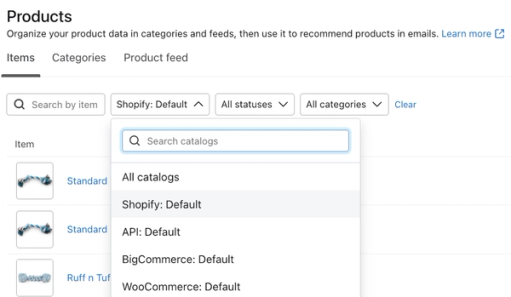
- Copy the catalog ID from the URL.
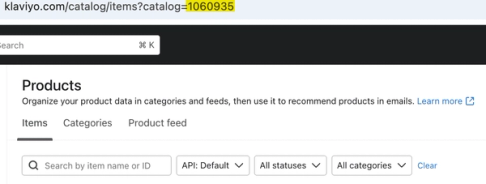
Then, find the item ID:
- After selecting the catalog, select the product you want to use from the catalog.
- On the product details page, you'll see the Item ID.
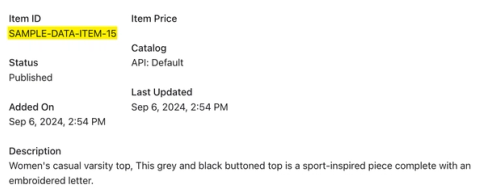
For the example above, the code would look like:
{% catalog "SAMPLE-DATA-ITEM-15" integration="api" catalog_id="1060935"%} {{ catalog_item.description }}{% endcatalog %}Replace the sample item ID and catalog ID with your own values, then preview the message and check that it shows the expected product details. If the lookup cannot find a match in the catalog you specify, it can fall back to another catalog in your account.
Filtering by locale
If your catalog contains localized product data, such as a Shopify catalog with localized data synced to Klaviyo, you can look up a product by locale. Include both language and region, using 2-letter language and country codes from ISO 639 and ISO 3166, respectively. For example, language='fr' and region='CA' request French product data for Canada. If a localized product cannot be found, the default product information is used.
{% catalog "SAMPLE-DATA-ITEM-15" integration="api" catalog_id="1060935" language='fr' region='CA' %} {{ catalog_item.description }}{% endcatalog %}Look up an item ID passed with an event
Using a catalog lookup with an event is mostly used in the following scenarios:
- If you're using a custom integration where product recommendations are passed along with an event to show in the message. For example, a browse abandonment message where unique recommendations are generated based on viewed items. Instead of populating the single item a customer viewed in the message, you can generate and populate a set of recommended items based on that item viewed. A set of Product IDs needs to be sent to Klaviyo along with the event.
- If you're using a custom integration and you prefer not to send all product details that need to go in a message. For example, with an abandoned cart message, only send the Product IDs of all abandoned items and Klaviyo can look up each one to pull in all relevant details. There's no need for every event to contain product name, price, image, etc. since all of this can be populated by only passing the Product ID to Klaviyo, then looking up the information in your Klaviyo product catalog.
When using a {% catalog %} tag with an event, the lookup is based on the Item ID of the catalog item (this will either be Product ID or SKU depending on the integration).
For an event where the identifying value passed is Item ID, the lookup tags will appear like this:
{% catalog event.ItemID %}
...
{% endcatalog %}
Within this {% catalog %} block, add template variables for the data you would like to populate regarding each item (e.g., title or image).
For example, using the sample catalog item data below, we can build out a {% catalog %} block that references key product information:
Catalog item data:
{
  "description": "Standard issue for all Klaviyos. This t-shirt has the Klaviyo logo on the front and mark diagram on the back.",
  "url": "https://klaviyogear.myshopify.com/collections/klaviyo-classics/products/short-sleeve-t-shirt-1",
  "title": "Classic Klaviyo T-Shirt",
  "featured_image": {
    "full": {
      "src": "https://www.klaviyo.com/media/images/examples/products/klaviyo-tshirt-full.png"
    },
    "thumbnail": {
      "src": "https://www.klaviyo.com/media/images/examples/products/klaviyo-tshirt-thumbnail.png"
    }
  },
  "id": "KLAVIYO-TSHIRT",
  "metadata": {
    "Color": "Grey",
    "Design": "Standard"
  }
}
Template block syntax:
The following HTML example pulls in the item image, title, and description for each item in event.Items. It assumes that each item has a SKU value that matches the Item ID in your Klaviyo catalog. If your event uses a different property for the catalog item ID, replace item.SKU with that property. Use the HTML examples in an email; for SMS or push, use the catalog tags with text fields rather than HTML markup.
{% for item in event.Items %}
	{% catalog item.SKU %}
 		<img src="{{ catalog_item.featured_image.full.src }}"/>
 		{{ catalog_item.title }}
 		{{ catalog_item.description }}
 	{% endcatalog %}
{% endfor %}
If the lookup can’t find the item it’s looking for, the message is skipped and does not send.
Look up an item ID as a custom property
If you're using your own recommendation engine, you can pass recommended item IDs to profiles in Klaviyo as a custom profile property. Using a {% catalog %} tag, you can reference information from any of these products when messaging this customer.
If the lookup can’t find the item it’s looking for, the message is skipped and does not send.
Syntax for multiple item IDs stored in a single property
Store Recommended Products as a list of item IDs, such as ["KLAVIYO-TSHIRT", "KLAVIYO-HAT"]. Replace these sample IDs with IDs from your catalog, and replace the property name in the code if yours is different.
{% for item in person|lookup:'Recommended Products' %}{% catalog item %}

<img src="{{ catalog_item.featured_image.thumbnail.src }}" style="display: inline-block; border: none" width="150px" />

<p>{{ catalog_item.title }} {% endcatalog %}</p>

{% endfor %}
Syntax for a single item ID in a profile property
Store a single item ID as a text value in Recommended Products, such as KLAVIYO-TSHIRT. Use the property name and item ID from your own account.
{% catalog person|lookup:"Recommended Products" %}

<img style="display: inline-block; border: none;" src="{{ catalog_item.featured_image.thumbnail.src }}" width="150px"/>

  <p>{{ catalog_item.title }} {% endcatalog %}</p>
About the has_category tag
Use the has_category tag to determine whether an item in your catalog is part of a particular category. It must be used within a catalog lookup tag for a particular item.
Use the sample code below to use this tag, replacing itemID with a product ID from your catalog and category_name with all or part of a category name.
{% catalog "itemID" %}
{{ catalog_item.title }}
{% has_category catalog_item "category_name" as in_category %}
{% if in_category %}
I am on sale!
{% else %}
{% endif %}
{% endcatalog %}
This example displays the product title, then checks whether the product is in a category, category_name. If this evaluates as true, the message “I am on sale!” will appear following the product title.
The has_category tag searches for full and partial matches to the category name you set. For example, if you use “sale” as the category name and a product has a tag “on-sale”, the has_category tag will evaluate as true for that product.
Additional resources
- How to use product feeds and recommendations
Learn how to create a product feed in Klaviyo in order to use product recommendations in your messaging. Product feeds take in data from your product catalog and customer behavior (e.g., the products they’ve viewed or purchased in the past) and use this information to provide custom product recommendations for your subscribers.