How to use Instagram content in emails
You will learn
Learn how to set up a custom web feed with your Instagram account using an RSS feed generator, and how to display the feed in your emails. With a custom web feed, you can connect your Instagram content to your emails and dynamically display your latest Instagram photos, captions, and more.
This process requires setting up an XML feed and inserting custom code into your email template. If you aren’t comfortable editing your email’s code, reach out to a Klaviyo Partner for help.
Set up an Instagram web feed
To set up an Instagram web feed without the help of a developer or Klaviyo Partner, use an RSS feed generator. RSS.app requires a public Instagram profile.
RSS.app requires a paid plan to host an Instagram RSS feed. You can use a different RSS feed generator, but you may need to customize the sample code in the section below.
- Create an account with an RSS feed generator tool.
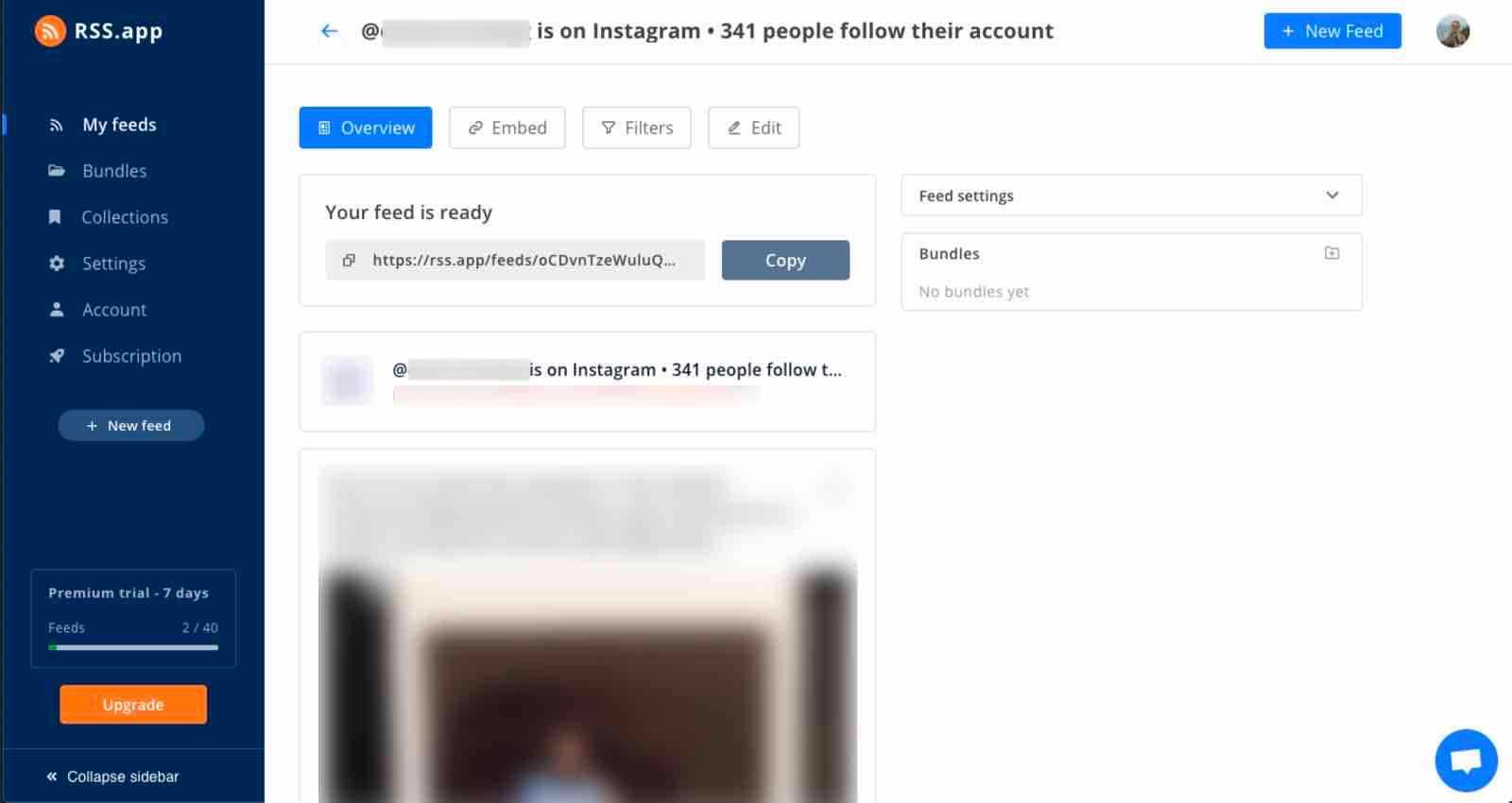
- Follow RSS.app’s Instagram feed instructions to generate and save a feed using your Instagram profile URL (e.g., https://www.instagram.com/YOUR_USERNAME/).
Once the feed is saved, navigate to the feed page and locate the feed URL. It should follow this format: https://rss.app/feeds/UNIQUE_FEED_ID.xml.
Instagram’s Basic Display API is no longer available. As an alternative to an RSS feed, you can use a third-party app such as Foursixty to add Instagram content to your emails. Follow the app’s setup instructions, or contact a Klaviyo Partner for help.
Set up your feed in Klaviyo
Once you’ve set up your RSS feed:
- Click your account name in the bottom left corner of Klaviyo.
- Select Settings.
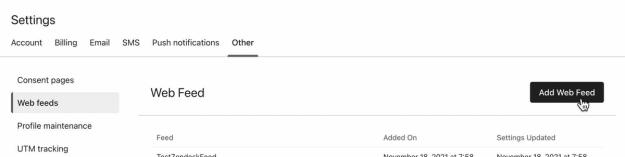
- Select Other.
- Open the Web feeds tab.
- Click Add web feed.
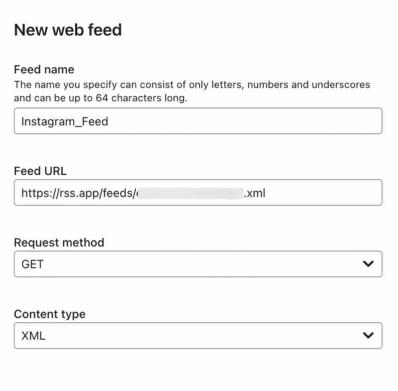
- Enter a unique Feed name, such as Instagram_Feed. Use only letters, numbers, and underscores, with a maximum of 64 characters. Enter the RSS feed URL you generated in Feed URL.
- Set the Request method to GET and the Content type to XML.
- Click Add web feed. If Klaviyo displays an error, resolve it before continuing.
- When the feed’s settings page opens, click Preview to check its contents.
Pull Instagram content into your emails
If you use a different service to generate a custom web feed, follow our guide on adding a custom web feed to an email. If you’ve used RSS.app, use the code below to display the 3 most recent items from your Instagram feed in an email.
- Add a new HTML block to your template.
- Copy the following code into the HTML block, and make sure to replace FEED_NAME with your feed name (e.g., Instagram_Feed in the example above).
<div>{% for item in feeds.FEED_NAME.rss.channel.item|slice:":3" %}
    <table style="display:inline-block; margin-left:auto; margin-right:auto">
	<tbody>
	    <tr>
		<td style="width:150px; text-align: center;"><a href="{{ item.link }}">
		  <img style="max-width: 150px; height: auto;" src="{% if item|lookup:'media:content'|lookup:'0'|lookup:'@url' %}{{ item|lookup:'media:content'|lookup:'0'|lookup:'@url' }}{% else %}{{ item|lookup:'media:content'|lookup:'@url' }}{% endif %}" style="margin: 1px; max-width: 150px; height: auto;" /></a>
		</td>
	    </tr>
	</tbody>
    </table>
{% endfor %}</div>
Click Preview in the email editor to check your Instagram feed. Then enter your email address and click Send test to make sure it appears correctly in your inbox.
If you’d like to show more than 3 recent posts, adjust the filter, |slice:":3", to include the number of posts you’d like to display (e.g., |slice:":6" to show 6 posts).
If you’d like to add additional fields to your table (e.g., captions or the date an image was posted), follow our guides on adding custom web feeds to emails to adjust the code above as needed.
We only recommend using custom HTML for technically savvy marketers, or for anyone who has access to a developer. While our product does support custom HTML, our support team is unable to help you build out your custom templates beyond offering the general guidance covered in this documentation. To maintain the security of your data, Klaviyo's support team is not able to open your HTML files.
If you need developer assistance to set this up, reach out to one of Klaviyo’s Partners.
Additional resources
- How to add a custom web feed in an email
Learn how to add and use a custom web feed within an email. A custom web feed allows you to dynamically populate a feed of data from an external URL within a Klaviyo email. Before sending an email, Klaviyo makes an HTTP request to the URL and fetches the data. The content of the web feed is then available for use in your email.
- Troubleshooting your Instagram web feed in emails
Learn how to troubleshoot your Instagram web feed if it is not working in your emails, which is likely due to Klaviyo having an issue retrieving your feed content. To determine the cause, we recommend first trying to test your feed.
- How to create a base template
Learn how to create a base email template in Klaviyo. Once you create a base template, you can use it across your campaigns and flows to speed up your building process and ensure your branding is consistent across messages.