How to add custom fonts in email templates
You will learn
Learn how to add new fonts to the Klaviyo email template editor so that your emails match your brand style. In this article, you’ll also learn about the tradeoffs when using custom fonts, and how to choose a font supported by the widest range of inboxes.
You can use Google Fonts, Adobe Typekit, or imported (i.e., self-hosted) fonts in your emails. However, keep in mind that only certain email inboxes support custom fonts, and many popular clients (like Gmail and Yahoo) do not.
This article will walk you through how to use custom fonts in your email templates, not your sign-up forms. For information on adding custom fonts to your sign-up forms, head to our article on custom fonts in sign-up forms.
Key terms
- Custom font
Any font that isn’t provided by default in the Klaviyo editor - Web font
A custom font that must be loaded from an outside source - Web-safe font
A font that is stored locally on most devices, and therefore doesn’t need to be loaded from an outside source in order to display - Fallback font
A web-safe font that is used in inboxes that don’t support your custom font
Custom font support and limitations
Custom fonts can help keep your marketing cohesive, aligning your email content with your ecommerce site. However, web fonts (i.e., fonts loaded from an outside source, rather than available from the device’s storage) may not render as expected on all devices or email clients. Klaviyo’s default fonts are pre-installed on the vast majority of computers and devices, so you can deliver a consistent experience for all subscribers.
Email clients that do support web fonts include:
- Apple Mail
- iOS Mail (the default email app on iOS)
- Google Android (except Android 2.3, which doesn’t support the @import method used by Google and Adobe fonts)
- Samsung Mail (Android 8.0)
- Outlook for Mac
Custom fonts in Gmail and other unsupported inboxes
Your recipients who use Gmail (or other inboxes that don’t support custom fonts) may see your fallback font (which you can set in your email template), rather than the custom font you choose. To avoid this, consider selecting a web-safe custom font, which is available on most devices regardless of their support for web fonts.
Find web-safe fonts here, along with a breakdown of support by device.
Add a new custom font in the email template editor
To add a custom font to an email template:
- Select a text block in your template, or open your template's Styles settings.
- In the font dropdown, click Edit default fonts. In the Fonts panel, click Add font.
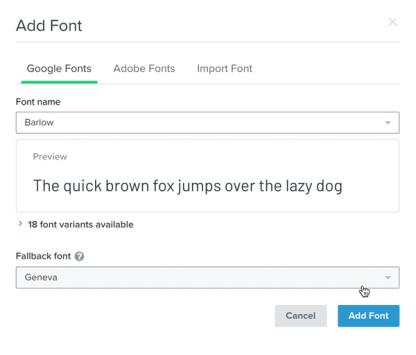
- In the modal that appears, choose Google Fonts, Adobe Fonts, or Import font, depending on your font’s source.
- Follow the instructions in the sections below for your font type (Google, Adobe, or Imported Fonts).
Once you’ve added a font to your email templates, it will be available for all other templates as well as your sign-up forms.
Manage custom fonts
You can edit or delete your custom fonts in Content > Media & brand, under Brand.
Update an existing font
To select additional variants for a custom Google or imported font you've already added:
- Navigate to Content > Media & brand in Klaviyo.
- Open the Brand tab, then select Fonts. If your Brand tab shows Style instead, open it and find the Fonts section.
- Find the font you'd like to edit in the Fonts section.
- Click the 3-dot menu next to the font.
- Click Edit in the menu that appears.
- For a Google font, open Variants and select the additional variants you want to use.
- For an imported font, click Add font variant, then enter its Source URL and select its Font weight and Font style. Repeat for each variant you want to add.
- Click Save.
You cannot add variants to an Adobe font in Klaviyo because its variants come from your Typekit link. You can edit its fallback font in Klaviyo.
If you receive the error message A font with this name already exists, follow the steps above to edit the existing version of the font, rather than re-adding it.
Delete a font
Deleting a custom font affects content that uses it, including other templates and sign-up forms. That content will use its fallback font when the custom font is no longer available. Re-adding the same font family and variants makes it available again to content that still uses it.
- Navigate to Content > Media & brand in Klaviyo.
- Open the Brand tab, then select Fonts. If your Brand tab shows Style instead, open it and find the Fonts section.
- Find the font you'd like to delete in the Fonts section.
- Click the 3-dot menu next to the font.
- Click Delete in the menu that appears.
- Click Delete again in the confirmation dialog.
Add a Google font
To add a Google Font:
- Open Font name, search for the Google font you want, and select it.
- To add variants such as bold or italic, expand # font variants available and select the variants you want to use.
- Choose a fallback font.
- Click Add font.
Add an Adobe font
Adobe fonts are only available to users who have an active Adobe Fonts subscription. To add an Adobe font:
- Select Adobe Fonts in the Add font dialog if it is not already selected.
- Paste your Adobe web project’s URL into CSS Address. Use the format
https://use.typekit.net/abcdefg.css. - Click Continue to load the fonts in the project.
- Choose a fallback font for each font that has not already been added.
- Click Add font.
Add an imported font
Imported fonts, sometimes called self-hosted fonts, are recommended only for senders who have access to a developer. You cannot directly upload the font file to Klaviyo. If you don't have access to a developer team, we recommend finding a Google or Adobe font that is similar to your desired font.
To use an imported font:
- Host the font on your servers or using a font-hosting service. Make sure to enable Cross-Origin Resource Sharing (CORS) by setting the Access-Control-Allow-Origin header to *, so the font can be accessed by your recipients’ inboxes. Learn more about CORS.
- Once you’ve hosted the font, open Import font in the Add font dialog and paste the direct URL of the font file into Source Address. The URL must point to a
.woff,.woff2,.ttf, or.eotfile. - Add in your font’s name, weight, and style to the appropriate fields.
- To add another variant, click Add font variant and enter its source address, weight, and style. Use a different font-file URL and weight/style combination for each variant.
- Choose a fallback font.
- Click Add font.
About fallback fonts
With all types of custom fonts, you’ll need to select a fallback font. This font will appear for those recipients using clients that don’t support your custom font. Choose a font from the list of available options that is similar in style to your custom font.
For example, if you use Poppins (a Google font) as your custom font and Arial as your fallback font, email recipients will see the following fonts:
- Recipients who open your email in an email client that supports web fonts (e.g., Apple Mail, iOS Mail) will see Poppins
- Recipients who open your email in an email client that does not support web fonts (e.g., Gmail) will see Arial
Apply a custom font
Once you’ve set up a custom font, you can apply it to any text in your template, including:
- In your main template styles
- In any block’s styles
- To a specific piece of text in a text block
- To button blocks, product blocks, and any other block types containing text
To apply a custom font in a text block:
- Select the text block that contains the text that you'd like to apply the font to.
- Highlight the specific text you’d like to apply the font to.
- Select the custom font from the dropdown.
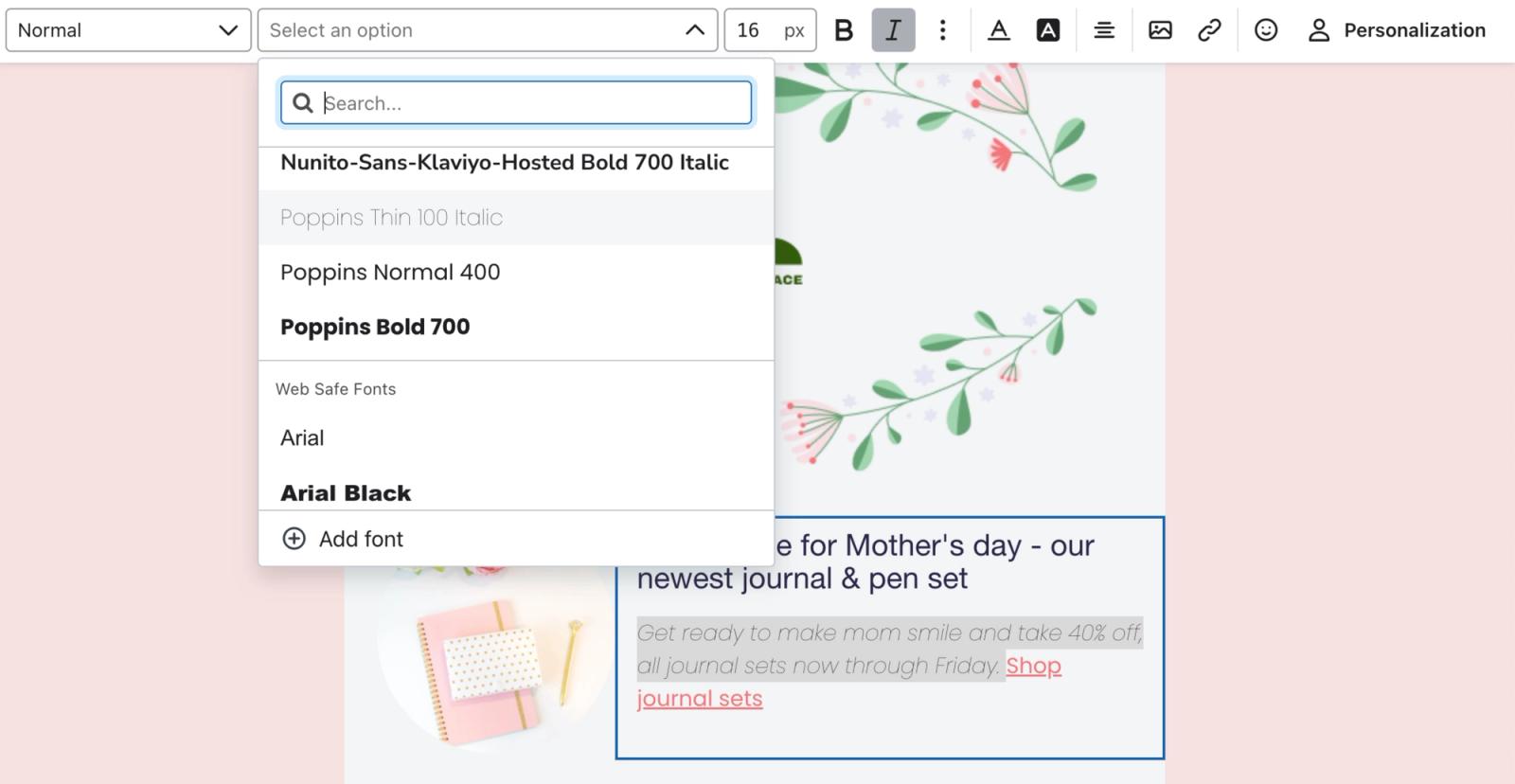
For all other block types, or for block and template styles, select the font from the appropriate dropdown.
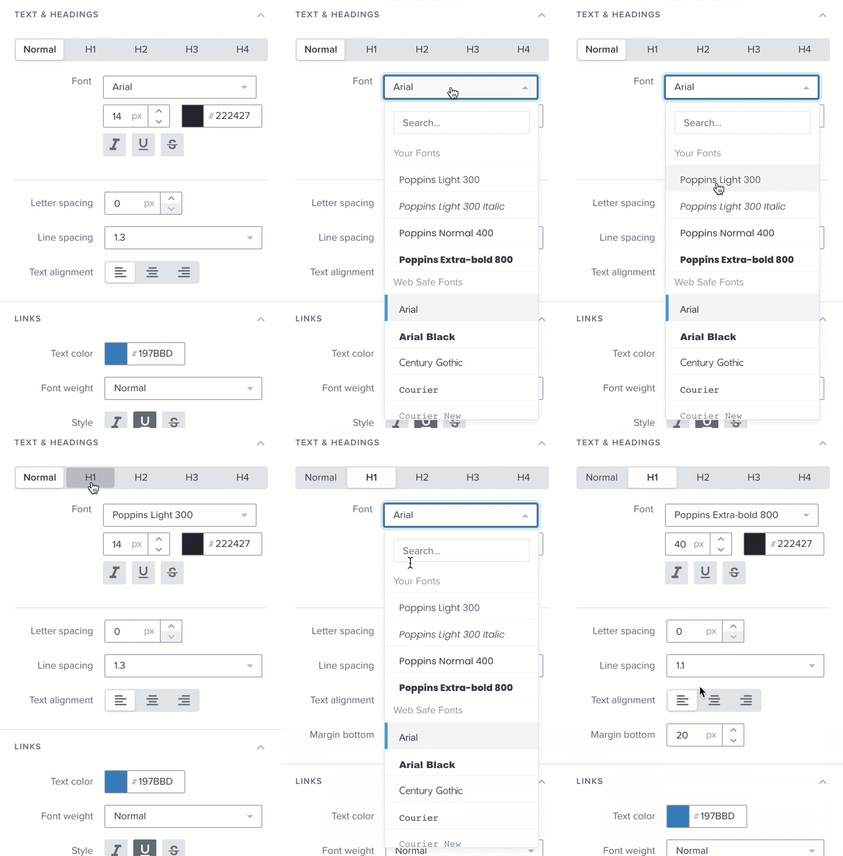
For table and split blocks, select the text in the email canvas to edit it and apply your custom font.
Preview your custom fonts
Once your template is ready, click Preview, enter your email address in the preview sidebar, and click Send test. Try opening the message on a variety of devices to see how it will appear to different recipients. You can also use a tool like Email on Acid to preview across a wider variety of devices.