---
title: "How to convert an HTML template to drag and drop"
description: "Learn how to convert an HTML email template into a drag-and-drop template, so you can edit it block by block in the drag-and-drop editor instead of in code."
canonical_url: "https://help.klaviyo.com/hc/en-us/articles/57211011501595"
markdown_url: "https://help.klaviyo.com/hc/en-us/articles/57211011501595.md"
locale: "en-us"
category: "Content"
section: "Build and use templates"
updated: "2026-10-25"
---
# How to convert an HTML template to drag and drop
## You will learn
Learn how to convert an HTML email template into a drag-and-drop template, so you can edit it block by block in the drag-and-drop editor instead of in code.
## Before you begin
- **Clone to drag and drop** works on HTML templates saved in **Content > Templates > Email: saved**.
- You need permission to edit templates in your account.
- Converting creates a new template. Your original HTML template is never changed, so you can keep using it while you review the copy.
- A conversion takes a few minutes. You don't have to stay on the page while it runs.
## How to convert a template
You can start a conversion from the template library or from inside the HTML editor.
### From the template library
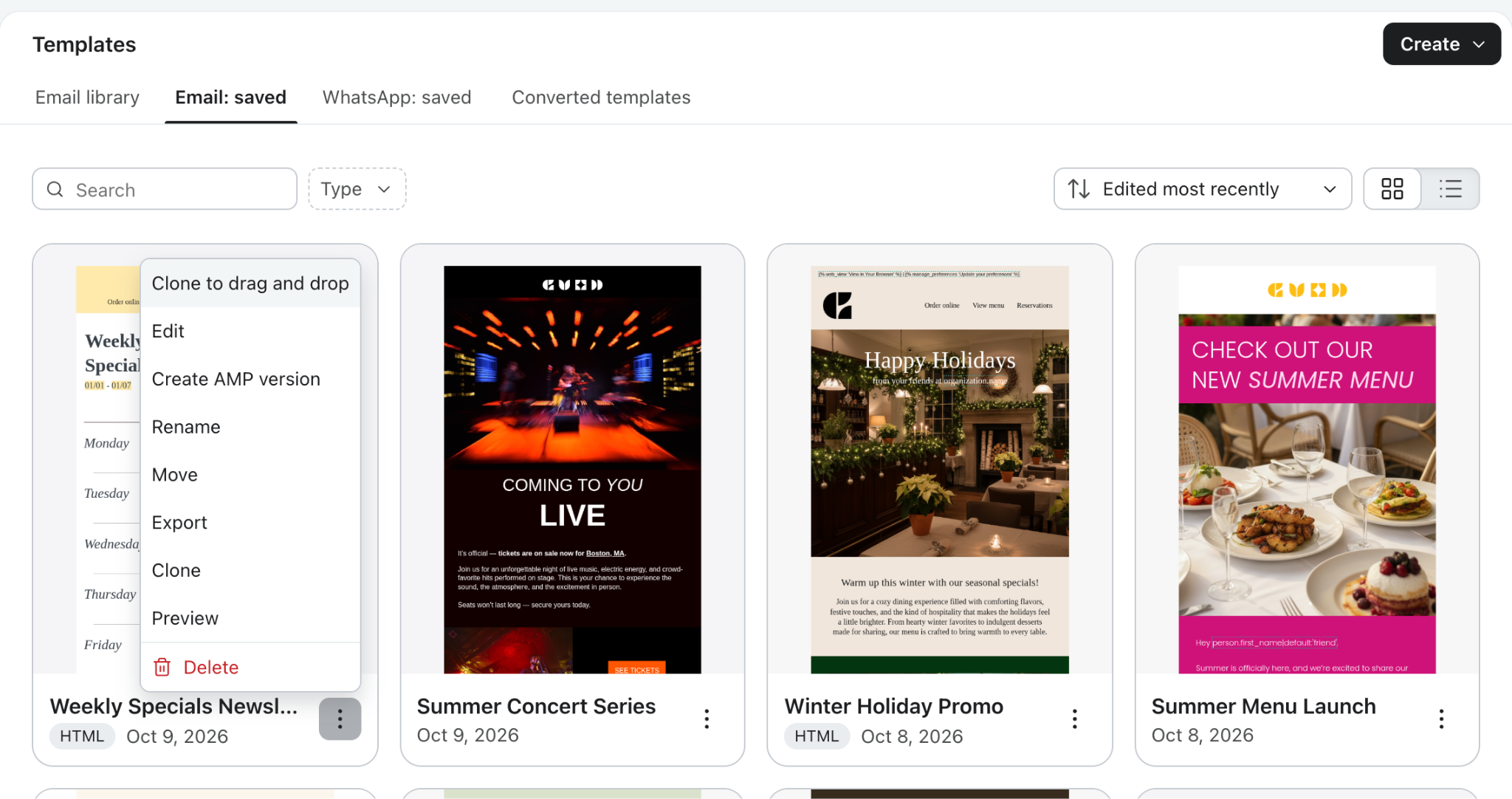
1. Navigate to **Content > Templates** and select the **Email: saved** tab.
2. Find the HTML template you want to convert, then click the **…** menu on its card.
3. Select **Clone to drag and drop**.
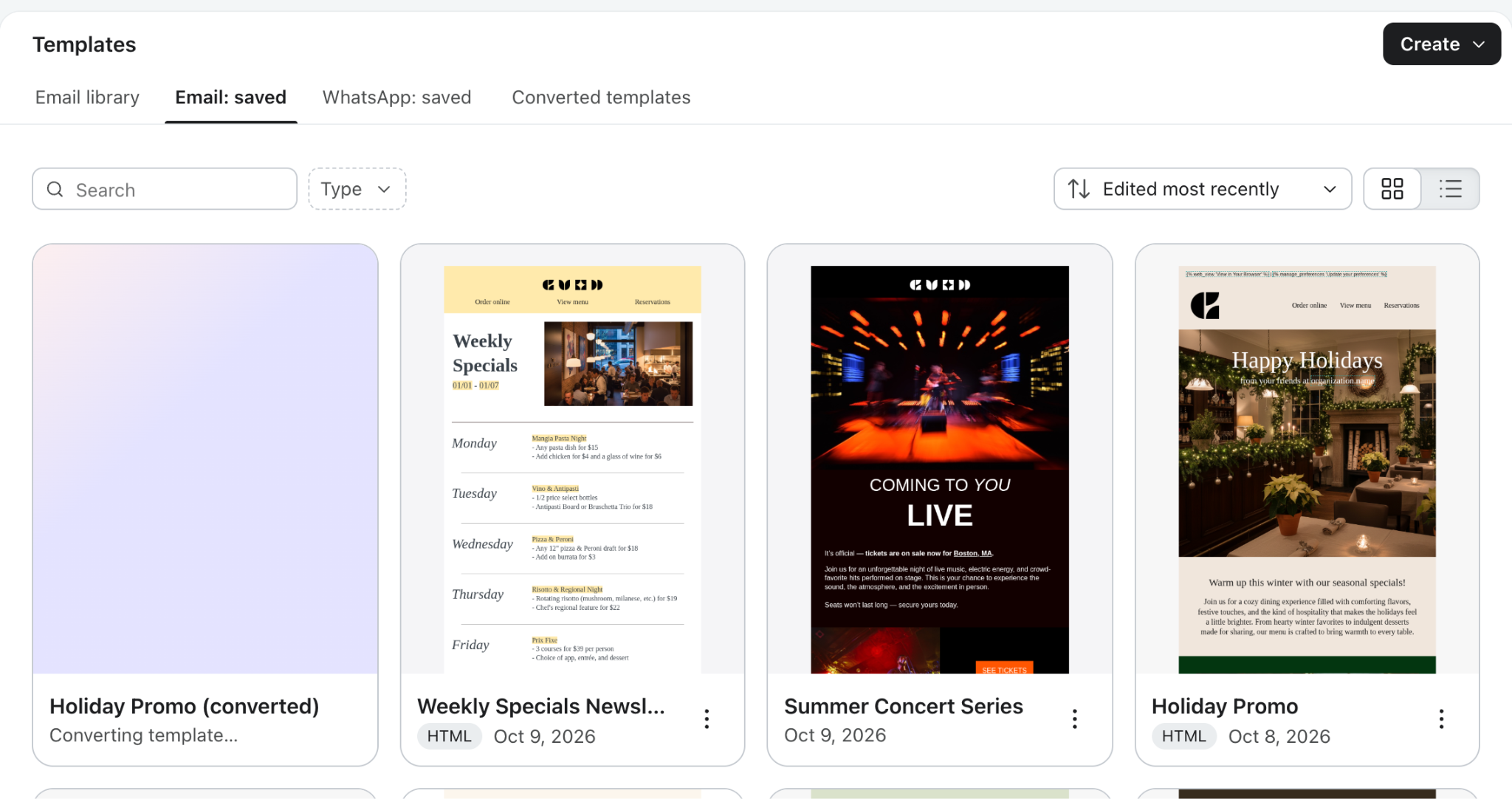
A placeholder card named *{template name} (converted)* appears at the start of your templates in the **Email: saved** tab with the message *Converting template…*
When the conversion finishes, it's replaced by your new drag-and-drop template.
### From the HTML editor
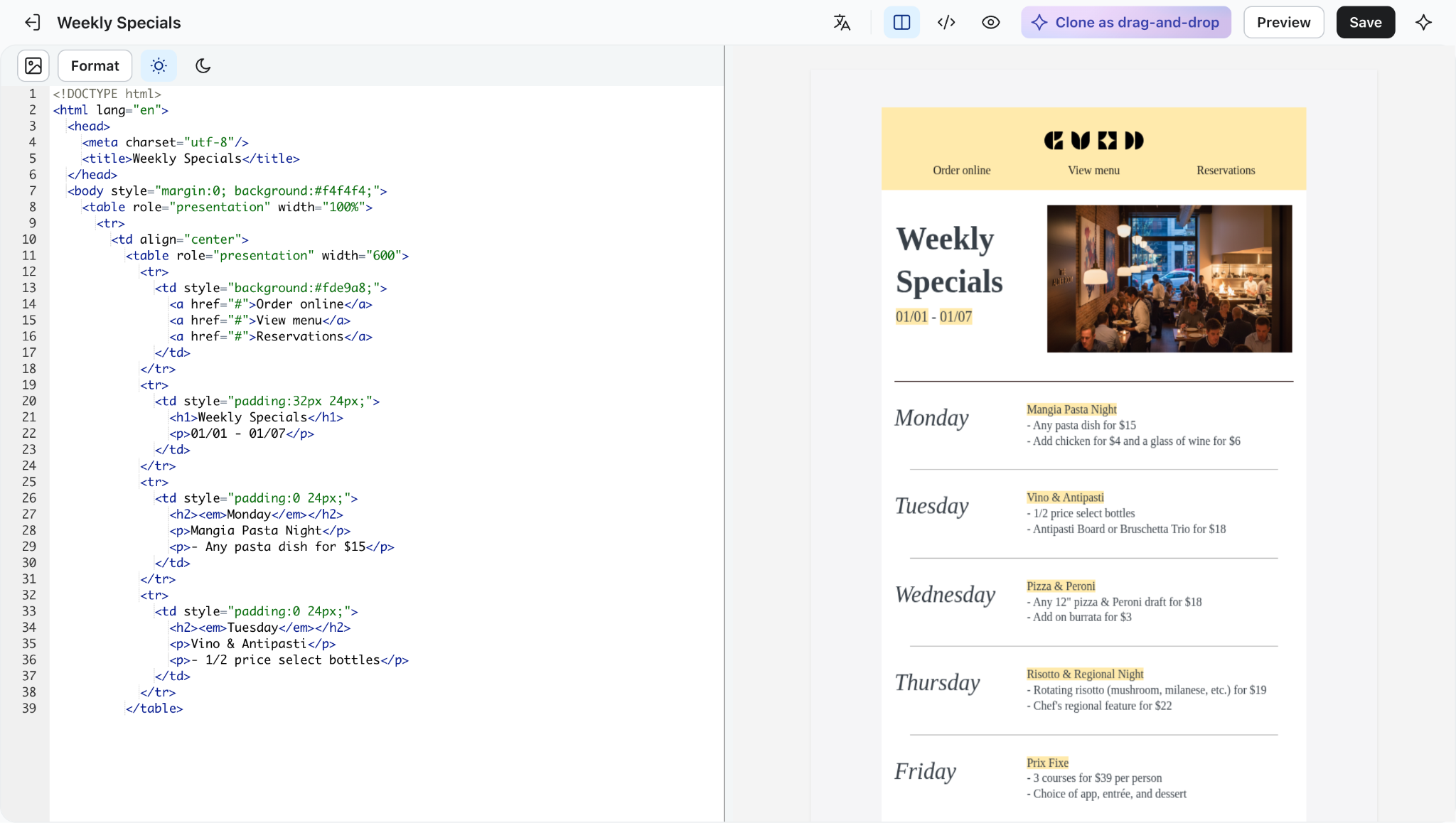
1. Open the HTML template you want to convert.
2. Save any changes. **Clone as drag-and-drop** is unavailable while you have unsaved changes.
3. Click **Clone as drag-and-drop** in the top right of the editor.
The conversion keeps running if you leave the page. If you stay, Klaviyo shows the message *Your drag-and-drop template is ready.* and opens the new template in the drag-and-drop editor when it finishes. If you leave, you'll find it in the **Converted templates** tab.
## Check on your conversions
Select the **Converted templates** tab in **Content > Templates** to see every conversion from the past 30 days, including ones that are still running or that failed. This is the place to check if you left the page while a conversion was running.
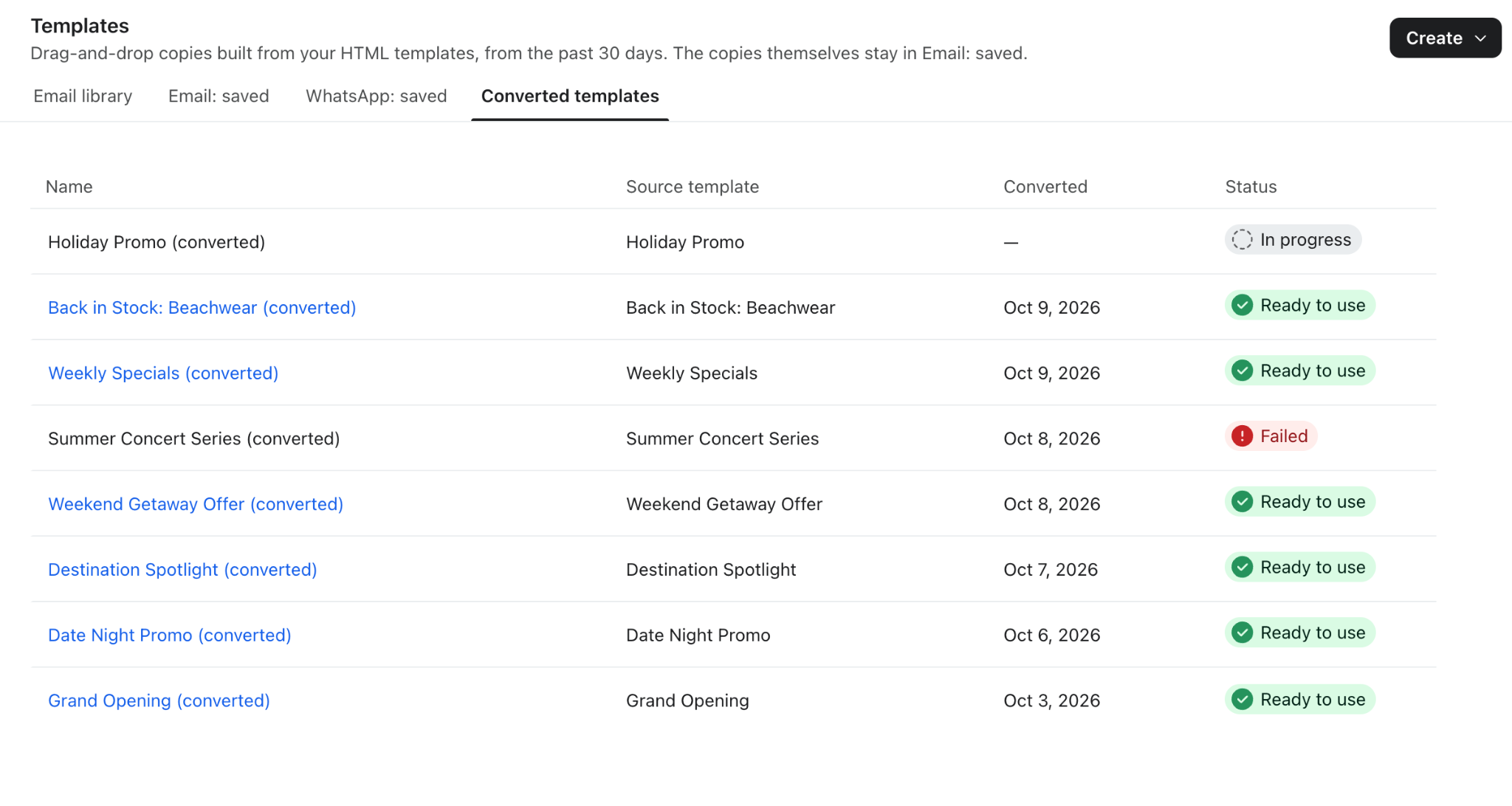
Each row shows:
- **Name:** the name of the new drag-and-drop template. Click it to open the template in the editor.
- **Source template:** the HTML template it was converted from.
- **Converted:** when the conversion finished.
- **Status:** one of the following:
- **Ready to use:** the new template is in **Email: saved** and ready to edit.
- **In progress:** the conversion is still running.
- **Failed:** no template was created. Hover over the status to see why.
### If a conversion fails
Hover over the **Failed** status to see the reason:
- **The conversion failed. Try again.** Start a new conversion from the template's menu.
- **The conversion took too long.** Conversions stop after 10 minutes of processing. Very long or complex templates are the most likely to hit this limit.
A failed conversion doesn't create a template or change your original.
## Review your converted template
Your new template is saved in **Email: saved** as *{original name} (converted)*, at the top level of your templates. It's a normal drag-and-drop template: you can rename it, move it into a folder, and use it in campaigns and flows.
Before you send with it, open it in the drag-and-drop editor and compare it with the original:
- Check that text, images, buttons, and links match the original.
- Check that personalization tags and dynamic content work as expected.
- Review image alt text.
- Preview it on desktop and mobile.
- Send yourself a test email.
The conversion rebuilds your template from drag-and-drop blocks, so small differences in spacing or styling from the original are possible.
**📝 Note:** Some HTML features don't have a drag-and-drop equivalent and may not carry over exactly. For example, if your template includes AMP content, the converted template won't include an AMP version.
## Outcome
You've converted an HTML template into a drag-and-drop template that you can edit block by block, while your original HTML template stays unchanged.
## Additional resources
- [Guide to the email template editor](https://help.klaviyo.com/hc/en-us/articles/4407911841435.md)
Learn about Klaviyo’s drag-and-drop email template editor, including how to use template styles and configure each block type.
- [How to create a hybrid email template](https://help.klaviyo.com/hc/en-us/articles/115005254188.md)
Learn how to create custom HTML templates that are compatible with Klaviyo’s drag-and-drop editor (i.e., hybrid templates). By following these steps, you can design a fully custom HTML email while maintaining access to features only available in the drag-and-drop editor (e.g., product blocks or universal content blocks).