---
title: "How to add Klaviyo Reviews widgets to your mobile app using Tapcart"
description: "Learn how to add Klaviyo Reviews widgets to a mobile app built with Tapcart. These widgets can be added to your Tapcart app using custom blocks:"
canonical_url: "https://help.klaviyo.com/hc/en-us/articles/22500017241883"
markdown_url: "https://help.klaviyo.com/hc/en-us/articles/22500017241883.md"
locale: "en-us"
category: "Reviews"
section: "Build and use reviews"
updated: "2026-10-28"
---
# How to add Klaviyo Reviews widgets to your mobile app using Tapcart
## You will learn
Learn how to add Klaviyo Reviews widgets to a mobile app built with Tapcart. These widgets can be added to your Tapcart app using custom blocks:
- **Star rating widget**
Product pages only; show a product’s overall star rating
- **Product reviews widget**
Product pages only; show a summary and list of all reviews for a product, plus buttons to ask a question or leave a review
- **Featured reviews carousel widget**
Any page; show a selection of featured reviews across several products
Tapcart is only available for stores built with Shopify.
## Before you begin
This process is only available to companies who:
- Have already built a mobile app with Tapcart
- Use a Tapcart Enterprise plan
- Have an active Klaviyo Reviews plan
If you haven’t set up Klaviyo Reviews yet, head to our article on [getting started with Klaviyo Reviews](https://help.klaviyo.com/hc/en-us/articles/15937542819355.md).
If you’re adding the featured reviews carousel, [select the published reviews you want to feature](https://help.klaviyo.com/hc/en-us/articles/16691401577883.md) in Klaviyo before previewing the carousel.
## Add Klaviyo Reviews widgets using a custom block in Tapcart
Follow these steps to add a reviews widget in Tapcart. Create a separate custom block for each widget you want to add.
1. Open the Tapcart editor.
2. In *App Studio*, switch from *Design Blocks* to **Custom Blocks**.

3. Click **Launch Blocks Editor** to create a new custom block.
4. Name the widget something clear, like *Klaviyo Star Rating custom block*.
5. In the **JS** tab of the block editor, add the following code snippet. Replace PUBLIC_API_KEY with your [6-character Klaviyo site ID](https://help.klaviyo.com/hc/en-us/articles/115005062267.md).
```text
var script = document.createElement('script');
script.type = 'text/javascript';
script.async = true;
script.src = 'https://static.klaviyo.com/onsite/js/PUBLIC_API_KEY/klaviyo.js?module=reviews';
document.head.appendChild(script);
```
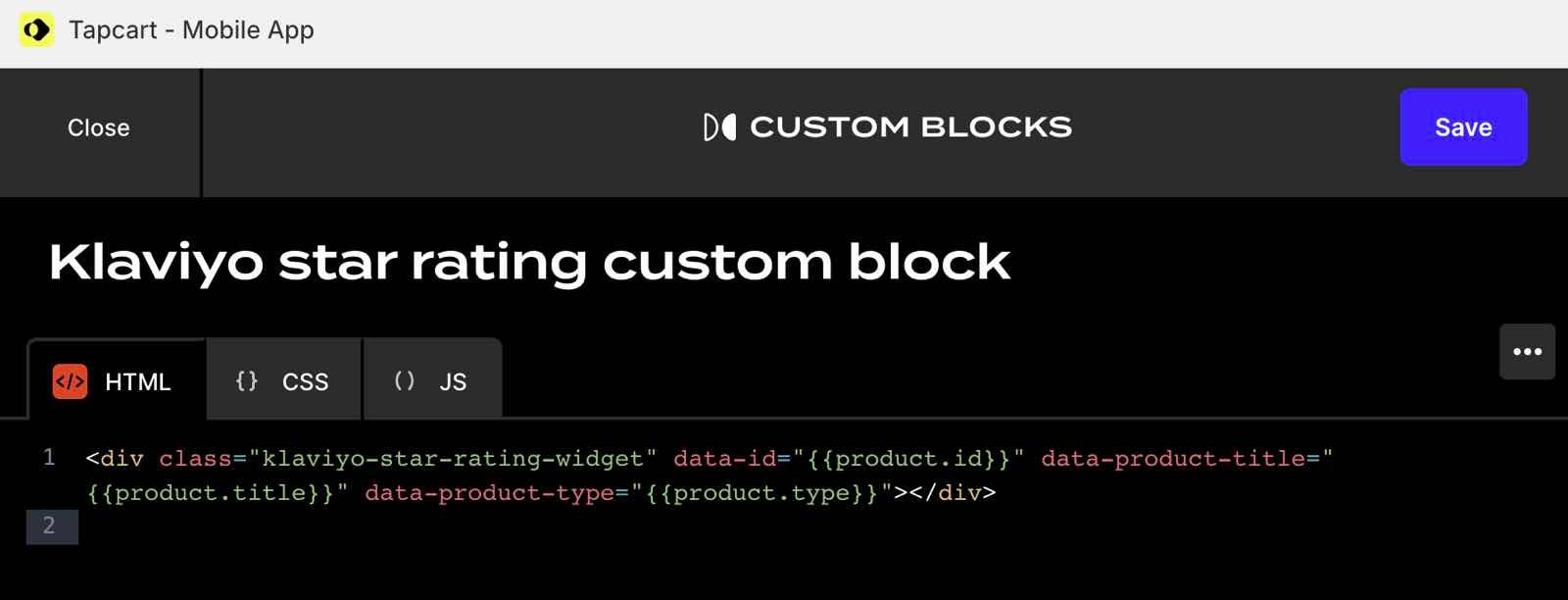
1. In the **HTML** tab of the block editor, paste the snippet for the widget you’d like to add (e.g., the star rating widget). Find the code snippets below:
1. [Star rating widget code](https://help.klaviyo.com/hc/en-us/articles/22500017241883.md#h_01HNDJ2XVMJGSX6T4QKBBDDBZ2)
2. [Product reviews widget code](https://help.klaviyo.com/hc/en-us/articles/22500017241883.md#h_01HNDJ2XVMZEZKE2MH9KF46K6M)
3. [Featured reviews carousel widget code](https://help.klaviyo.com/hc/en-us/articles/22500017241883.md#h_01HNDJ2XVMV6D8422M9NF6BSS4)
2. Click **Save**.
3. Click **Close** to exit the editor.
4. From the **App Studio** dropdown, select **Product detail**.

**📝 Note:** This step is required for the star rating and product reviews widgets. You can place the featured review widget on any app page.
1. Drag the saved custom block you just created into your template.
The editor may not load the widget directly; instead, you’ll see the block name as plain text. This is expected.
1. Click **Preview your app** and navigate to the page where you added the widget. Check that the widget appears correctly.
2. When you’re ready for customers to see the widgets, publish your changes in Tapcart.
**📝 Note:** The **Ask a question** and **Write a review** buttons will not work in preview mode. Once you publish the changes to your app, clicking these buttons in the app will open a new browser tab.
## Code snippets
### Star rating widget
```text
```
### Product reviews widget
```text
```
### Featured reviews carousel
```text
```
## Preview app widgets
The star rating and product reviews widgets need a real product ID to display the correct reviews. To preview these widgets, set a product ID in the **Variable Preview Values** field in the Tapcart editor. The featured reviews carousel does not need a product ID.
1. In the Tapcart *App Studio*, select **Custom** to view your custom widgets.
2. Click the three dots icon next to one of your review widget blocks and click **Launch Editor**.
3. Click **Settings**.

4. Scroll or search through the JSON to find the *id* variable within the *product* object. Note that there are other *id* variables within other objects; you only need to edit the product ID shown here.

5. Replace the sample product ID with the ID for a product in your store that has at least 1 review. To find a product ID, navigate to **Content > Products** in Klaviyo, then copy an item ID.

6. Click **Save**.
7. Repeat these steps for each star rating or product reviews custom block you added.
8. If the previews don't appear correctly right away, refresh the editor.
## Style app widgets
Changes to a widget’s settings in the Klaviyo widget editor apply to both your website and your app after you click **Publish changes**. To apply style changes to just your app, add custom CSS to the **CSS** tab of the custom block editor in Tapcart. Learn [how to use custom CSS to style Klaviyo Reviews widgets](https://help.klaviyo.com/hc/en-us/articles/22192640532507.md).
## Additional resources
- [How to request reviews from your customers with Klaviyo Reviews flows](https://help.klaviyo.com/hc/en-us/articles/16319809379611.md)
Learn how to configure key flows in Klaviyo to start acquiring customer reviews.
- [How to moderate reviews in Klaviyo](https://help.klaviyo.com/hc/en-us/articles/19351110471323.md)
Learn how to moderate product and store reviews in Klaviyo. Moderating allows you to publish all valid reviews while rejecting inappropriate or irrelevant reviews (e.g., reviews with offensive content).
- [Klaviyo Reviews data reference](https://help.klaviyo.com/hc/en-us/articles/16691649553179.md)
Learn about the additional data available in Klaviyo when you start using reviews. This data falls into two broad categories: delivery metrics (Shopify only) and reviews metrics (available for WooCommerce and Shopify).